Home
» MEDIA STREAMING
»
How to Update Your Amazon Firestick or Fire TV in a Few Steps
How to Update Your Amazon Firestick or Fire TV in a Few Steps
To update an Amazon Fire TV Stick, Fire TV Cube, or Fire TV smart TV, open Settings, select My Fire TV (or Device & Software), choose About, then select Check for System Update. If an update is offered, follow the on-screen instructions and keep the device powered on until installation is complete.
Fire TV normally downloads system updates automatically when connected to the internet. A manual check is useful when you are troubleshooting, setting up a device, or checking whether a newly released update has reached your model.
How to manually update your Firestick or Fire TV
Use your Fire TV remote to follow these four steps. Menu names can vary by model and software version; Amazon currently documents both My Fire TV and Device & Software for the device-settings menu.
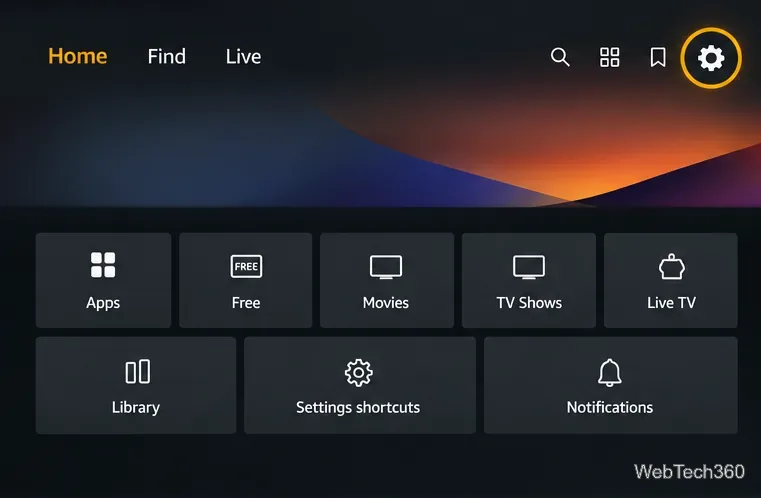
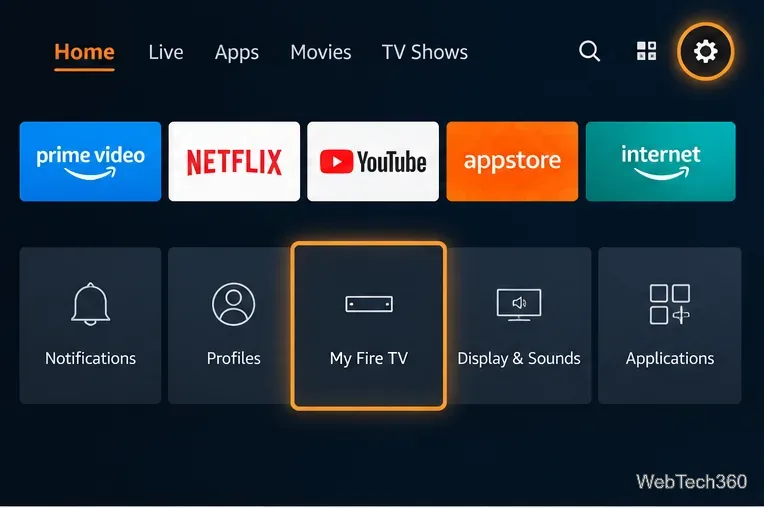
Open Settings. On the Fire TV home screen, use the gear-shaped Settings control to open device settings.Open the Settings gear from the Fire TV home screen.
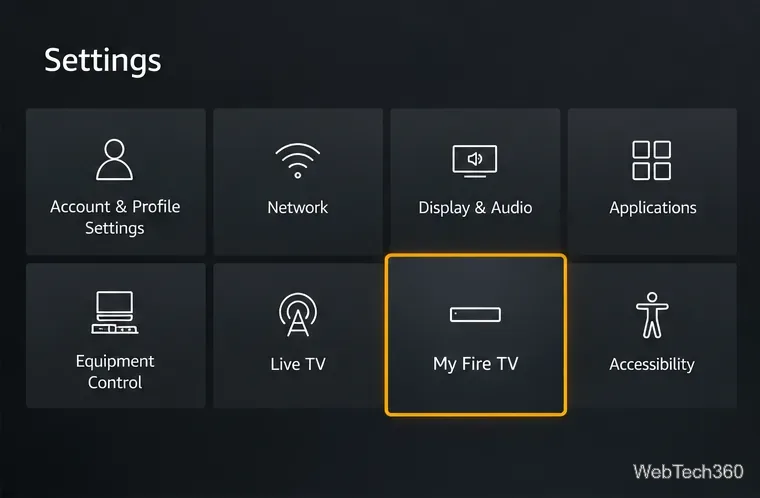
Select My Fire TV or Device & Software. This area contains software and device-management options.The device-management tile may be labeled My Fire TV or Device & Software.
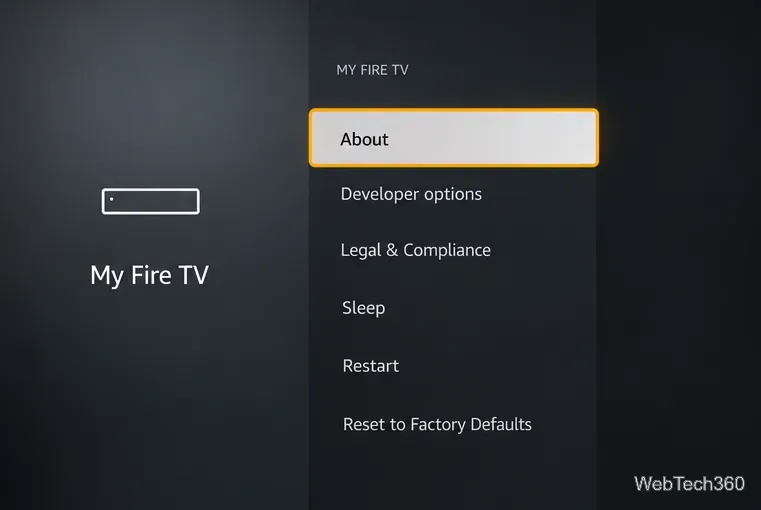
Choose About. This section identifies the device and provides access to software and storage details.Choose About to reach the system-update controls.
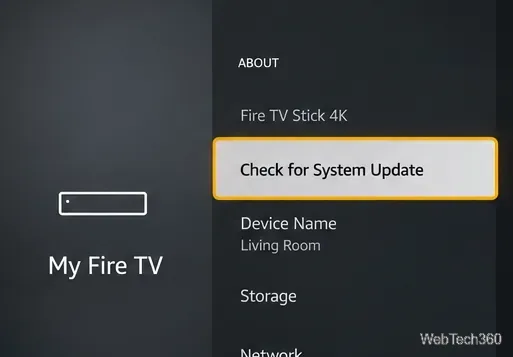
Select Check for System Update. Allow the device to check. If a download or installation option appears, select it and follow the prompts. If no update is offered, your device has no newer release available through its current update channel.Select Check for System Update, then follow any installation prompt.
Important: Do not unplug your Fire TV or interrupt its power while a system update is installing. The device may restart as part of installation. If the update screen differs from these examples, follow the labels shown on your actual device.
Does Fire TV update automatically?
Yes. Amazon says Fire TV devices and supported accessories automatically download software updates when connected to the internet. You normally do not need to force an update or install firmware from an unofficial website. Updates can arrive at different times for different devices, so two Fire TV Sticks may not display the same version on the same day.
To see the current software version, return to Settings > My Fire TV (or Device & Software) > About. Compare it with your exact model on Amazon's Fire TV device software updates page. Some current models use Vega OS rather than Fire OS, making model-specific comparison especially important.
How to update apps on Fire TV
Check for an individual app update
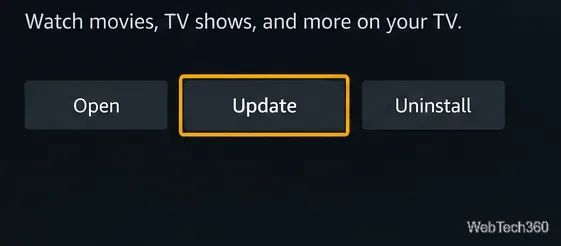
If a streaming app is misbehaving, open Appstore on your Fire TV, search for that app, and open its store listing. Choose Update if that option is shown. If you only see Open, the store is not offering an update for that app and device at that moment. This is separate from updating the Fire TV operating system.
An Update action appears on an app listing when a compatible update is available.
Check automatic app updates
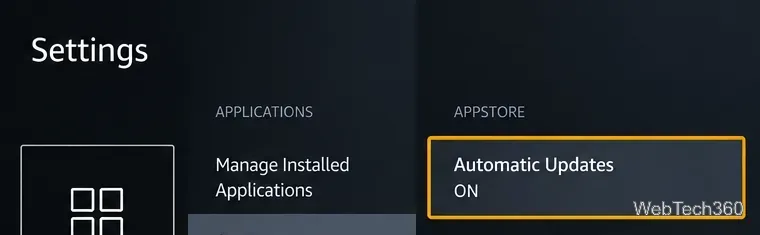
On Fire TV interfaces that expose the setting, go to Settings > Applications > Appstore > Automatic Updates and turn it on. Appstore-delivered updates usually run in the background, although some apps or permission changes may require action from you. If your Fire TV uses a different menu layout, look under Applications or Appstore settings rather than assuming the option exists in exactly the same place.
Automatic Updates, when available, controls updates for apps distributed through the Appstore.
What to do when a Fire TV update fails
If the download stalls or you receive an update error, start with the checks Amazon recommends. These are safer first steps than a factory reset.
1. Test the internet connection
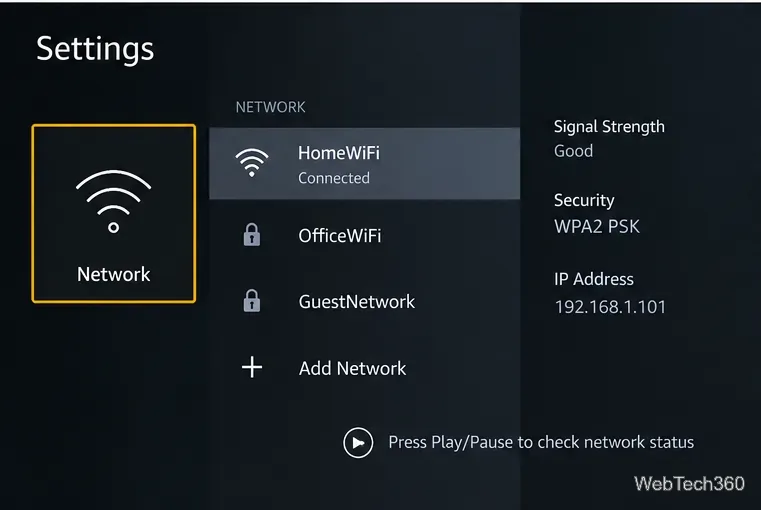
Open Settings > Network and press the Play/Pause button to run the network-status check. If the device cannot reach the internet, reconnect to Wi-Fi or restart your modem and router. A connected Wi-Fi symbol alone does not guarantee internet access.
Use the Play/Pause button in Network settings to check connectivity.
2. Check available storage
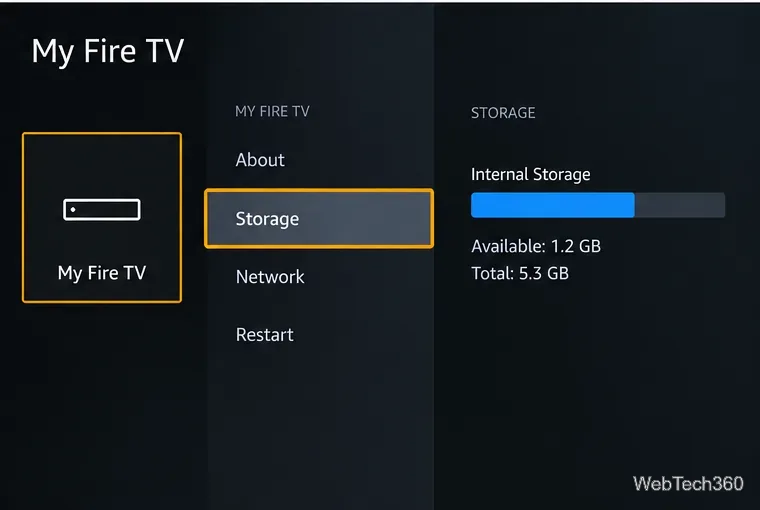
Amazon advises keeping at least 500 MB of available storage for a system update. Check Settings > My Fire TV (or Device & Software) > About > Storage. If space is low, go to Settings > Applications > Manage Installed Applications and uninstall apps you no longer use. Removing an app may remove its locally saved data.
Check available internal storage before retrying the update.
3. Restart the device and retry
When no update is currently installing, use Settings > My Fire TV (or Device & Software) > Restart. If the device does not respond, Amazon recommends unplugging a Fire TV streaming device, waiting one minute, and reconnecting it. Then return to About > Check for System Update.
For the official troubleshooting sequence, see Amazon's Unable to Update Your Fire TV Device guide. Avoid a factory reset unless other solutions fail: resetting can remove account information, installed apps, and settings.
What about sideloaded apps?
Apps installed from APK files outside Amazon's Appstore generally do not receive updates through the Appstore. Check the developer's official source for a compatible version and its installation instructions. On compatible Fire OS devices, reinstalling a correctly signed newer APK over the existing app may preserve its data; that is not guaranteed if package names or signatures change. Newer Vega OS devices use a different app platform, so Fire OS APK instructions do not apply universally. Avoid APK download sites and claims that a VPN or third-party updater is required to update Fire TV.
For the latest official menu path, consult Amazon's update instructions. A successful manual check, a stable connection, and adequate storage are normally all you need to keep Fire TV ready for streaming.