Home
» MEDIA STREAMING
»
Set Up Mobdro on a Fire TV Stick: Why It No Longer Works
Set Up Mobdro on a Fire TV Stick: Why It No Longer Works
You can’t set up a working version of the original Mobdro on a Fire TV Stick today. Mobdro stopped operating in 2021, and Amazon does not offer it in the Fire TV Appstore. The old guides that direct you to download a Mobdro APK are outdated; a file using the Mobdro name now is not proof that it comes from the original service or that its streams work.
Why old Mobdro setup guides no longer work
Mobdro was promoted as a way to browse live TV and other streams, but it was not a current, supported Fire TV app. On March 11, 2021, the Alliance for Creativity and Entertainment said Mobdro had ceased operations after an investigation and law-enforcement action involving Spanish police and Europol. ACE’s notice about Mobdro ceasing operations and Europol’s announcement about the takedown document that history.
That is why instructions built around an old version number, a third-party APK directory, ES File Explorer, or a download-enabled browser should not be treated as a current installation method. Even if a package installs, there is no official Mobdro service to restore, and no reliable way to confirm that a file carrying the name is genuine, maintained, or safe.
There is a concrete security reason to be cautious with lookalikes. In September 2025, security firm Cleafy reported an Android dropper posing as “Mobdro Pro IP TV + VPN” that delivered the Klopatra banking trojan. The report concerns that specific Android app; it does not establish that every file using the Mobdro name, or every Fire TV Stick, is infected. It does show why an old brand name or an APK download page is not a safety check. Read Cleafy’s technical report on Klopatra for the details.
Mobdro also should not be described simply as a neutral media player. ACE characterized its service as distributing infringing IPTV streams. Copyright rules and viewing circumstances vary by country, so choose a provider that is authorized to show the channels or programs you want in your location. A VPN does not verify an app’s publisher, restore Mobdro, or grant streaming rights.
Use your Fire TV Stick with an authorized streaming app
The practical replacement is to install the official Fire TV app offered by a broadcaster or streaming provider. App availability, live channels, and subscriptions differ by country, account, and device.
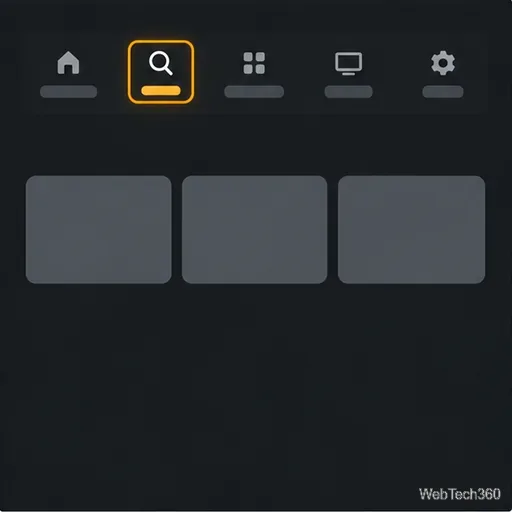
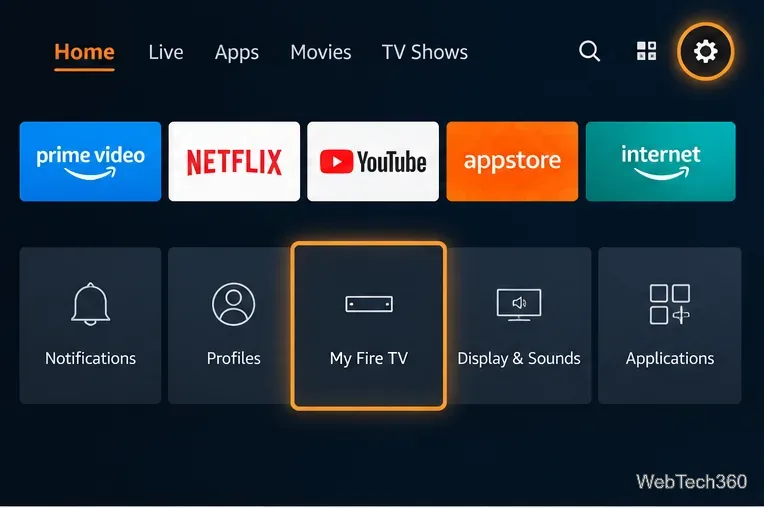
Search from the Fire TV home screen. Press Home, open Search or Find, and enter the name of a broadcaster or streaming service you already recognize. You can also use voice search on a compatible remote. Start with the provider’s official website if you need to confirm its app name.
Use the Fire TV home screen’s search control to look up a known streaming provider.
Check the Amazon Appstore listing. Open the result in the Appstore and check the app title and publisher. Compare them with the provider’s own support page, and check that the listing supports your Fire TV model and marketplace. If the provider says its app is unavailable for your device or region, do not substitute a random APK with a similar name.
Review the app listing and publisher in the Appstore before installing.
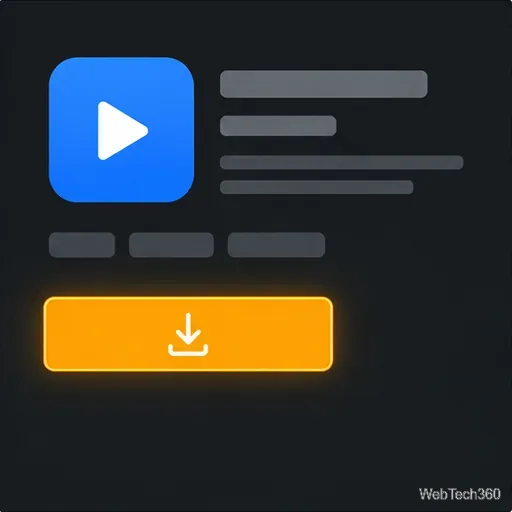
Install and open the official app. Select the Appstore listing and choose Get or Download, depending on the screen. When installation finishes, open the app from the Apps library, then follow the provider’s sign-in or subscription steps. The programs you can watch are determined by that provider’s catalog, plan, and rights in your location. Amazon’s Fire TV app-download instructions cover the official store workflow.
Install from the Appstore listing, then launch the provider’s app and follow its setup prompts.
If you cannot find an app, check the provider’s device-compatibility and country information, then confirm that your Fire TV is registered and connected to the internet. Store names and menu placement can vary with Fire OS updates. Use the provider’s official Fire TV or web option where offered; sideloading an unverified Mobdro copy is not a workaround.
Remove a Mobdro copy that is already installed
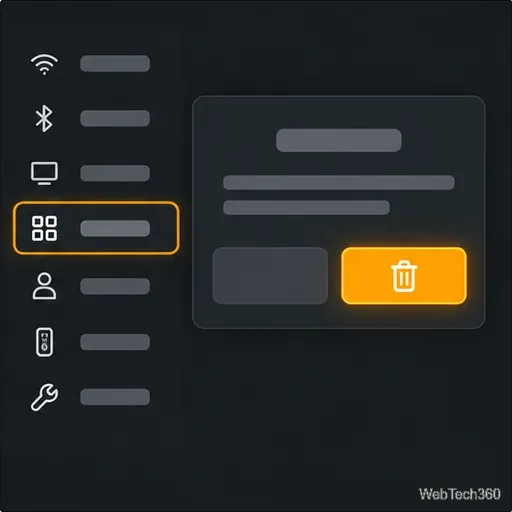
If you previously installed an app labeled Mobdro or Mobdro Pro, remove it rather than entering account details or granting extra permissions. On Fire TV, the usual path is Settings > Applications > Manage Installed Applications, select the app, and choose Uninstall. Amazon’s Fire TV uninstall instructions describe the process. Menu wording can differ slightly by device generation and software version.
Open Manage Installed Applications and uninstall a Mobdro-labeled app you no longer trust.
If you enabled an installer’s permission to install unknown apps solely for an old sideloading guide, turn that permission off when you are finished: look under Settings > My Fire TV or Device & Software > Developer Options for Install Unknown Apps. The exact menu varies, and you do not need to change developer settings to install Appstore apps. If a Mobdro-branded app asked you to enable unusual permissions, avoid using it and change any credentials you entered from a separate trusted device.
The takeaway
The original Mobdro service is shut down, so there is no trustworthy current procedure for getting it running on a Fire TV Stick. Use the Amazon Appstore to find an authorized provider, verify its publisher, and uninstall old Mobdro-labeled packages instead of following legacy APK instructions.