Home
» MEDIA STREAMING
»
Stremio (Kodi Alternative): How to Install It and Start Streaming
Stremio (Kodi Alternative): How to Install It and Start Streaming
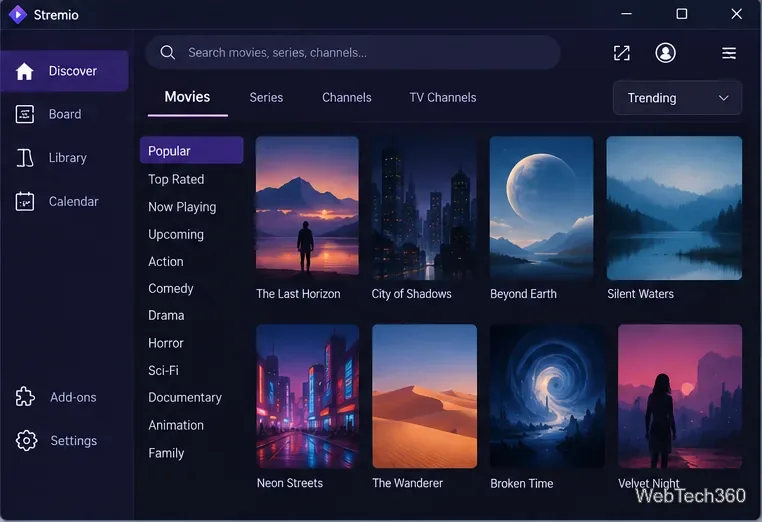
Stremio is a media center for finding, organizing, and watching video through supported streaming sources and add-ons. To get started, download the app from Stremio's official site, install it, choose an account or guest session, and add a trusted content source. This guide covers the current desktop experience and the important differences on mobile and TV.
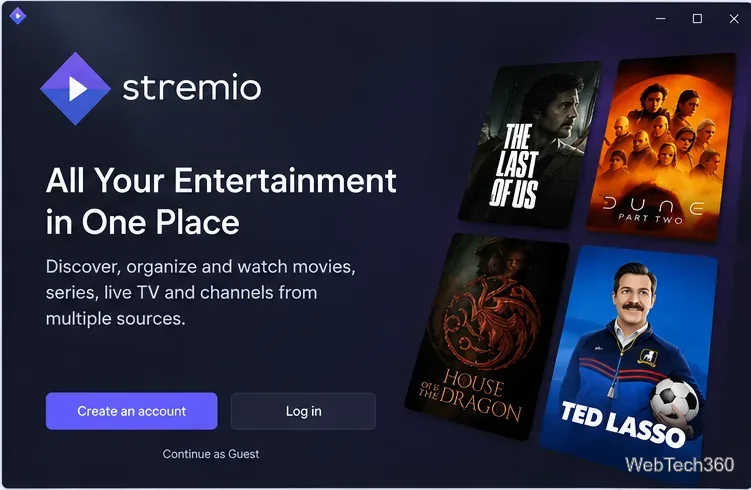
A typical starting point offers account and guest options.
What Is Stremio, and How Is It Different From Kodi?
Stremio starts with the title you want to watch. Search for a movie or series, open its details, and check which streams or services your installed add-ons can provide. Kodi, by comparison, emphasizes a highly customizable media-center setup and local-media management. Stremio's simpler, title-first workflow may be easier to learn, but it does not replace every Kodi feature.
Stremio itself is free to install; individual streaming services may require subscriptions or rentals. Content availability depends on your region and add-ons. Stremio does not provide a universal, free catalog of copyrighted movies.
How to Install Stremio
1. Download the Correct App
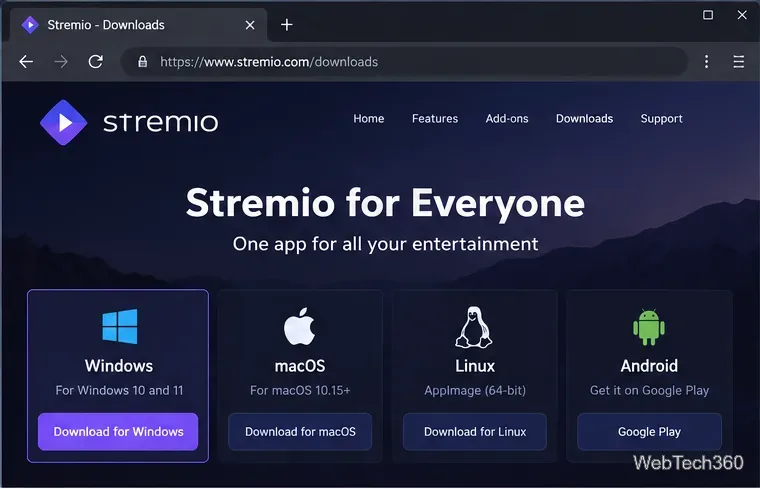
Visit the official Stremio downloads page and select your device. As of October 2026, its Windows download lists Stremio 5 for x64 systems, with a separate ARM option marked beta. Check the page rather than relying on an old version number.
Windows: Get the desktop installer for your processor.
macOS: Choose a compatible Apple Silicon, Intel, or native Mac build offered on the downloads page.
Linux: Use the available Flatpak or compatible package.
Android/Android TV: Prefer the official store listing linked from Stremio.
iPhone/iPad: Stremio lists a more limited web option and region-specific alternatives for its full app. Review its current iOS instructions; don't assume Android features work identically on iOS.
Choose the download for your operating system and processor.
2. Install and Open It
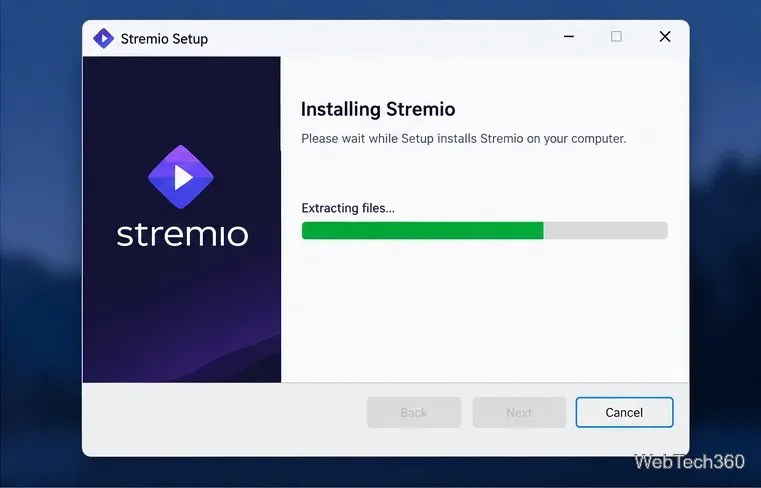
On Windows, open the file you downloaded, approve the operating system's prompt if appropriate, and follow the installer. On macOS, open the downloaded package and follow its installation instructions. On Linux, use your package manager or Flatpak workflow. Launch Stremio when installation finishes.
For a smart TV, use the supported TV's app store or platform instructions on the official downloads page. Avoid installers from unknown mirror sites.
Allow the desktop installer to finish before opening Stremio.
3. Sign In or Continue as a Guest
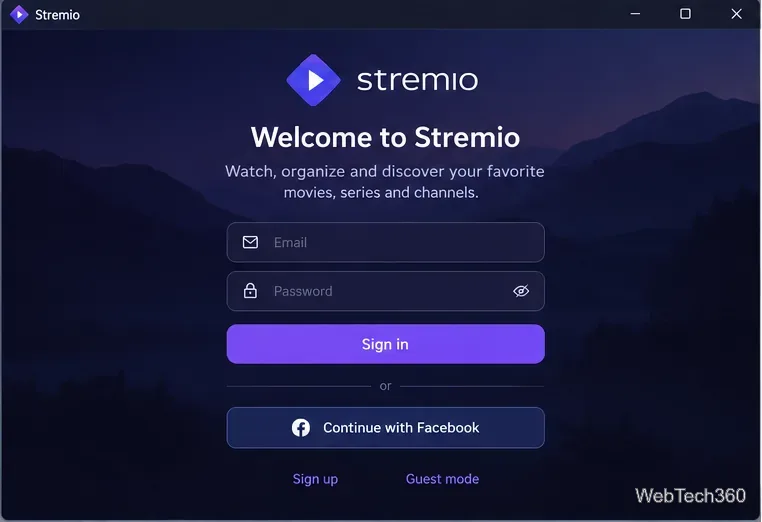
Create an account or sign in if you want your library and watch progress to follow you across supported devices. Guest mode is useful for trying Stremio without creating an account, but it does not provide the same cloud synchronization. Account options and their placement may differ among app versions.
Signing in allows account-based library and viewing-progress sync.
How to Use Stremio
4. Search and Explore Titles
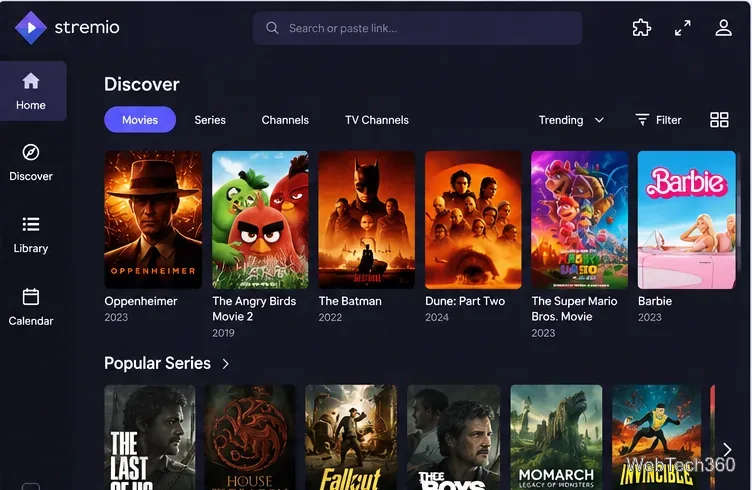
Use Discover or the search field to browse movies and TV series. Choose a title to see its summary, available episodes, and stream choices supplied by your add-ons. Seeing a title in Discover does not guarantee there is a playable source.
Browse titles or search directly for a movie or series.
5. Build Your Library and Check Upcoming Episodes
Open a title and use its library control to save it. Library keeps your selected movies and series together; Calendar, where available, helps track episodes of series you follow. An account makes these selections more useful across devices. A recent Stremio update also added a redesigned calendar to its Apple apps.
Use title details to decide what to save to your library.
6. Install Add-ons Carefully
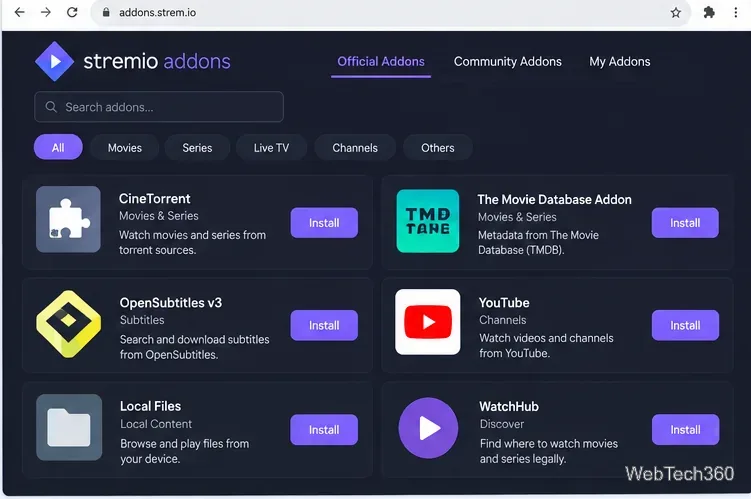
Add-ons supply catalogs, subtitles, and streaming-source information. Open the Add-ons section (often shown with a puzzle-piece icon), browse or search, review the description, and select Install. You can manage installed add-ons from the same section. See Stremio's official add-on instructions.
Official add-ons are maintained by Stremio; community add-ons come from independent developers and may change, stop working, or provide content you are not authorized to view. Don't install everything indiscriminately. Check the developer, requested access, source legitimacy, and applicable copyright rules. The add-on system is not a guarantee that a stream is lawful or safe.
Review each add-on and its publisher before selecting Install.
7. Select a Stream and Adjust Playback
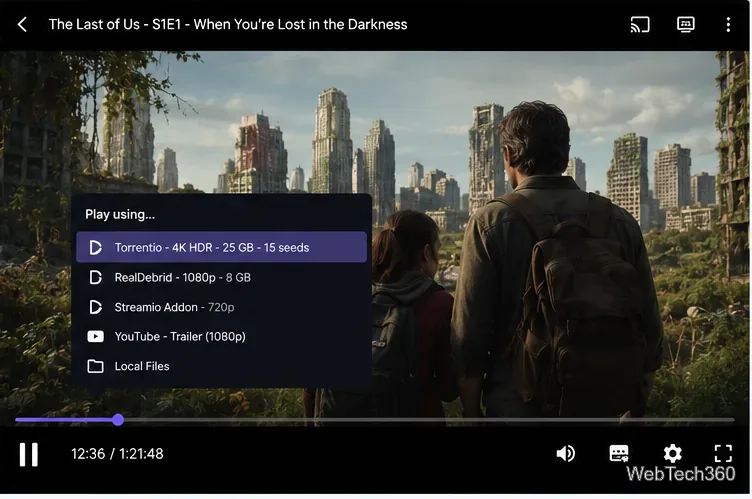
Return to the title, choose a source you are entitled to access, and start playback. Available options may include an authorized streaming service, an open video source, or a local file. Use player controls for pause, fullscreen, audio, and subtitles where supported. Subtitle availability depends on the selected title and subtitle add-on.
Available playback options depend on your add-ons and viewing rights.
Fix Common Stremio Problems
No streams available: Check that a suitable add-on is installed, that the title is offered by your authorized service, and that the add-on is functioning. See Stremio's troubleshooting advice.
Playback fails in a browser: Some sources need components not available in the web app. Try the supported desktop app or follow the Stremio Service instructions where applicable.
A local file doesn't appear: On supported desktop builds, check Settings > Streaming for the local-files add-on, restart the app, or drag a supported video file into Stremio. See the local content guide.
Is Stremio a Good Kodi Alternative?
Choose Stremio if you mainly want a straightforward way to discover titles, manage a watchlist, and launch streams from sources you use legally. Kodi remains a stronger fit for extensive customization and a deeply configured local-media library. Neither app automatically grants access to paid content, and a VPN does not make an unauthorized stream legal.