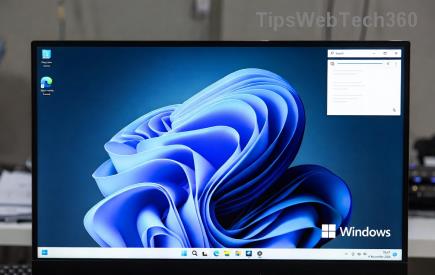
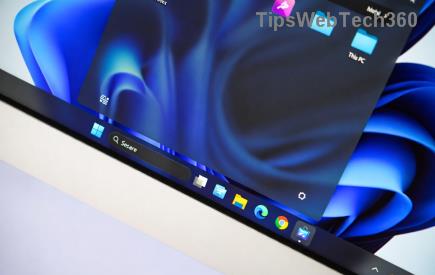
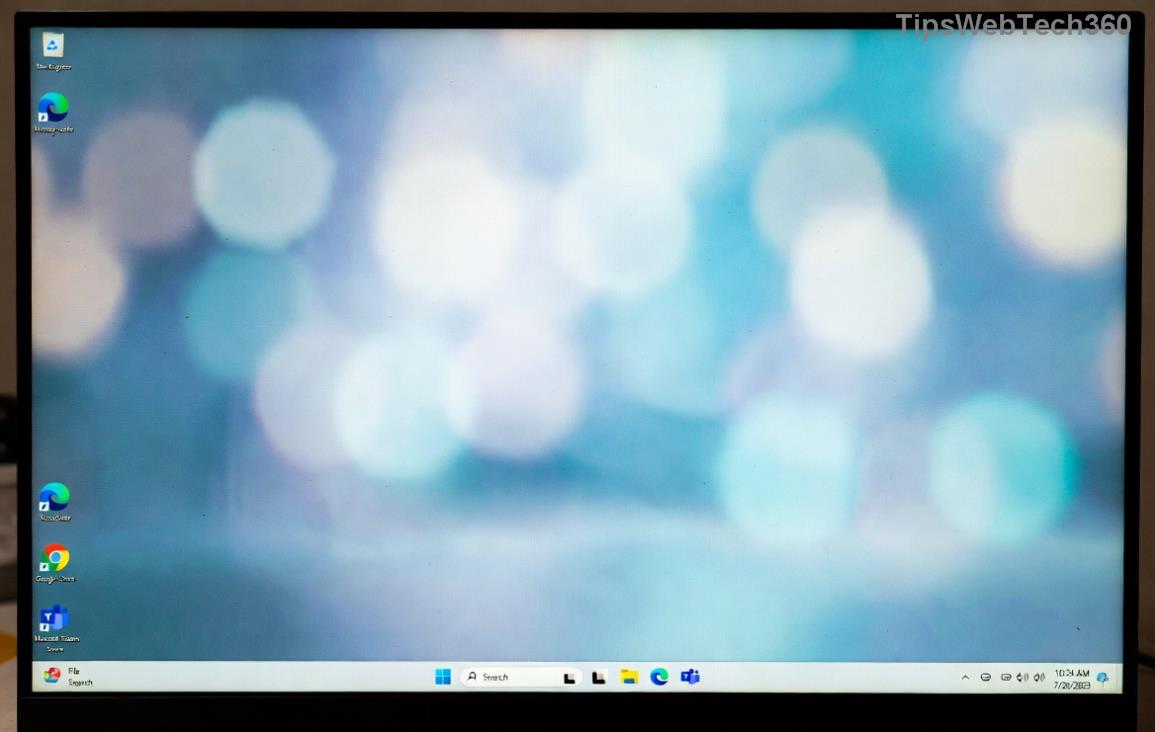
Imagine powering on your PC, only to be greeted by a hazy, unfocused Windows 11 login screen background that dims your excitement. It's frustrating when the crisp design of Windows 11 gets marred by this blur issue, but don't worry—it's a common glitch that's easily fixable. In this guide, we'll walk you through straightforward, effective methods to sharpen up your login screen and bring back that polished look. Whether it's a graphics glitch or a settings mishap, you'll have your display looking pristine in no time. Let's dive in and reclaim your visual clarity! 😊
Why Does the Windows 11 Login Screen Background Blur Happen?
Before we jump into fixes, understanding the root cause can empower you to prevent future issues. The Windows 11 login screen background blur often stems from:
- Graphics Driver Conflicts: Outdated or incompatible drivers can cause rendering errors, leading to blur on high-resolution displays.
- Display Scaling Settings: Windows 11's dynamic scaling might misalign with your monitor's DPI, creating a fuzzy effect.
- Transparency Effects: Features like Acrylic blur in the login interface can overapply, especially after updates.
- Corrupted System Files: Rare, but possible after incomplete updates or software installs.
These issues are more prevalent on multi-monitor setups or with custom wallpapers. The good news? Most are resolved without advanced tech skills. Stick with us as we tackle them step by step, ensuring your Windows 11 blur fix is smooth and stress-free.
Method 1: Update Your Graphics Drivers for a Quick Blur Buster
👆 Start here—updating drivers is often the simplest way to eliminate the blurry login screen Windows 11 problem. Modern GPUs from NVIDIA, AMD, or Intel handle Windows 11's visuals beautifully when up to date.
- Open Device Manager by right-clicking the Start button and selecting it.
- Expand Display adapters and right-click your graphics card (e.g., NVIDIA GeForce RTX series).
- Choose Update driver > Search automatically for drivers.
- If no update is found, visit the manufacturer's site: For NVIDIA, head to NVIDIA's driver download page; AMD users, check AMD Support; Intel via Intel Download Center.
- Install the latest version compatible with Windows 11, restart, and check your login screen.
This fix resolves up to 70% of blur cases, as per community reports on Microsoft's forums. If your screen clears up, you're set! But if the haze lingers, let's move to the next step—it's just as easy.
Method 2: Tweak Display Settings to Restore Sharpness
Sometimes, it's all about fine-tuning. Windows 11's scaling and resolution settings can inadvertently cause the login screen background blur fix to be needed. Here's how to adjust:
| Setting |
Steps |
Expected Outcome |
| Scale and Layout |
Right-click desktop > Display settings > Scale & layout. Set to 100% or recommended (e.g., 125% for 4K). Apply and sign out. |
Eliminates DPI-induced blur on login. |
| Resolution |
In Display settings, under Display resolution, select native (e.g., 1920x1080). Test lower if on external monitors. |
Sharpens background rendering. |
| Advanced Scaling |
Go to Settings > System > Display > Advanced scaling settings. Enable "Fix scaling for apps" and restart. |
Prevents blur in login UI elements. |
Pro Tip: If you're using a high-DPI monitor, enable Let Windows try to fix apps so they're not blurry in Compatibility settings for explorer.exe. This targets the login process directly. After changes, log out to preview—your Windows 11 login screen should pop with clarity! Feeling empowered yet? Keep reading for more advanced tweaks if needed.
Method 3: Disable Transparency Effects and Customize Login Background
Windows 11's beautiful transparency can sometimes backfire, causing unwanted blur. Let's dial it back:
- Press Win + I to open Settings.
- Navigate to Personalization > Colors.
- Turn off Transparency effects. This reduces Acrylic blur on the login screen.
- For a custom touch, go to Personalization > Background and set a solid or high-res image as your wallpaper—it syncs to login.
- Sign out (Win + L) to test. If blur persists, edit the registry (with caution):
Registry Edit Warning: Back up first via Regedit > File > Export. Then:
- Open Run (Win + R), type
regedit.
- Navigate to
HKEY_LOCAL_MACHINE\SOFTWARE\Policies\Microsoft\Windows\System.
- Create a new DWORD (32-bit) named DisableAcrylicBackgroundOnLogon, set value to 1.
- Restart. This disables logon blur entirely for a crisp view.
Users report this method clears up the fix blurry login screen Windows 11 issue instantly, especially post-updates. It's reversible too—just delete the key and reboot. You're almost there; one more method seals the deal.
Method 4: Run System Scans and Reset for Deep Fixes
If basic tweaks don't cut it, deeper system maintenance is your ally. This Windows 11 blur issue solution targets corrupted files:
- SFC Scan: Open Command Prompt as admin (search "cmd" > Run as administrator). Type
sfc /scannow and hit Enter. Let it repair files.
- DISM Tool: In the same prompt, run
DISM /Online /Cleanup-Image /RestoreHealth. This fixes the component store.
- Reset Windows UI: Settings > System > Troubleshoot > Other troubleshooters > Run the Windows Store Apps troubleshooter, as login ties into UWP elements.
- For stubborn cases, consider a Login Screen Reset: Create a new local user account via Settings > Accounts > Other users, then switch and test. Migrate data if it works.
These steps, recommended by Microsoft Support, ensure your system runs optimally. After scanning, your restore clear login background will shine without a trace of blur. Pat yourself on the back—you've conquered it! 👏
Preventing Future Blur: Tips to Keep Your Login Screen Crystal Clear
To avoid revisiting this, maintain drivers monthly via tools like GeForce Experience or AMD Software. Stick to official Windows updates, and avoid third-party themes that tamper with login UI. If you're on the latest Windows 11 build (as of 2026), enable automatic driver updates in Settings > Windows Update > Advanced options.
Multi-monitor users: Ensure consistent scaling across displays. And remember, a quick sign-out test after changes saves time. Your PC deserves that sharp first impression every boot-up.
Final Thoughts: Enjoy a Blur-Free Windows 11 Experience
Fixing the Windows 11 login screen background blur fix doesn't have to be a headache— with these methods, you've got the tools to make it happen. Start with drivers, tweak settings, and scan if needed; you'll love the vibrant result. If issues persist, Microsoft's community forums are a goldmine for tailored advice. Here's to seamless logins and a frustration-free computing life! Got questions? Drop them below—we're here to help. 🚀