Imagine navigating your digital world without the frustration of blurred colors or missed details. For millions living with color blindness, everyday tasks like reading charts or enjoying photos can feel overwhelming. But here's the good news: Windows 11 has built-in color filters designed to transform your experience. These powerful tools adjust screen colors in real-time, making content pop with clarity and ease.
In this guide, we'll walk you through everything you need to know about how to use Windows 11 color filters for colorblind users. Whether you're new to accessibility features or looking to fine-tune your setup, you'll gain practical steps, insider tips, and a sense of empowerment. Let's dive in and brighten your screen—literally! 🌟
What Are Windows 11 Color Filters and Why Do They Matter for Colorblind Users?
Color filters in Windows 11 are accessibility features that overlay a subtle tint on your entire display, altering how colors appear without changing the underlying content. They're especially game-changing for colorblind individuals, who might struggle with distinguishing reds from greens or blues from purples.
According to Microsoft's latest accessibility updates, these filters support common types of color blindness, such as deuteranomaly (green-weak) and protanomaly (red-weak). By applying filters like Grayscale, Inverted, or specialized ones like Deuteranopia, you can enhance contrast and differentiation. It's not just about visibility—it's about reclaiming confidence in your daily computing.
Think of it this way: without these tools, a simple email with color-coded attachments might cause unnecessary stress. With color filters, that same email becomes effortlessly readable. Ready to see the difference? Let's get to the setup.
Step-by-Step Guide: How to Enable Color Filters in Windows 11
Enabling Windows 11 color filters is straightforward and takes just a few minutes. Follow these steps to get started—no tech expertise required! We'll keep it simple and focused on what works best for colorblind users.
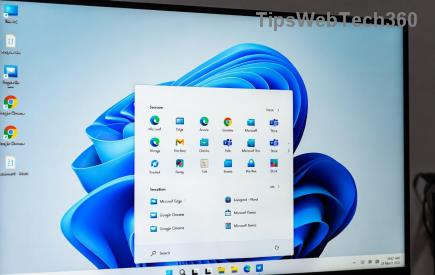
- 🖱️ Open Settings: Click the Start button (Windows icon) on your taskbar, then select the gear icon for Settings. Alternatively, press Windows key + I for a quick shortcut.
- Navigate to Accessibility: In the Settings menu, scroll down and click on Accessibility. This hub is your go-to for all Windows 11 inclusivity features.
- Select Color Filters: Under the Vision section, find and click Color filters. You'll see a toggle switch here—flip it to On to activate.
- Choose Your Filter: Once enabled, explore the available options. For colorblind support:
- Grayscale: Converts everything to black and white, ideal if colors overwhelm you.
- Inverted: Flips colors for high contrast, great for low-light conditions.
- Deuteranopia: Boosts green visibility for red-green color blindness.
- Protanopia: Enhances red tones similarly.
- Tritanopia: Adjusts for blue-yellow deficiencies.
Select one by checking the box next to it. Windows 11 previews the effect live, so you can test instantly.
- Keyboard Shortcut for Quick Toggle: For seamless switching, enable the shortcut in the same menu. Press Windows key + Ctrl + C anytime to turn filters on or off. It's a lifesaver during meetings or browsing!
Pro tip: If you're unsure which filter suits your color blindness type, start with Deuteranopia—it's the most common. Adjust as needed, and you'll notice immediate improvements in apps like browsers or photo editors.
Customizing Color Filters for Your Unique Needs
One size doesn't fit all when it comes to colorblind accessibility. Windows 11 lets you tweak color filters for a personalized touch. In the Color Filters menu, look for the Color filter strength slider. Drag it to intensify or soften the effect—subtle changes can make a big difference without over-saturating your screen.
For advanced users, combine filters with other Windows 11 features like High Contrast mode (found in the same Accessibility section). This duo amplifies visibility for tasks like graphic design or gaming. Imagine spotting enemies in a video game that uses tricky color cues—now that's empowering! 😊
Don't forget to test in real scenarios. Open a colorful website or your favorite app, toggle the filter, and see how it feels. Over time, you'll refine it to match your workflow perfectly.
Troubleshooting Common Issues with Windows 11 Color Filters
Even the best features can hit snags. If color filters aren't applying correctly, restart your PC first—it's a simple fix for most glitches in the latest Windows 11 builds. If that doesn't work:
- Check for Updates: Go to Settings > Windows Update and install any available patches. Microsoft's ongoing improvements ensure colorblind tools stay reliable.
- App Conflicts: Some third-party apps override system filters. Close them or adjust their settings individually.
- Multiple Monitors: Filters apply system-wide, but ensure all displays are set to the same color profile in Display Settings for consistency.
If you're still stuck, Microsoft's support community is a goldmine. For official guidance, visit Microsoft's Color Filters page.
Real-Life Benefits: How Color Filters Change Lives for Colorblind Users
Beyond the tech, Windows 11 color filters foster independence and joy. Users report easier web browsing, better productivity at work, and even more fun in creative hobbies. One developer shared how Deuteranopia filters helped them debug code with color-highlighted errors, turning a daily headache into a breeze.
For students or professionals, these tools level the playing field. Pair them with Narrator (Windows' screen reader) for full accessibility. The emotional win? Feeling included in a color-rich digital world. You've got this—your setup is now tailored for success! 👏
Enhance Your Setup: Tips and Complementary Features
To maximize how to use Windows 11 color filters for colorblind, integrate them with Magnifier for zoomed-in views or Night Light to reduce eye strain. Create a quick access shortcut on your desktop for one-click activation.
Explore Microsoft's Accessibility Insights tool for testing app compatibility—it's free and ensures your favorite software plays nice with filters. As you experiment, you'll uncover even more ways to customize, keeping your experience fresh and effective.
Final Thoughts: Embrace Accessibility Today
Mastering Windows 11 color filters isn't just a tweak—it's a step toward a more vibrant, frustration-free life. Whether you're adjusting for the first time or optimizing an existing setup, these features empower colorblind users to thrive. Start small, test often, and watch your digital world come alive. What's your first filter to try? Share in the comments below—we'd love to hear your story!
Stay tuned for more Windows 11 accessibility guides to keep your setup inclusive and innovative.