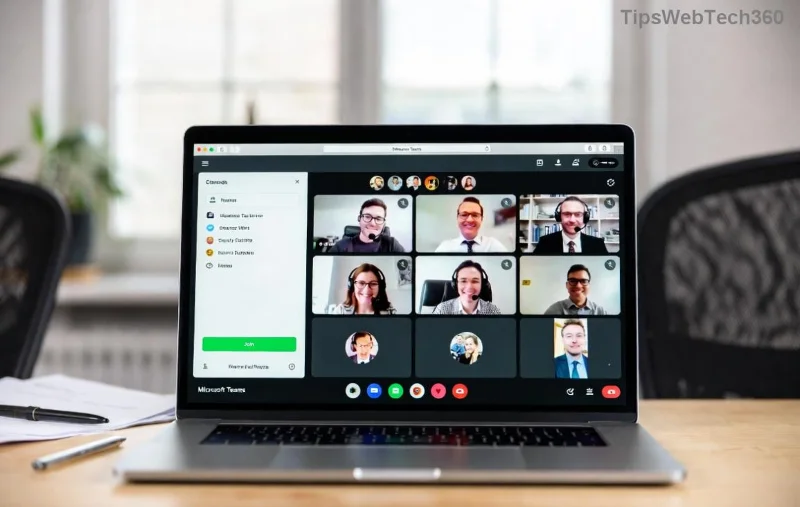
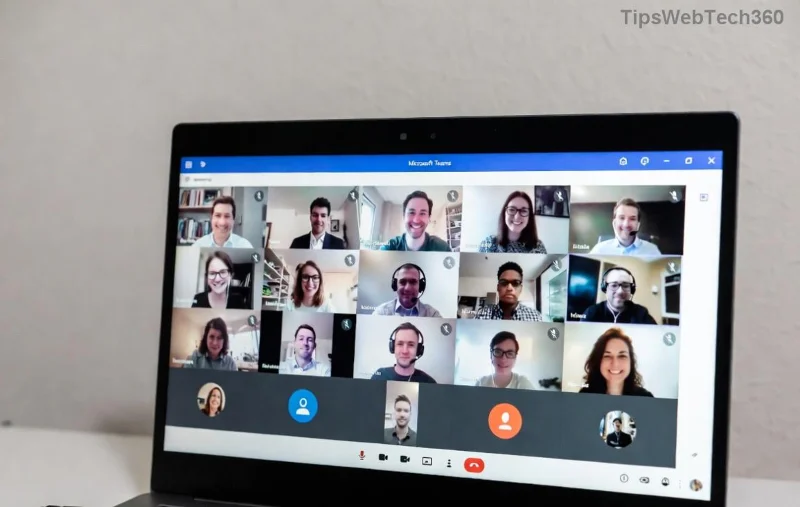
Ever felt your plain wall stealing the show in a Microsoft Teams meeting? 😩 It's time to level up! Customizing your Microsoft Teams background image adds personality, professionalism, or fun to your video calls. Whether you're blurring the chaos behind you or uploading a beach paradise, this guide delivers easy steps for every device. Stick around for troubleshooting tips and insider hacks to keep your meetings visually stunning. Let's dive in! 👆
Why Change Your Microsoft Teams Background Image? Quick Wins for Better Meetings
Teams backgrounds hide clutter, boost branding, and spark joy. Blur for privacy, pick themes for holidays, or upload logos for work. Pro tip: Use high-res images (1920x1080 pixels, PNG/JPG) for crisp results. Ready? Here's how to change your Microsoft Teams background image in seconds.
⭐ Method 1: Change Teams Background Before Joining a Meeting (Easiest for Prep)
Prep like a boss! This works on Teams desktop app (Windows/Mac), web, and mobile.
- Open Teams and click your profile picture (top right) → Devices.
- Select Background effects or Background settings.
- Browse built-in options: Offices, landscapes, abstracts. ⭐ Love the blur? Pick Blur my background for instant tidy-up!
- Hover previews → Click your fave. See it live in the preview window.
- Hit Preview or Apply and turn on video. Done! 🎉
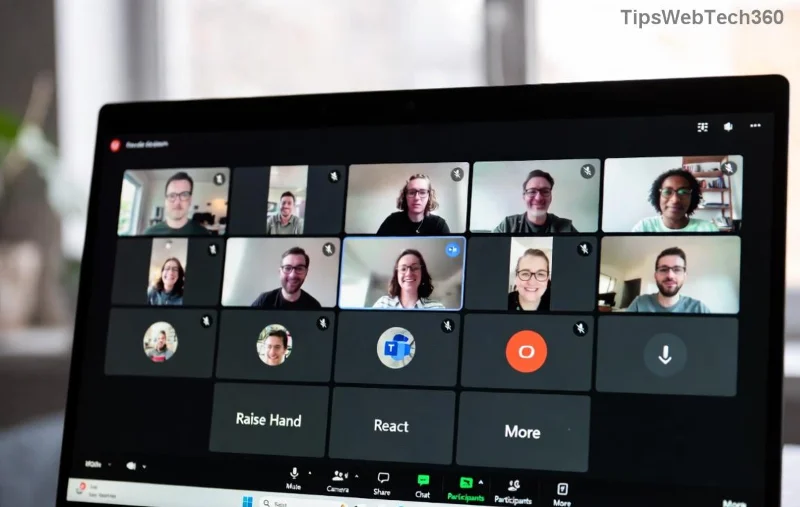
Bonus: Pin your favorite for future use—it auto-applies!
⭐ Method 2: Change Background During a Teams Meeting (Live Magic)
Mid-meeting makeover? No sweat.
- Click the three dots (...) → Show background effects.
- Scroll categories: Featured, Professional, etc. Test with live preview.
- 👆 Click to apply. Everyone sees the switch instantly!
- Exit via Preview → Apply or None to revert.
![Changing Microsoft Teams background image during a live meeting]()
Pro hack: Switch to blur if your setup gets noisy. Keeps focus on you.
🚀 Unlock Custom Backgrounds: Upload Your Own Teams Background Image
Built-ins boring? Go custom! Requires Teams desktop app (version 1416/1.0.0.2020+).
| Step | Action | Device |
|---|
| 1 | Before meeting: Profile → Devices → Background effects → Add new. | Desktop |
| 2 | Select image (JPG/PNG, <4MB, 1920x1080 ideal). Avoid text-heavy pics. | Desktop |
| 3 | Teams processes → Preview → Apply. | All |
| 4 | Mobile/Web: Limited—use desktop to upload, syncs across. | Mobile/Web |
![Uploading custom background image in Microsoft Teams]()
💡 Tip: Crop faces/eyes to center—Teams AI detects better. Download free packs from Microsoft Support.
📱 Device-Specific: How to Change Teams Background on Mobile & Web
- Android/iOS App: Join → More (...) → Effects and Avatars → Backgrounds. Blur/custom limited—desktop sync helps.
- Teams Web (Browser): Calendar → Join → More actions → Apply effects. No uploads, but blurs/previews rock.
- Mac Users: Ensure permissions (System Preferences → Screen Recording).
⚠️ Troubleshooting: Background Not Working? Fix It Fast!
Frustrated? Common fixes:
| Issue | Fix |
|---|
| No effects menu | Update Teams app. Check official download. |
| Custom upload fails | Image format/size? Restart app. Admin policy? Ask IT. |
| Choppy preview | Lower video quality or close tabs. |
| Not showing for others | Turn on video. Rejoin meeting. |
Still stuck? Toggle New meeting experience in Settings → General.
🎨 Pro Tips & Creative Ideas for Microsoft Teams Backgrounds
- Blur Power: Perfect for messy rooms. Feels pro! ✨
- Brand It: Company logo on solid color—impress clients.
- Themed Fun: Holidays? Pumpkins! Team events? Custom collages.
- Privacy Hack: None + blur = invisible fortress.
- Batch upload 5-10 customs for quick swaps.
Experiment—your background sets the vibe. Share yours in comments! 👏
Wrap-Up: Transform Meetings Today
Mastering how to change your Microsoft Teams background image is a game-changer. From quick blurs to epic customs, you've got the tools. Update your app, test in a solo call, and shine next meeting. Questions? Drop 'em below—we're here to help. Happy Teaming! 🚀