Frustrated because your Microsoft Teams Breakout Rooms not showing during important meetings? You're not alone—this common glitch disrupts collaboration for hosts and participants alike. But don't worry! This guide delivers quick, actionable fixes based on the latest Teams updates, helping you restore breakout rooms effortlessly. Whether you're a host assigning rooms or a participant waiting to join, follow these steps to get back on track. Let's dive in and fix it now! 🚀
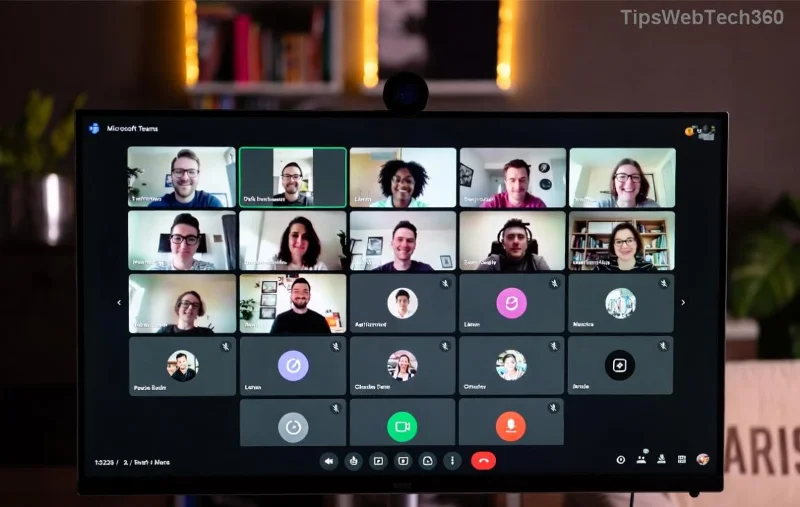
Why Are Microsoft Teams Breakout Rooms Not Showing? Top Causes
Understanding the root causes saves time. Here's what typically triggers this issue:
- ✅ Not the host or co-host: Only hosts/co-hosts can create rooms.
- 🔍 Outdated Teams app/browser: Missing latest features.
- ⚙️ Meeting policy restrictions: Admin settings block breakout rooms.
- 🌐 Network or cache issues: Glitches from poor connection or corrupted data.
- 📱 Device/app compatibility: Mobile or web versions lag behind desktop.
Spot your scenario? Jump to the fixes below. Pro tip: Always start with the simplest checks for fastest results! 😊
Quick Fixes: How to Fix Microsoft Teams Breakout Rooms Not Showing for Hosts
As a host, the breakout rooms button should appear in the meeting toolbar. If it's missing, try these in order:
- Verify Host Status & Permissions
Ensure you're the meeting organizer or promoted as co-host. Click More actions (⋯) > Manage participants > Make co-organizer. Refresh the meeting—rooms should appear!
- Update Microsoft Teams
Go to your profile picture > Check for updates. Install the latest version (desktop recommended for full features). Restart Teams post-update.
- Enable Breakout Rooms in Meeting Options
Before starting: Calendar > Meet now > Breakout rooms > Create. During meeting: More actions > Breakout rooms. If grayed out, check admin policies.
![Step-by-step guide to enabling breakout rooms in Microsoft Teams]()
Fixes for Participants: Why Can't You See Assigned Breakout Rooms?
Participants often see "No breakout room assigned" or nothing at all. Here's how to resolve:
- Join via Notification Prompt
Watch for the pop-up banner at the top: Click Join. Dismissed it? Ask host to reassign.
- Check Meeting Chat & Rosters
Look in chat for room assignments. Go to People pane to confirm your room.
- Switch Devices or Apps
Desktop > Web > Mobile. Web version: Use Edge/Chrome for best compatibility.
Advanced Troubleshooting Table for Teams Breakout Rooms Not Showing
Use this handy table for targeted fixes:
| Issue |
Symptom |
Fix |
| Button Missing |
No "Breakout rooms" in toolbar |
Promote to co-host or update app |
| Grayed Out |
Option visible but disabled |
Check Teams Admin Center policies |
| Not Assigned |
Participant sees no room |
Host: Reopen rooms > Assign participants |
| Loading Forever |
Spinner but no rooms |
Clear cache: %appdata%\Microsoft\Teams > Delete contents |
| Mobile Only |
iOS/Android glitch |
Force close app > Rejoin via desktop |
![Troubleshooting table visualization for Teams breakout rooms issues]()
Pro Tips to Prevent Microsoft Teams Breakout Rooms Not Showing Forever
- ⭐ Pre-Meeting Prep: Test breakout rooms in a practice meeting.
- 🔧 Clear Cache Regularly: Windows: Win+R > %appdata%\Microsoft\Teams > Delete folders. Mac: ~/Library/Application Support/Microsoft/Teams.
- 📞 Admin Check: If in an org, ask IT to enable "Meetings > Breakout rooms" in policies. Reference official docs: Microsoft Learn Breakout Rooms.
- 🌐 Stable Connection: Use wired internet; avoid VPNs during creation.
- 👥 License Verification: Ensure Teams Premium or E3/E5 for advanced features.
Still Stuck? Next Steps
If Microsoft Teams Breakout Rooms not showing persists, restart your device, test in incognito mode, or report via Teams: Help > Give feedback. For enterprise users, contact Microsoft Support directly.
✅ You've got this! These fixes work for the newest Teams builds. Share your success in the comments—did one step save your meeting? Bookmark this for future reference and host flawless breakout sessions every time. Happy teaming! 🎉










Minh Anh -
Anyone else facing this after the latest Teams update? These solutions rock, but wondering if there's a permanent fix for the glitch
Lan Rồng -
Super helpful post! As a teacher, breakout rooms are essential for group activities. Solution 3 and 7 combo fixed it for me instantly. No more headaches. Will bookmark for next time. Thanks author! ❤️
Thùy Linh -
Thanks man! Solution #4 with the cache clear totally fixed my breakout rooms not showing in Teams. Been struggling for weeks during our team meetings. You're a lifesaver! 👍
Quang vn -
lol my boss was furious cuz breakout rooms failed mid-meeting. Used fix #5, now all good. Thanks for the 2026 update, future-proof! 😂
Mèo con -
OMG finally! Number 6 worked for me after nothing else did. Breakout rooms are back in Microsoft Teams. Thumbs up! 😍
Phúc IT -
solid advice. i always forget to check network settings. fixed my teams breakout rooms in under 5 mins. pro tip: do it before meeting starts
Việt Hacker -
haha teams being teams again. fixed with dns flush. you're welcome future me. btw, any fixes for screen sharing lag too
Sơn GameR -
Great stuff. Used it for gaming clan meetings on Teams. Breakout rooms fixed, no more chaos. Pass it on folks
Linh mèo -
I had the same Teams glitch last week. Tried updating to the latest version as per solution 2, and boom, breakout rooms appeared. Sharing this with my colleagues right now
Ngọc Hà Nội -
Thank you so much! After trying solution 2, my breakout rooms showed up. was about to rage quit teams forever. you're the best! 🎉
Duy Sinh 6789 -
Worked perfectly. Just restarted the host account and it fixed the not showing issue. Quick and easy. Cheers
Tú ITPro -
Last month during a company hackathon, breakout rooms disappeared on all participants' ends. We followed your guide: checked meeting policies in admin center (solution 10), updated everyone to 2026 version, and restarted services. Worked like a charm! Added a custom script for auto-checks now. Epic troubleshooting resource. (68 words)
Hương KT -
Appreciate the detailed steps. As an accountant hosting training sessions, this saved my day. Breakout rooms fixed after permissions check
Bảo Bình -
I've been dealing with Microsoft Teams breakout rooms not showing for months in our remote workshops. Tried everything from cache clearing to reinstalling the app, but solution #9 with registry tweaks (be careful!) finally did the trick. Also, enabling hardware acceleration off helped too. Shared this post everywhere – total game-changer for large teams! (72 words)
Hương Đà Nẵng -
This guide is gold! I was pulling my hair out with breakout rooms not appearing during online class. Tried all 10, #8 nailed it. Highly recommend for teachers out there.
Huyền Lizzie -
Hey, does this work for macOS too? My breakout rooms vanished on my Macbook Teams app. Solution 1 didn't help. Any tips?