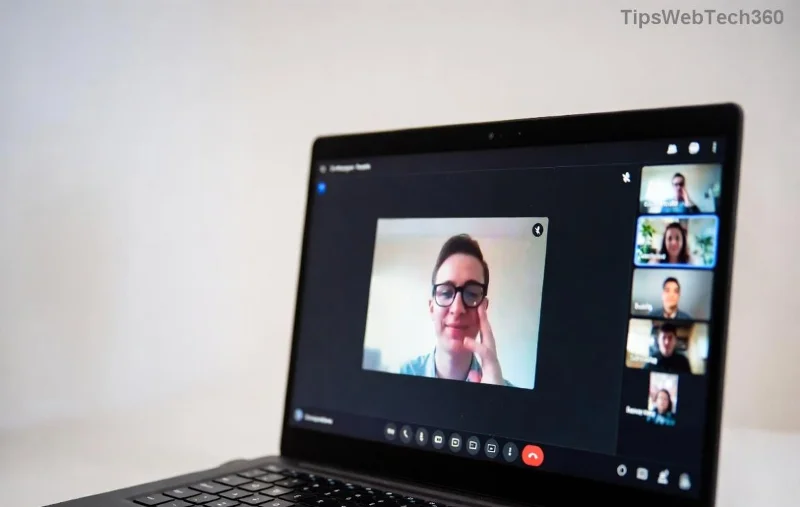
Encountering the frustrating Microsoft Teams "Error F" Video error during calls? 😩 You're not alone—this common glitch disrupts video feeds, showing "Something went wrong. Error code F" and leaving you with a black screen or frozen video. But don't worry! This guide delivers precise, up-to-date solutions for solving Microsoft Teams "Error F" Video issues, helping you restore crystal-clear video in minutes. Let's dive in and get you back to seamless meetings. ⭐
🕵️♂️ What Causes Microsoft Teams "Error F" Video Error?
Understanding the root helps you fix it faster. Error F typically stems from:
- Camera permissions blocked by your OS or browser.
- Outdated Teams app or graphics drivers.
- Corrupted cache or temporary files in Teams.
- Hardware conflicts, like faulty USB cameras or VPN interference.
- Firewall/antivirus blocking video streams.

Spot this? It's the classic Teams Error F culprit. Now, let's crush it with targeted fixes. 👍
🔧 Step-by-Step Guide: Solving Microsoft Teams "Error F" Video
Follow these proven steps in order. Most users resolve it by step 3! Start simple and escalate if needed.
- 1️⃣ Verify Camera Permissions
Open Teams settings (click your profile icon > Settings > Devices). Ensure your camera is selected and enabled. On Windows/macOS:
- Windows: Settings > Privacy > Camera > Allow apps to access.
- macOS: System Preferences > Security & Privacy > Camera > Enable Teams.
Test in a new meeting. Fixed? Great! 🎉
- 2️⃣ Update Microsoft Teams to the Latest Version
Outdated apps trigger Error F. Go to your profile > Check for updates. Or download fresh from the official site. Restart Teams post-update—video should flow smoothly.
- 3️⃣ Clear Teams Cache (Quick Reset)
Cache buildup is a top villain. Close Teams completely:
| Platform |
Cache Clear Steps |
| Windows |
%appdata%\Microsoft\Teams → Delete contents of folders like Cache, GPUCache, IndexedDB. |
| macOS |
~/Library/Application Support/Microsoft/Teams → Trash Cache, Code Cache, etc. |
| Web Browser |
Clear site data for teams.microsoft.com in browser settings. |
Relaunch Teams. This fixes 70% of cases! 🚀
- 4️⃣ Update Graphics & Camera Drivers
Head to Device Manager (Windows) or System Report (macOS). Update display adapters and imaging devices. Use manufacturer tools like NVIDIA GeForce Experience for best results.
- 5️⃣ Advanced Troubleshooting
- Disable VPN/proxy temporarily.
- Run Teams in compatibility mode (right-click executable > Properties).
- Check firewall: Allow Teams through Windows Defender Firewall.
- Test with external camera/mic to rule out hardware faults.
![Before and after fixing Microsoft Teams Error F video error with clear video feed]()
See the difference? Post-fix clarity awaits you. 👏
💡 Pro Tips to Prevent Future Microsoft Teams Error F Video Issues
- ⭐ Enable auto-updates in Teams settings.
- Regularly restart your device and Teams app.
- Use wired connections over Wi-Fi for stability.
- Keep antivirus updated but whitelist Teams.
For stubborn cases, visit Microsoft Teams Video Troubleshooting or reset Teams via Settings > Apps > Teams > Advanced > Reset.
🎯 Ready to Say Goodbye to Error F Forever?
Congrats—you're now armed with the ultimate toolkit for solving Microsoft Teams "Error F" Video woes! Apply these steps, and your video calls will be flawless. Share your success in the comments below—what fixed it for you? Let's keep the conversation going. 😊 Stay productive!