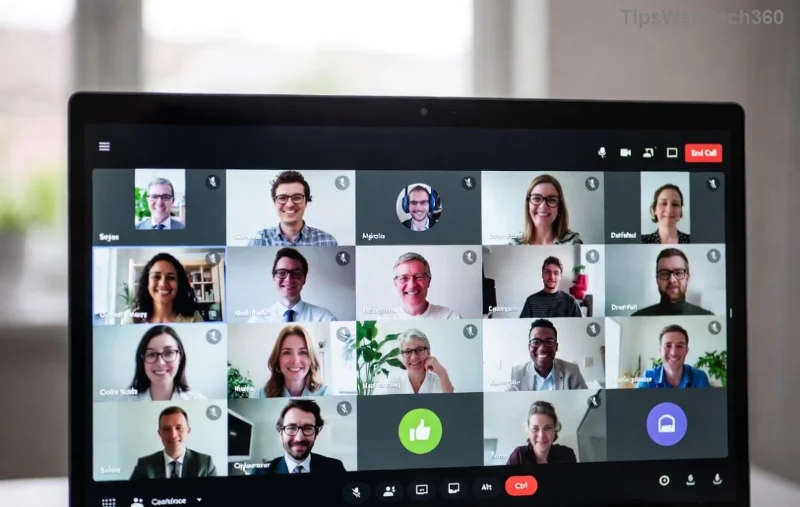
Encountering a frustrating Microsoft Teams "Guest" Access Error? You're not alone—millions of users and admins face this roadblock when trying to invite external collaborators. Whether it's "Guest access is disabled" or "You don't have permission to access this team," this guide delivers straightforward, actionable solutions to get you back to seamless collaboration. Let's dive in and resolve it fast! ⭐
Understanding the Microsoft Teams "Guest" Access Error
The Microsoft Teams "Guest" Access Error typically occurs when external users (guests) can't join teams due to tenant settings, permissions, or sync issues between Teams and Azure Active Directory (Azure AD). Common error messages include:
- ❌ "Guest access in Teams is disabled."
- ❌ "You need permission to access this team."
- ❌ "Failed to add guest."
These stem from admin-level restrictions or user-side glitches. Don't worry—most fixes take under 10 minutes. Ready to troubleshoot? Pointing finger right ➡️
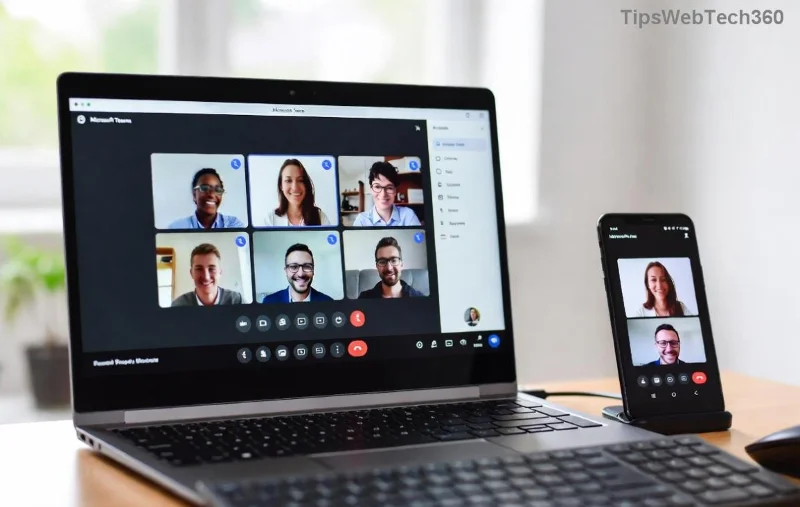
Common Causes of Teams Guest Access Errors
Before fixing, pinpoint the cause. Here's a quick reference table of top triggers:
| Error Type |
Possible Cause |
Quick Check |
| Guest access disabled |
Tenant-wide setting off in Teams admin center |
Admin Center > Org-wide settings > Guest access |
| Permission denied |
Azure AD external collaboration settings restricted |
Azure portal > External Identities > Policies |
| Invite failure |
Domain restrictions or B2B sync delay |
Check allowed domains list |
| User-side block |
Cache, app version, or MFA issues |
Clear Teams cache |
This table alone saves hours—bookmark it! Now, let's fix it step by step. 😊
Step-by-Step Troubleshooting Microsoft Teams "Guest" Access Error
Step 1: Verify and Enable Guest Access (Admin Required) 👨💼
As a Teams admin, head to the Teams Admin Center:
- Navigate to Teams > Manage teams > Org-wide settings.
- Under Guest access, toggle it ON.
- Save changes—it may take up to 2 hours to propagate, but often instant.
Pro Tip: Also enable in PowerShell for precision: Set-TeamGuestAccess -AllowGuestAccess $true. Test by inviting a dummy guest account.
Step 2: Check Azure AD B2B Settings 🔒
Teams relies on Azure AD for guests. In the Azure Portal:
- Go to Azure Active Directory > External Identities > External collaboration settings.
- Ensure Guest user access is set to "Guest users have limited access to properties and memberships."
- Under Collaboration restrictions, allow invitations from "All users" or specific security groups.
If domains are blocked, add the guest's domain to allowed/blocked lists. Sync changes via Teams > Users > Refresh.
![Azure AD settings for fixing Microsoft Teams Guest Access Error]()
Step 3: User-Side Fixes for Guests and Hosts 🛠️
No admin access? Try these:
- Clear Teams Cache: Quit Teams (Ctrl+Q), delete %appdata%\Microsoft\Teams folders, restart. Works 70% of time! ✨
- Update Teams: Check Help > Check for updates. Use the latest desktop/web app.
- Re-invite Guest: Remove the guest from Azure AD/Teams, then re-add via email. Use "Copy link" for direct join.
- MFA Check: Ensure guest completes any pending MFA in their Microsoft account.
Step 4: Advanced Fixes for Stubborn Errors ⚙️
If basics fail:
- PowerShell Deep Dive: Connect-MicrosoftTeams, then
Get-CsTeamsGuestCallingConfiguration—enable if off.
- Domain Verification: In Teams Admin > Domains, ensure no blocks.
- Sensitivity Labels: If using Microsoft Purview, check team policies don't restrict guests.
- Hybrid Issues: Force directory sync with
Start-ADSyncSyncCycle -PolicyType Delta.
For enterprise setups, review Microsoft's official guest access docs for tailored configs.
Prevention Tips: Avoid Future Teams Guest Access Errors 🛡️
Stay ahead:
- ⭐ Regularly audit settings in Teams Admin Center.
- ✅ Use security groups for invite controls.
- 📧 Prefer "Specific people" links over open invites.
- 🔄 Monitor Teams Admin > Analytics & reports for access trends.
Implementing these keeps your org guest-ready without hiccups.
Still Stuck? Next Steps & Community Wins 🎉
If errors persist, share the exact message in Microsoft Tech Community—users report 90% resolution there. Or open a support ticket via Teams Admin > Help.
Congrats—you've conquered the Microsoft Teams "Guest" Access Error! Share this guide if it helped, and drop a comment below on your fix. Happy teaming! 👏