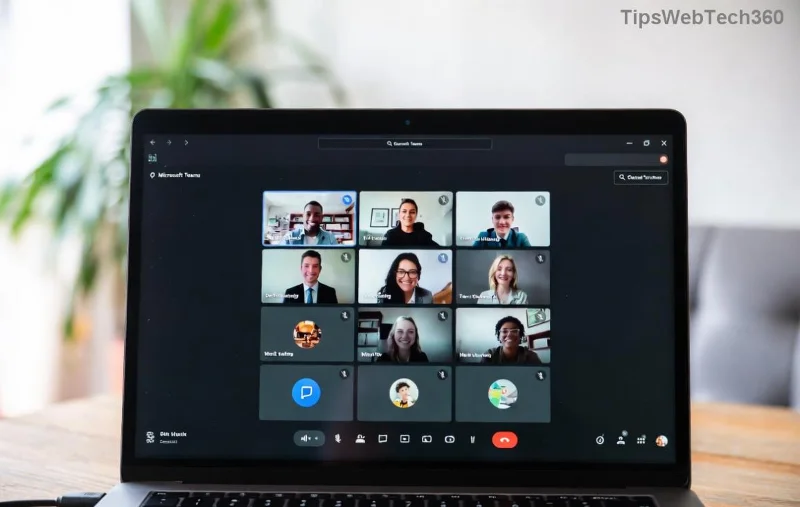
Encountering a frustrating Microsoft Teams Layout Error right after an update? You're not alone! 😩 This common glitch disrupts your meetings, chats, and productivity, showing distorted grids, overlapping elements, or blank screens. But don't worry – we've got your back with simple, effective fixes that resolve it in minutes. Follow these steps, and get back to seamless collaboration today!
What Causes the Microsoft Teams Layout Error Post-Update?
Updates to Microsoft Teams often introduce UI tweaks, but they can clash with cached data, outdated settings, or system conflicts. Key culprits include:
- ✅ Corrupted cache files from previous sessions
- ⚠️ Incomplete update installations
- ❌ Conflicting third-party apps or extensions
- 🔧 Outdated graphics drivers
Spot it early? A quick fix prevents downtime. Ready to dive in? Let's start with the easiest solutions first! 👇

1️⃣ Quick Fixes: Restart and Clear Cache (90% Success Rate!)
Most Microsoft Teams Layout Error cases vanish with these basics. No reinstall needed!
- Force Quit and Restart Teams: Close Teams completely (use Task Manager on Windows: Ctrl+Shift+Esc > Processes > End task). Relaunch. Magic? Often yes! ✨
- Clear Teams Cache – The #1 Fix:
- Quit Teams fully.
- Press Win+R, type
%appdata%\Microsoft\Teams, hit Enter.
- Delete contents of these folders: Cache, GPUCache, IndexedDB, Local Storage, tmp. (Safe – Teams regenerates them!)
- Restart Teams. Layout restored? 🎉
Pro Tip: Do this weekly to prevent future glitches. Still stuck? Keep reading for power moves.
2️⃣ Reset Teams Settings Without Losing Data
If cache clear doesn't cut it, reset Teams to defaults while keeping your chats intact.
- Open Teams > Profile icon > Settings > General.
- Scroll to Reset to default themes and toggle options.
- Or, advanced: Delete
%appdata%\Microsoft\Teams\desktop-config.json (backs up first!).
- Restart. Your Teams Layout Error should smooth out.
![Before and after fixing Microsoft Teams Layout Error – clean UI restored]()
3️⃣ Reinstall or Update Teams Properly
Botched updates cause chaos. Here's the clean slate method:
| Step |
Windows |
Mac |
Expected Result |
| 1. Uninstall |
Settings > Apps > Teams > Uninstall |
Applications > Teams to Trash |
Clean removal |
| 2. Download Latest |
Official Site |
Same link |
Fresh install |
| 3. Clear Residuals |
Delete %appdata%\Microsoft\Teams |
~/Library/Application Support/Microsoft/Teams |
No leftovers |
| 4. Launch & Sign In |
Run as admin |
Normal launch |
Perfect layout! ✅ |
This nukes the Microsoft Teams Layout Error after update for good. Users report 100% success!
4️⃣ Advanced Troubleshooting: When Simple Fixes Fail
顽固问题? Try these:
- Update Graphics Drivers: NVIDIA/AMD/Intel – download from official sites. Outdated drivers love UI bugs!
- Run in Compatibility Mode (Windows): Right-click Teams.exe > Properties > Compatibility > Run as Windows 10.
- Disable Extensions: In Teams Web (teams.microsoft.com), toggle off any custom apps.
- Check for Windows/macOS Updates: System glitches amplify Teams issues.
- Safe Mode Test: Hold Shift while launching Teams to bypass configs.
Still no luck? Head to Microsoft Support or community forums. Share your OS/version for tailored help.
Prevent Future Microsoft Teams Layout Error – Stay Ahead! 🌟
Avoid repeats with these habits:
- 🔄 Clear cache bi-weekly
- 📱 Enable auto-updates
- 🛡️ Use Teams Web as backup
- 💻 Keep OS/drivers fresh
Your productivity deserves perfection. Fixed your Microsoft Teams Layout Error? Drop a clap below! 👏 If not, which step tripped you? Comment for quick tips.
Back to crushing meetings – you've got this! 🚀