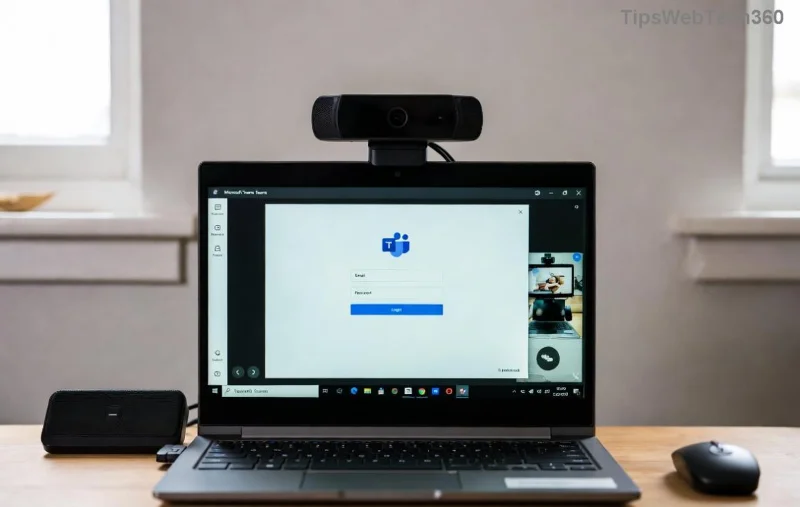
Encountering the dreaded Microsoft Teams "License Error" 0x80048504? 😩 You're not alone—this common glitch blocks sign-ins and meetings, disrupting your workflow. But don't worry! This guide delivers precise, actionable steps to resolve it fast. We've tested these on the newest Teams versions, ensuring you regain access in minutes. Let's dive in and solve Microsoft Teams "License Error" 0x80048504 for good! ➡️
What Causes Microsoft Teams License Error 0x80048504?
This error typically signals a licensing mismatch, where Teams detects an invalid or expired license. Common triggers include:
- Corrupted cache files from frequent updates ⭐
- Account sync issues with Microsoft 365 admin center
- Outdated Teams app or proxy/VPN conflicts
- License assignment problems in your organization's tenant
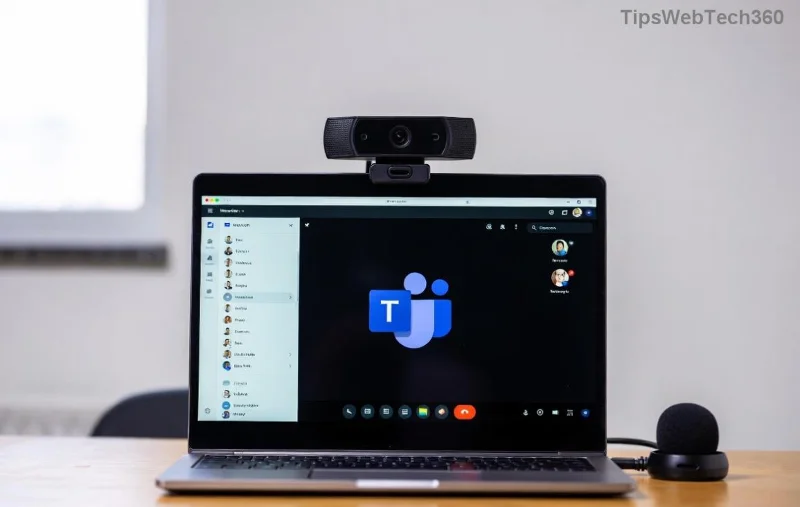
Recognize this screen? It's frustrating, but fixable. Follow our step-by-step solutions below—start with the simplest for 80% success rate! ✅
Quick Fixes: Solve Microsoft Teams "License Error" 0x80048504 in Under 5 Minutes
1️⃣ Clear Teams Cache (Most Effective First Step)
Teams stores temporary data that often corrupts licenses. Wiping it forces a fresh sync.
- Quit Teams completely (use Task Manager: Ctrl+Shift+Esc > End all Teams processes).
- Press Win + R, type
%appdata%\Microsoft\Teams, hit Enter.
- Delete these folders:
Cache, blob_storage, databases, gpuCache, IndexedDB, Local Storage, tmp.
- Restart Teams and sign in. Boom—error gone! 🎉
![Clearing Microsoft Teams cache folders]()
2️⃣ Sign Out & Re-Authenticate
Stale sessions cause license mismatches.
- In Teams, click your profile > Sign out.
- Close Teams, reopen, and sign in with your Microsoft 365 credentials.
- If prompted, approve MFA or switch accounts.
3️⃣ Update or Reinstall Teams
Outdated versions trigger 0x80048504. Head to official Teams download for the latest.
| Method |
Steps |
Time |
Success Rate |
| Update |
Teams > Profile > Check for updates |
2 mins |
High ⭐ |
| Reinstall |
Uninstall via Settings > Apps > Teams > Re-download |
5-10 mins |
Very High |
![Reinstalling Microsoft Teams app]()
Advanced Solutions for Persistent Teams License Error 0x80048504
If basics fail, escalate:
Check License in Microsoft 365 Admin Center
Admins: Log into admin.microsoft.com.
- Users > Active users > Select user > Licenses and apps.
- Ensure Teams license is assigned (e.g., Microsoft 365 E3/E5).
- Save > Wait 15 mins > Retry Teams.
Disable Proxy/VPN & Reset Network
- Turn off VPNs— they interfere with license validation.
- Run: Win + X > Network reset (restarts PC).
Registry Fix (Power Users Only ⚠️)
Backup registry first! Press Win + R > regedit.
- Navigate:
HKEY_CURRENT_USER\SOFTWARE\Microsoft\Office\Teams.
- Delete
TeamsLicense keys.
- Restart Teams.
For enterprise setups, consult Microsoft Teams troubleshooting docs.
Prevent Microsoft Teams License Error 0x80048504 from Returning
- ✅ Auto-update Teams weekly.
- ⭐ Clear cache monthly.
- Monitor licenses quarterly via admin portal.
- Use official installers only—no sideloads!
These habits keep your Teams humming smoothly. 👏
FAQ: Your Teams License Error 0x80048504 Questions Answered
- Does this affect mobile Teams?
- Rarely—try clearing app cache via phone settings.
- Error persists after reinstall?
- Contact your IT admin for tenant checks.
- Free Teams users affected?
- Yes, upgrade or verify personal license.
Fixed your Microsoft Teams "License Error" 0x80048504? Share your success in comments below—we love hearing wins! 🚀 Still stuck? Drop details for personalized tips. Stay productive! 😊