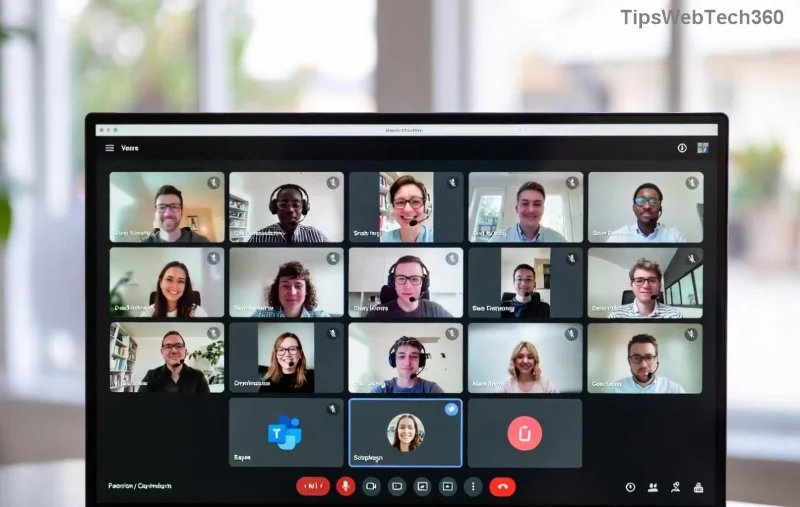
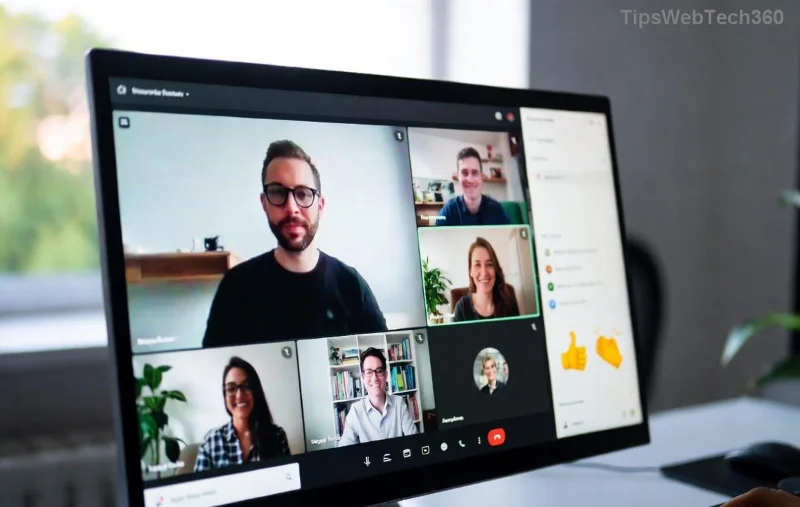
Encountering the frustrating Microsoft Teams microphone error no sound during an important call? You're not alone—this common issue affects millions, but don't worry! 🔧 With these targeted, up-to-date fixes, you'll have your mic working smoothly in minutes. We'll guide you through simple checks to advanced solutions, ensuring crystal-clear audio for your next meeting. Let's dive in and silence that error for good!
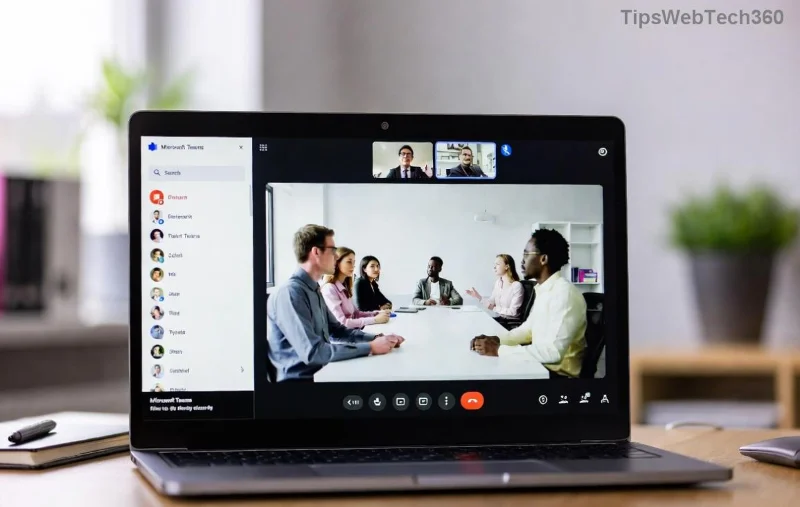
1️⃣ Quick Checks: Rule Out the Basics First
Before deep troubleshooting, start here—these resolve 80% of Microsoft Teams no sound cases instantly. ✅
- Verify Microphone Permissions in Teams: Open Teams > Click your profile picture > Settings > Devices. Ensure your mic is selected and permissions are granted. Test with the built-in mic tester.
- Check Windows/Mac Sound Settings: Right-click the sound icon in your taskbar > Open Sound settings > Ensure Teams isn't muted and your mic volume is up.
- Restart Teams: Close completely (via Task Manager if needed) and relaunch. Simple, but effective!
If basics fail, proceed—your fix is next! 👇
2️⃣ Update and Reconfigure Teams Audio Devices
Outdated apps cause many Teams microphone errors. Here's how to update and reset:
- Go to your profile > Check for updates. Install the latest version for optimal compatibility.
- In Teams Settings > Devices, select Make a test call to diagnose. Switch to a different mic if available.
| Device |
Common Issue |
Quick Fix |
| Built-in Mic |
Low volume |
Increase in Windows Sound > Input |
| Headset |
Not detected |
Plug/unplug + restart audio service |
| External USB Mic |
Driver conflict |
Update drivers via Device Manager |
![Troubleshooting Microsoft Teams audio devices menu]()
3️⃣ Windows-Specific Fixes for Microsoft Teams Mic No Sound
For Windows users (most common), target these OS-level tweaks:
- Run the Audio Troubleshooter: Settings > Update & Security > Troubleshoot > Additional troubleshooters > Recording Audio. Let it auto-fix! 🎉
- Reset Audio Services: Press Win + R > type
services.msc > Restart Windows Audio and Windows Audio Endpoint Builder.
- Disable Exclusive Mode: Sound settings > Device properties > Additional device properties > Advanced tab > Uncheck "Allow applications to take exclusive control."
- Update Audio Drivers: Device Manager > Audio inputs > Right-click your mic > Update driver. Or download from manufacturer site.
Pro Tip: If using a VPN, disconnect—it can interfere with audio routing. 😊
4️⃣ Mac and Browser Fixes
Mac or web version users? Try these:
- System Preferences > Security & Privacy > Microphone > Enable Teams.
- For browser: Chrome/Edge > Settings > Privacy > Microphone access > Allow.
- Clear Teams cache: Hold Cmd + Shift while launching Teams.
5️⃣ Advanced Troubleshooting: When Nothing Else Works
Persistent Teams microphone not working? Escalate here:
- Reinstall Teams: Download fresh from official site. Uninstall old version first.
- Check for Conflicting Apps: Close Zoom, Discord, etc., which may lock your mic.
- Privacy Settings Deep Dive: Windows Privacy > Microphone > Ensure "Let apps access your microphone" is ON, and Teams is allowed.
- Group Policy Fix (Pro Users): Run
gpedit.msc > Computer Configuration > Administrative Templates > Windows Components > App Privacy > Microphone > Set to Enabled/User in control.
![Advanced Microsoft Teams microphone troubleshooting steps]()
🔮 Prevention Tips: Avoid Future Microsoft Teams Audio Errors
Stay ahead—implement these for flawless calls:
- ⭐ Keep Teams and drivers updated automatically.
- ⭐ Use wired headsets for reliability over Bluetooth.
- ⭐ Test mic before meetings via Teams' tester.
- ⭐ Reference Microsoft's official audio guide for more.
Conclusion: Mic Fixed? You're Meeting-Ready! 🎤
Congrats! Following these steps should eliminate your Microsoft Teams microphone error no sound forever. If issues persist, share your OS/version in comments below—we're here to help. Now, hop back into Teams with confidence and crush those calls. What's your go-to fix? Let us know! 👏
Stay tuned for more tech fixes—your smooth workflow starts here.