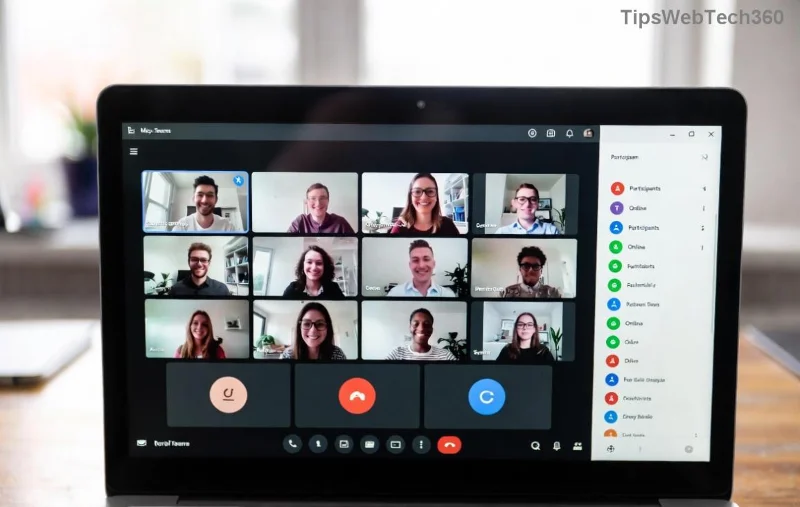
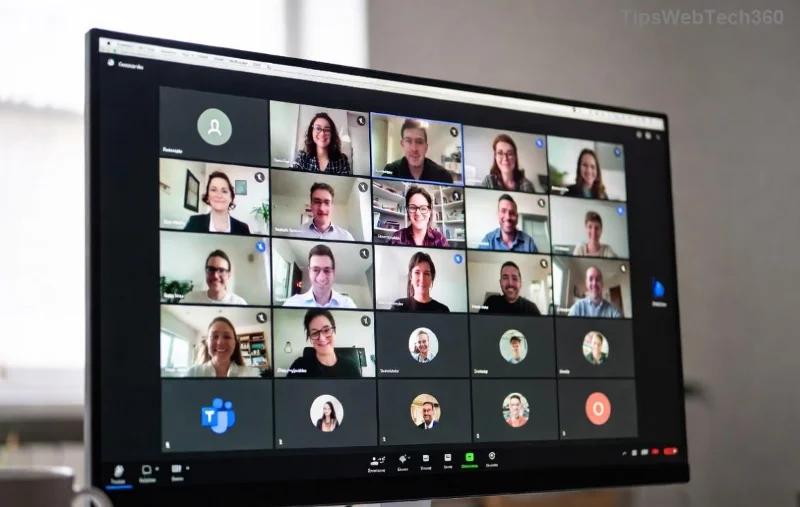
Nothing derails a crucial meeting like a Microsoft Teams microphone muffled sound or total silence. 😩 You've tested your setup, but your voice comes out garbled or vanishes entirely. Don't sweat it—our straightforward guide delivers proven fixes to restore crystal-clear audio fast. Whether you're on Windows, Mac, or troubleshooting hardware glitches, these steps prioritize quick wins first, then dive deeper. Let's get your mic roaring back to life! ⭐
👆 Quick Checks: Rule Out the Basics
Start here—80% of Microsoft Teams microphone problems vanish with these simple verifications. No tech wizardry required!
- 🔊 Test Your Hardware: Plug in headphones or an external mic. Speak into it outside Teams (use Windows Voice Recorder or Mac's QuickTime). Muffled? Clean ports or try another device.
- 🔒 Check Permissions: In Teams, click your profile > Settings > Permissions. Ensure Microphone is Allowed. On Windows, go to Settings > Privacy > Microphone > Toggle on for apps.
- 📱 Mute Check: Glance at Teams toolbar—ensure the mic icon isn't red (muted). Hit spacebar to toggle quickly during calls.
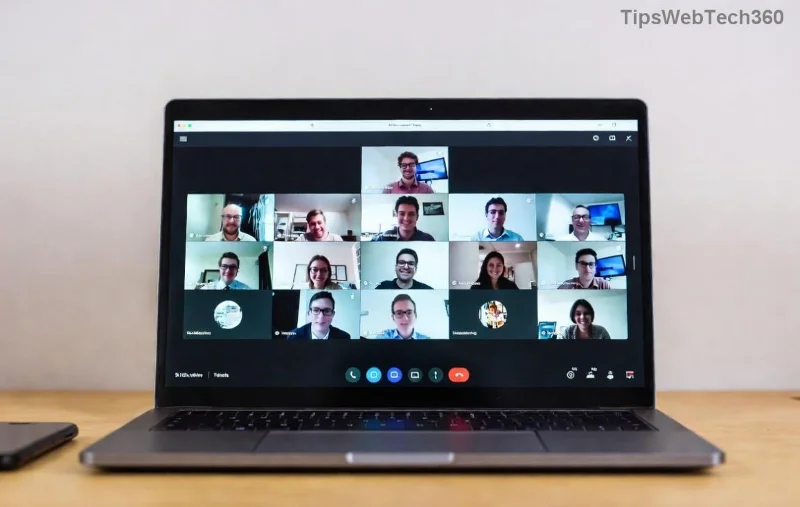
Pro Tip: If solo testing works but Teams fails, proceed to app-specific tweaks. You're already halfway there! 👍
⚙️ Optimize Microsoft Teams Audio Settings for Clarity
Teams has hidden gems for fixing microsoft teams microphone muffled woes. Dive into these for instant improvements.
- Open Device Settings: During a call or Settings > Devices. Select your mic from Speaker dropdown too—mismatches cause no sound.
- Adjust Noise Suppression: In Devices, set Noise suppression to Auto or High. This combats muffled distortion from background hum.
- Test Mic in Teams: Click Make a test call under Devices. Listen to playback—if muffled, tweak Microphone testing levels (aim 60-80%).
Still fuzzy? Update Teams: Profile > Check for updates. The latest builds squash audio bugs seamlessly.
![Teams device settings to fix no sound microphone issues]()
💻 System-Level Fixes: Windows & Mac Sound Mastery
OS glitches amplify Teams mic no sound headaches. Target these for robust results.
Windows Users
- Sound Settings: Right-click speaker icon > Open Sound settings > Input. Select your mic, hit Device properties > Additional device properties > Levels (set 80-100%). Disable enhancements.
- Exclusive Mode Off: In Advanced tab, uncheck Allow apps to take exclusive control.
Mac Users
- System Preferences: Sound > Input. Pick mic, adjust input volume slider.
- Reset PRAM/SMC: Restart holding Cmd+Option+P+R (PRAM) or power button method for SMC—revives stubborn audio.
![Windows sound settings for fixing Teams muffled microphone]()
Common Errors vs. Fixes Table
| Error | Symptom | Quick Fix |
|---|
| No Sound Detected | Silence in tests | Check cables/permissions |
| Muffled/Distorted | Garble or echo | Noise suppression + levels |
| Intermittent Drop | Cuts in/out | Update drivers/Teams |
| One-Way Audio | Others hear you fine | Teams device selection |
This table? Your cheat sheet for lightning diagnosis. Spot your issue and jump straight in! 🚀
🔧 Advanced Troubleshooting: When Basics Aren't Enough
For persistent Teams microphone issues, escalate wisely:
- Update Audio Drivers: Windows Device Manager > Audio inputs > Right-click mic > Update driver. Or grab latest from manufacturer (Microsoft Audio Troubleshooter auto-scans).
- Clear Teams Cache: %appdata%\Microsoft\Teams—delete contents, restart. Revives frozen audio pipelines.
- Reinstall Teams: Uninstall via Settings > Apps, download fresh from official site. Nukes deep-seated glitches.
- Run Troubleshooters: Windows: Settings > Update & Security > Troubleshoot > Recording Audio. Mac: Restart in Safe Mode.
Bonus: Virtual meetings shine with USB mics like Blue Yeti—budget-friendly upgrades banish hardware woes forever. 🎤
🎉 Wrap-Up: Your Mic is Mission-Ready!
Congrats—you've conquered Microsoft Teams microphone muffled or no sound issues! Start with quick checks, layer in settings tweaks, and advanced fixes seal the deal. Most users report success in under 10 minutes. Share your win in comments below—what fixed it for you? Stay tuned for more Teams hacks to supercharge your remote workflow. Your voice deserves to be heard loud and clear! 👏