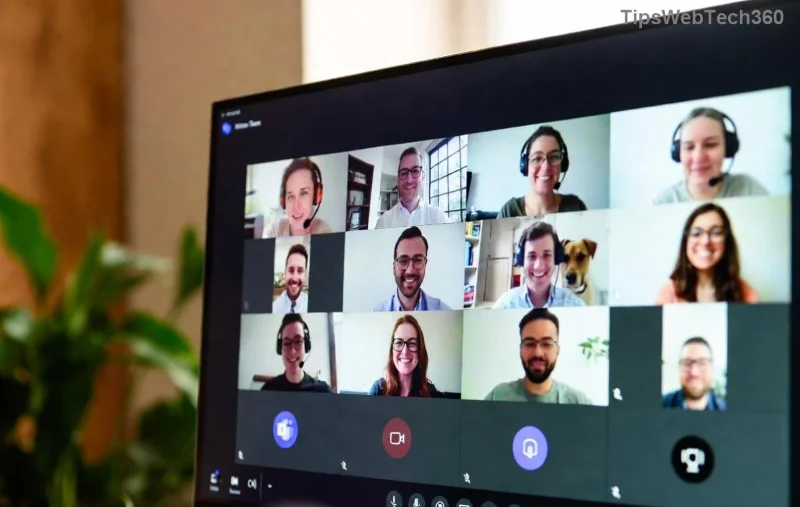
Encountering the frustrating Microsoft Teams Planner Error in your channels? 😩 You're not alone—this common glitch disrupts task management and team workflows. But don't worry! This guide delivers quick, reliable fixes to get your Planner tab working smoothly again. Follow these steps, and you'll be back to productivity in minutes. Let's dive in! 👇
Why Does Microsoft Teams Planner Error Happen in Channels?
Understanding the root causes helps you fix it faster. Here are the top triggers:
- Permissions issues: Insufficient Planner or Teams licenses/roles.
- Cache buildup: Corrupted browser or app data.
- Sync delays: Network glitches or outdated Teams version.
- Tab conflicts: Overloaded channel tabs or Planner plan mismatches.
- Service outages: Temporary Microsoft backend hiccups. ⭐
Pro tip: Check Teams status page first for outages. Ready to troubleshoot? Let's roll! 🚀
✅ Step-by-Step Guide to Fix Microsoft Teams Planner Error
Start with the simplest fixes and escalate if needed. These work for desktop, web, and mobile Teams.
Step 1: Refresh and Restart Teams
- Hit F5 (web) or close/reopen the Teams app.
- Navigate to your channel > + Add tab > Search for Planner.
- If error persists, sign out/in via profile icon. 🔄
Step 2: Clear Teams Cache (Quick Reset)
This wipes temporary files causing the glitch—super effective! 💥
| Platform |
Clear Cache Steps |
| Windows Desktop |
1. Quit Teams (Task Manager).
2. Delete contents of %appdata%\Microsoft\Teams.
3. Relaunch. |
| Mac |
1. Quit Teams.
2. Delete ~/Library/Application Support/Microsoft/Teams.
3. Restart. |
| Web Browser |
Ctrl+Shift+Del > Clear cache/cookies for teams.microsoft.com. |
| Mobile (iOS/Android) |
Settings > Apps > Teams > Clear cache/storage. |
![Clearing cache in Microsoft Teams to fix Planner Error]()
Step 3: Verify Permissions and Licenses
👆 Point your browser here:
- Go to Teams Admin Center (admins only).
- Check user licenses: Ensure Microsoft Planner (or Microsoft 365) is assigned.
- In Planner Hub: Confirm plan access > Share with channel members.
- Re-add Planner tab: Channel > Manage tabs > Remove > Re-add Planner.
Step 4: Update Teams and Planner
Outdated apps = error city! Update via:
- Desktop: Profile > Check for updates.
- Mobile/Web: App Store/Play Store refresh.
- Verify latest Planner integration via Microsoft Planner support.
Step 5: Advanced Fixes for Stubborn Errors
If basics fail:
- Create new plan: Planner Hub > New plan > Add to channel.
- Switch to New Teams: Toggle in profile (faster, fewer bugs).
- Network check: VPN off? Try incognito mode.
- Reset Planner tab: Channel settings > Remove all Planner tabs > Reinstall.
![Successful Planner tab addition in Microsoft Teams channel after fix]()
Quick Reference: Error Messages and Fixes
| Error Message |
Likely Cause |
Fast Fix |
| "Something went wrong" |
Cache/Network |
Clear cache + restart |
| "No permission" |
Licenses/Roles |
Check admin licenses |
| "Plan not found" |
Tab conflict |
Remove/re-add tab |
| "Loading failed" |
Update needed |
Update Teams app |
Prevent Future Microsoft Teams Planner Error Issues 🎉
Stay ahead:
- Regularly update Teams. ⭐
- Assign Planner licenses proactively.
- Use channel moderation for tab management.
- Monitor via Microsoft 365 admin center.
Fixed it? Clap for yourself! 👏 If issues linger, drop a comment or contact Microsoft Support. Your seamless Teams Planner experience awaits—what's your next task? Keep collaborating! 🚀