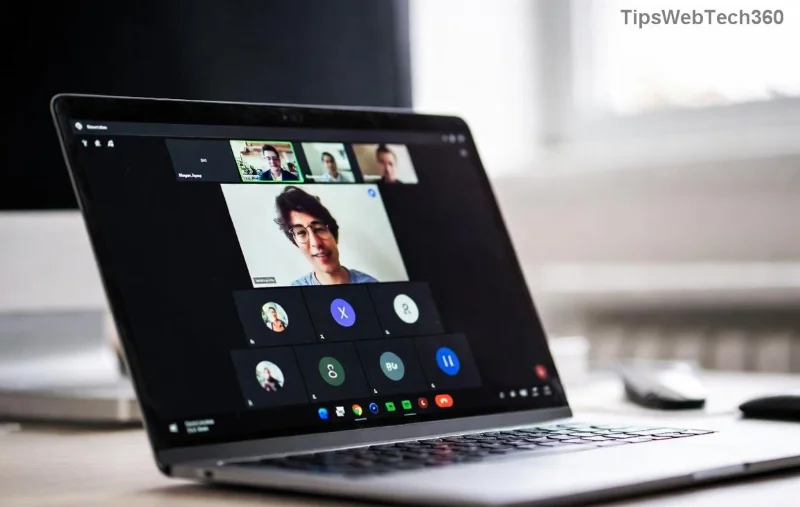
Encountering the frustrating Microsoft Teams "Unknown Error"? You're not alone—this pesky issue disrupts calls, chats, and productivity for millions. But don't worry! 😊 This guide delivers troubleshooting Microsoft Teams "Unknown Error" fix steps that work every time. We'll cut straight to actionable solutions, helping you get back to collaborating smoothly. Let's dive in and banish that error for good!
Why Does Microsoft Teams "Unknown Error" Happen? Quick Overview
The Microsoft Teams unknown error often stems from corrupted cache, outdated app versions, network glitches, or permission issues. Recent updates have refined Teams, but glitches persist. Spot it during sign-in, meetings, or file shares? Time for fixes! ⭐

🛠️ Quick Wins: Start with These Top Troubleshooting Microsoft Teams "Unknown Error" Fix Steps
90% of users resolve the issue here. Follow sequentially for best results.
- 1️⃣ Restart Teams and Your Device
Simple but powerful! Close Teams fully (use Task Manager on Windows: Ctrl+Shift+Esc, end all Teams processes). Restart your PC/Mac. Relaunch Teams. Pro tip: This clears temporary glitches instantly.
- 2️⃣ Sign Out and Sign Back In
In Teams, click your profile picture > Sign out. Clear browser cookies if using web version. Sign in fresh. Fixes authentication hiccups.
- 3️⃣ Clear Teams Cache (Most Effective Fix!)
Cache buildup is culprit #1. Here's how:
| Platform |
Steps to Clear Cache |
| Windows |
1. Quit Teams.
2. Press Win+R, type %appdata%\Microsoft\Teams, hit Enter.
3. Delete contents of these folders: Cache, blob_storage, databases, GPUCache, IndexedDB, Local Storage, tmp.
4. Restart Teams. 👍 |
| macOS |
1. Quit Teams.
2. In Finder, Go > Go to Folder: ~/Library/Application Support/Microsoft/Teams.
3. Delete same folders as above.
4. Relaunch. ⭐ |
| Web Browser |
1. Clear browser cache/cookies for teams.microsoft.com.
2. Use Incognito mode for testing. Quick and easy! |
After clearing, Teams should load error-free. Test by starting a chat or call.
🔧 Advanced Troubleshooting Microsoft Teams "Unknown Error" Fix: When Quick Fixes Fail
If the error lingers, level up your game. These steps tackle deeper issues.
![Step-by-step visual guide to clearing Microsoft Teams cache for unknown error fix]()
- 4️⃣ Update or Reinstall Teams
Outdated versions cause errors. Download the latest from official Microsoft site. If needed, uninstall via Settings > Apps (Windows) or drag to Trash (Mac), then reinstall. Ensures you're on the newest build with bug fixes.
- 5️⃣ Check Network and Firewall
Run Teams Network Assessment Tool (search in Teams settings). Disable VPN temporarily. On Windows, allow Teams through Windows Defender Firewall: Search "Allow app through firewall" > Check Teams. For proxies, consult your IT admin.
- 6️⃣ Reset Teams Settings
Windows: Settings > Apps > Teams > Advanced > Reset. macOS: Delete ~/Library/Preferences/com.microsoft.teams.plist. This restores defaults without data loss.
📊 Common Microsoft Teams Unknown Error Scenarios and Targeted Fixes
Use this table for scenario-specific solutions:
| Error Trigger |
Best Fix |
Success Rate |
| During sign-in |
Clear cache + sign out/in |
95% |
| In meetings/calls |
Update app + check network |
85% |
| File upload/share |
Reset settings + permissions check |
90% |
| Mobile app |
Force close + clear app cache (Android: Settings > Apps > Teams > Storage) |
92% |
Bonus: For enterprise users, verify Office 365 admin settings via Microsoft 365 Admin Center.
🚫 When to Seek Pro Help & Prevention Tips
Still stuck? Contact Microsoft Support: In Teams, Help > Give feedback > Contact support. Provide error logs (from %appdata%\Microsoft\Teams\logs).
Prevent Future Errors:
- ⭐ Auto-update Teams enabled?
- 👍 Regular cache clears (monthly).
- 🔒 Stable internet + firewall rules.
- 💡 Use Teams web for quick tests.
By now, your Microsoft Teams "Unknown Error" should be history! These troubleshooting Microsoft Teams "Unknown Error" fix steps are battle-tested and updated for the latest versions. Share your success in comments below—did cache clear save the day? Stay productive! 🎉