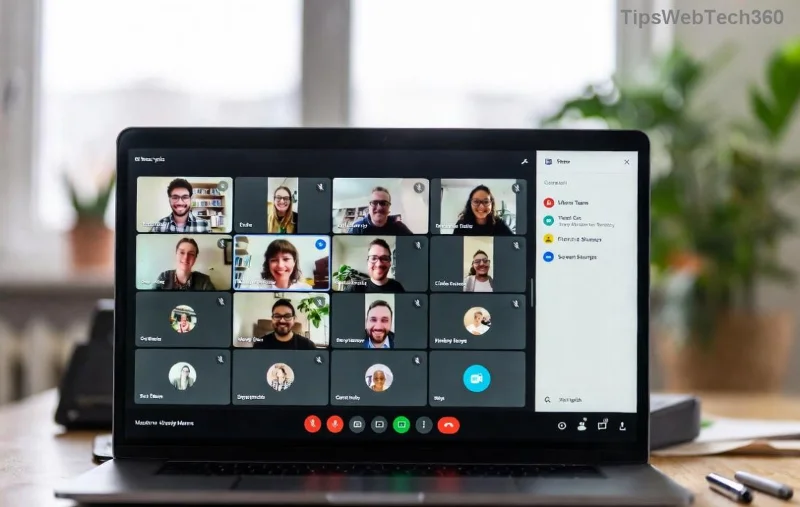
Ever received a Microsoft Teams meeting ID and passcode but unsure how to jump in? You're not alone! Whether it's a work call, virtual class, or family catch-up, joining via ID and passcode is the quickest way without needing an invite link. This guide walks you through every step on desktop, mobile, and web – no fluff, just results. Let's get you connected in seconds! 🌟
Prerequisites Before Joining
- A stable internet connection.
- Microsoft Teams app (optional – browser works too!).
- The Teams meeting ID (usually 9-11 digits) and passcode (4-6 digits).
Pro Tip: Save the ID and passcode in your notes app for quick access. Ready? Let's dive in! 👆
How to Join a Microsoft Teams Meeting by ID and Passcode on Desktop or Web
The easiest method? Use your browser – no download required. Perfect for first-timers!
- 1️⃣ Open your browser: Head to teams.microsoft.com.
- 2️⃣ Click "Join or start the meeting": Prominent green button at the top.
- 3️⃣ Enter the Meeting ID: Type or paste the Teams meeting ID in the field.
- 4️⃣ Toggle off "Use the web app instead?" if you want the app (optional).
- 5️⃣ Click "Join now".
- 6️⃣ Enter Passcode: Input the Teams passcode when prompted. You're in! 🎉

That's it! Customize your experience by muting mic/camera before joining. Works on Chrome, Edge, Firefox, and Safari.
Join on Mobile: Android or iOS
Mobile users, this is seamless with the Microsoft Teams app. Download from Google Play or App Store if needed.
- 1️⃣ Open Teams app (or use browser at teams.microsoft.com).
- 2️⃣ Tap "Join with a code" from the calendar or home screen.
- 3️⃣ Enter Meeting ID: Paste the Microsoft Teams meeting ID.
- 4️⃣ Tap "Join", then input passcode.
- 5️⃣ Grant permissions: Allow mic, camera, notifications.
- 6️⃣ You're live! Swipe up for controls. 📱
![Mobile screen showing how to join Teams meeting by ID and passcode]()
Bonus: Enable "Join silently" to enter without notifying everyone. Keeps meetings distraction-free!
Troubleshooting Common Issues
Stuck? Here's a quick fix table for top problems:
| Issue | Solution |
|---|
| Invalid ID/Passcode | Double-check digits. Ask host to verify or resend. |
| Can't hear/join audio | Select "..." > Device settings. Test mic/speakers. |
| App crashes | Update Teams app. Clear cache or restart device. |
| Meeting not found | Meeting might be private/scheduled. Wait or contact organizer. |
| Browser blocks | Allow pop-ups/camera. Use Edge for best compatibility. |
For official fixes, check Microsoft's Teams support. Most issues resolve in under 2 minutes! 😊
Advanced Tips for Smooth Microsoft Teams Joins
- ⭐ Pre-join test: Always preview audio/video before entering.
- Background blur: Blur your messy room instantly (Effects > Blur).
- Reactions: Use emojis without interrupting – thumbs up for agreement! 👍
- Multi-device: Join audio on phone, video on laptop for pro setup.
- Security: Passcodes ensure only invited folks join. Hosts, enable waiting room!
These hacks make you a Teams pro. Imagine dominating every virtual huddle effortlessly!
FAQ: Quick Answers on Joining Teams Meetings by ID and Passcode
Q: Do I need a Teams account?
A: No! Guests join anonymously.
Q: What's the difference between ID and link?
A: ID + passcode is manual; links auto-fill. Both secure.
Q: Can I join from smart TV?
A: Yes, via browser if supported. Or cast from phone.
Q: Offline join possible?
A: No, needs internet. Download recordings post-meeting.
Wrap-Up: Master Teams Meeting Joins Today!
Now you know exactly how to join a Microsoft Teams meeting by ID and passcode anywhere, anytime. Bookmark this guide, share with colleagues, and never miss a beat. What's your next meeting? Dive in confidently! 🚀
Questions? Drop a comment below!