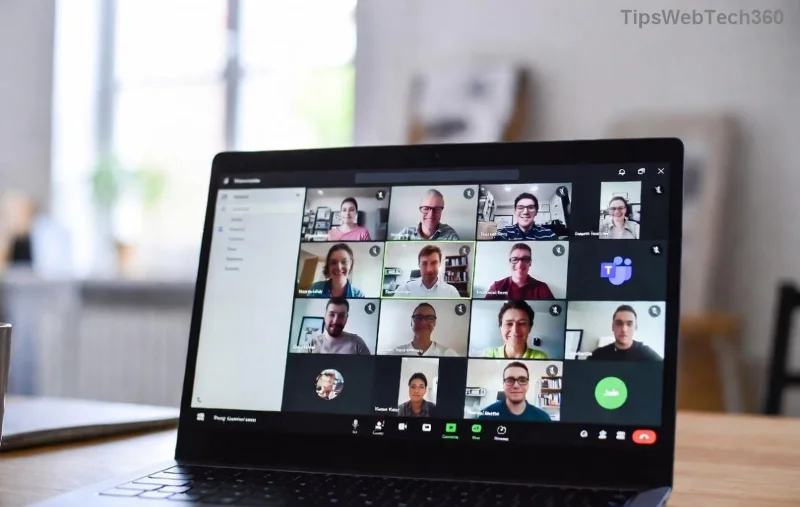
Imagine diving into a quick game of Tetris or darts during your Teams break, only to hit the dreaded Microsoft Teams "Games" Plugin Error. 😩 Frustrating, right? This common glitch disrupts the fun built-in games feature in Microsoft Teams, often showing messages like "Plugin failed to load" or "Games not available."
Don't worry! We've got your back with this concise, actionable guide packed with the latest fixes. Whether you're on desktop, web, or mobile, these steps will have you gaming again in minutes. Let's troubleshoot smartly and restore the joy. 👍
🛠️ Top Causes of Microsoft Teams "Games" Plugin Error
Understanding the root issues speeds up your fix. Here's a quick breakdown:
| Cause |
Symptoms |
Likelihood |
| Cache/Buildup |
Games tab blank or crashes |
⭐⭐⭐⭐⭐ High |
| Outdated App |
Plugin load failure |
⭐⭐⭐⭐ High |
| Permissions/Proxy |
Access denied errors |
⭐⭐⭐ Medium |
| Network Glitches |
Intermittent failures |
⭐⭐ Low |
Pro tip: Start with the simplest fixes—they resolve 80% of cases! Ready to dive in?
1️⃣ Quick Wins: Basic Fixes for Microsoft Teams "Games" Plugin Error
These no-brainer steps often do the trick. Follow in order for best results.
- Restart Teams Completely
Close Teams fully (use Task Manager on Windows: Ctrl+Shift+Esc > End task for Teams processes). Relaunch. This clears temporary glitches. 🎉
- Check for Updates
In Teams, click your profile picture > Check for updates. Install any available. The latest versions fix plugin bugs reliably.
- Switch Accounts or Rejoin Channel
Log out/in or leave/rejoin the channel with Games. Permissions refresh automatically.
If games load now, you're golden! Still stuck? Level up to advanced fixes.
![Step-by-step guide showing Teams cache clear process]()
2️⃣ Power Moves: Clear Cache & Reset for Stubborn Teams Games Plugin Error
Cache corruption is the #1 culprit. Here's how to nuke it safely:
Windows Users:
- Quit Teams.
- Press Win+R, type
%appdata%\Microsoft\Teams, hit Enter.
- Delete contents of folders:
Cache, GPUCache, IndexedDB, Local Storage, tmp. (Keep the folders empty.)
- Restart Teams. Magic happens! ✨
macOS Users:
- Quit Teams.
- Open Finder > Go > Go to Folder:
~/Library/Application Support/Microsoft/Teams.
- Delete same cache folders as above.
- Relaunch.
Web Browser (Edge/Chrome):
- Teams web? Clear site data: Settings > Privacy > Clear browsing data for teams.microsoft.com (Cookies + Cached images).
Bonus: For mobile (iOS/Android), force-close Teams, clear app cache via device settings, and update from store.
3️⃣ Advanced Troubleshooting: When Nothing Else Works
Persistent issues? Try these:
- Disable VPN/Proxy: Games plugins hate restrictions. Toggle off temporarily to test.
- Run as Admin (Windows): Right-click Teams shortcut > Run as administrator. Fixes permission blocks.
- Reinstall Teams: Uninstall via Settings > Apps, download fresh from official site. Counts as a full reset!
- Check Network: Switch Wi-Fi or use mobile hotspot. Corporate firewalls often block game plugins.
![Successful Teams Games plugin working after fix]()
🚀 Prevention Tips: Keep Microsoft Teams Games Plugin Error Away
Stay ahead:
- Enable auto-updates in Teams settings.
- Clear cache monthly.
- Use official Teams app over web for best plugin support.
- Monitor Teams status page for outages.
Games like Connect 4 or Kart Rider should now load flawlessly, boosting team morale! 🎮
Still Facing Issues? Next Steps
If errors persist, gather details (error code, OS version) and hit up Microsoft Support via Teams: Help > Give feedback. Share your win in comments below—what fixed it for you? 👇
Thanks for sticking with us! Your Teams experience just got epic. 🚀