πŸš€ Quick & Easy: How to Change Your Microsoft Teams Profile Picture on iPhone & Android (2026 Update)

Want to refresh your professional image in Microsoft Teams? Your profile picture is the first thing colleagues seeβ€”make it count! Whether you're on iPhone or Android, updating your Microsoft Teams profile picture takes just minutes. This guide delivers step-by-step instructions, handy tips, and fixes for common hiccups. Let's dive in and get you looking sharp! πŸ‘¨β€πŸ’Όβœ¨

Why Update Your Microsoft Teams Profile Picture?

  • Boosts your personal brand in meetings and chats.
  • Syncs across devices for consistency.
  • Shows you're active and approachable. πŸ‘

Ready? We'll cover iPhone first, then Android, with a comparison table for quick reference. Pro tip: Use a clear, well-lit photo (headshot style) for best results.

πŸ‘† Step-by-Step: Change Microsoft Teams Profile Picture on iPhone

On your iPhone, the Teams app makes it seamless. Ensure you have the latest Microsoft Teams app from the App Store.
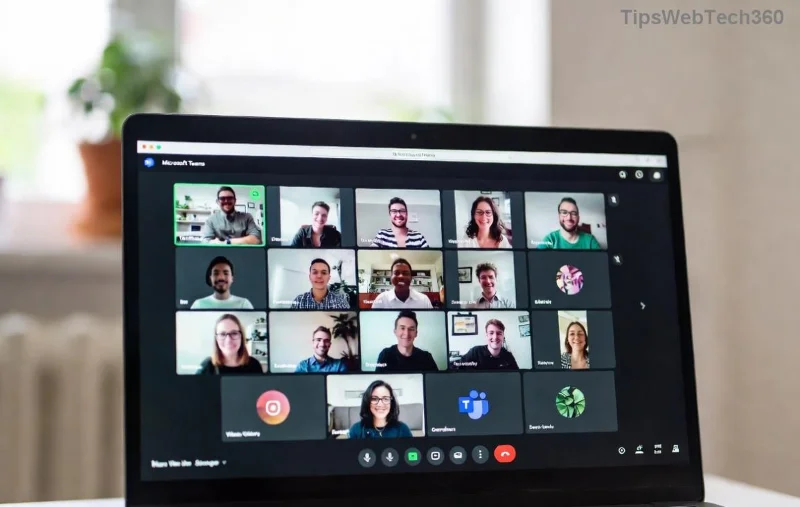
Microsoft Teams profile picture change on iPhone screenshot
  1. πŸ”“ Open the Microsoft Teams app and sign in if needed.
  2. πŸ‘€ Tap your current profile picture in the top-left corner.
  3. πŸ“± Select your name at the top of the menu that appears.
  4. πŸ“Έ Tap the camera icon next to your profile picture (or "Edit profile picture").
  5. πŸ–ΌοΈ Choose "Take Photo" or "Choose from Library". Crop and adjust as desired.
  6. πŸ’Ύ Tap "Done" or "Save". It syncs automatically!

Voila! Your new Teams profile picture updates across all devices linked to your Microsoft account. If it doesn't show immediately, force-quit and reopen the app. 😊

πŸ“± Step-by-Step: Change Microsoft Teams Profile Picture on Android

Android users, you're next! Grab the newest Teams app from Google Play for optimal performance.

Microsoft Teams profile picture update on Android screenshot
  1. πŸ”“ Launch Microsoft Teams on your Android device.
  2. πŸ‘€ Tap your profile icon (top-left).
  3. πŸ“± Hit your name or avatar in the dropdown.
  4. πŸ“Έ Click the pencil or camera icon under your photo.
  5. πŸ–ΌοΈ Select a photo from gallery or camera, resize/crop it.
  6. πŸ’Ύ Confirm and save. Sync happens in seconds.

Stuck? Check your permissionsβ€”Teams needs camera and storage access. Grant them in Android Settings > Apps > Teams. You're set! πŸš€

πŸ“Š Quick Comparison: iPhone vs Android for Teams Profile Picture Changes

Side-by-side for fast scanning:

Step iPhone (iOS) Android
1. Open App Teams app Teams app
2. Access Profile Tap top-left pic Tap top-left icon
3. Edit Photo Tap name > Camera icon Tap name > Pencil icon
4. Select Image Library or Camera Gallery or Camera
5. Sync Time Instant Instant

⭐ Pro Tips for the Perfect Microsoft Teams Profile Picture

  • πŸ“ Size matters: Use 400x400 pixels minimum for crisp quality.
  • 🌟 Lighting & Background: Natural light, plain backdropβ€”no selfies in bathrooms! πŸ˜‚
  • πŸ”„ Sync Check: Log out/in if changes lag (rare).
  • πŸ‘₯ Organization Rules: Some companies restrict changesβ€”contact IT if blocked.

❌ Troubleshooting Common Issues

Picture not updating? Here's the fix:

  1. πŸ”„ Restart the app or device.
  2. πŸ“² Update Teams to the latest version.
  3. 🧹 Clear cache: Android Settings > Apps > Teams > Storage > Clear Cache.
  4. 🌐 Check internetβ€”needs connection for sync.
  5. Still stuck? Visit Microsoft Teams Support for more.

These steps work on the newest Teams buildsβ€”problem solved! πŸ™Œ

Final Thoughts: Elevate Your Teams Presence Today

Congratsβ€”you now know exactly how to change your Microsoft Teams profile picture on iPhone or Android! A fresh avatar can spark better connections in your next meeting. Try it now, then share your before/after in the comments. What's your go-to profile pic style? Drop it below! πŸ‘‡

Stay tuned for more Teams hacksβ€”like customizing backgrounds or boosting productivity. Your professional glow-up starts here. ✨
Leave a Comment

πŸš€ Fix Microsoft Teams Error I Profiles FAST: Proven Steps for Instant Relief!

πŸš€ Fix Microsoft Teams Error I Profiles FAST: Proven Steps for Instant Relief!

Struggling with Microsoft Teams "Error I" Profiles? Discover step-by-step fixes to resolve profile loading issues, clear cache, reset settings, and get back to seamless collaboration. Updated with the latest solutions!

Discover Your Microsoft Teams ID & Account Info Instantly: Ultimate 2026 Guide

Discover Your Microsoft Teams ID & Account Info Instantly: Ultimate 2026 Guide

Unlock where to find your Microsoft Teams ID and account info effortlessly. Step-by-step guide for desktop, web, admin center, and more – perfect for troubleshooting and customization.

πŸš€ Ultimate Fix: Banish Microsoft Teams Update Error 0x80070002 in Minutes!

πŸš€ Ultimate Fix: Banish Microsoft Teams Update Error 0x80070002 in Minutes!

Tired of Microsoft Teams Update Error 0x80070002 blocking your updates? Discover proven, step-by-step solutions to resolve it fast and restore smooth teamwork. Works on latest Windows versions.

Teams Screenshot Stuck? Fix Error Screenshot Not Saving in Microsoft Teams Fast!

Teams Screenshot Stuck? Fix Error Screenshot Not Saving in Microsoft Teams Fast!

Struggling with Microsoft Teams "Error Screenshot" not saving? Discover proven troubleshooting steps to resolve this frustrating issue quickly and get back to seamless collaboration. Updated fixes for the latest Teams versions.

πŸš€ Fix Microsoft Teams Windows 7 Login Error Instantly – 100% Working Solutions

πŸš€ Fix Microsoft Teams Windows 7 Login Error Instantly – 100% Working Solutions

Tired of the frustrating Microsoft Teams Windows 7 login error? Follow our proven, step-by-step guide to resolve it quickly and get back to seamless collaboration. No upgrades needed!

How to Change Microsoft Teams Recording Location: Ultimate Step-by-Step Guide

How to Change Microsoft Teams Recording Location: Ultimate Step-by-Step Guide

Discover how to change Microsoft Teams recording location with ease. Master default paths, user moves, admin configs, and pro tips for seamless meeting storage management. Save time and space today!

πŸš€ Fix Microsoft Teams Media Error Microphone Instantly: Proven 2026 Solutions

πŸš€ Fix Microsoft Teams Media Error Microphone Instantly: Proven 2026 Solutions

Tired of Microsoft Teams "Media Error" Microphone ruining your calls? Get step-by-step fixes for smooth audio in Teams. Quick, easy solutions that work every time!

πŸš€ Fix Microsoft Teams Planner Error Tab: Ultimate Troubleshooting Guide

πŸš€ Fix Microsoft Teams Planner Error Tab: Ultimate Troubleshooting Guide

Struggling with the Microsoft Teams Planner Error Tab? Discover proven troubleshooting Microsoft Teams "Planner Error" Tab steps to resolve issues quickly and get back to productivity. Step-by-step fixes for common errors.

πŸ”§ Fix Microsoft Teams Image Error in Chat: Ultimate Troubleshooting Guide

πŸ”§ Fix Microsoft Teams Image Error in Chat: Ultimate Troubleshooting Guide

Struggling with Microsoft Teams "Image Error" in chat? Discover proven troubleshooting steps, common causes, and quick fixes to resolve image loading issues in Teams chats instantly. Get seamless sharing back today!

πŸš€ Fix Microsoft Teams Training Error Video Lag in Minutes – Ultimate 2026 Guide!

πŸš€ Fix Microsoft Teams Training Error Video Lag in Minutes – Ultimate 2026 Guide!

Tired of Microsoft Teams "Training Error" video lag ruining your meetings? Follow these proven, step-by-step fixes to eliminate lag, boost performance, and enjoy crystal-clear video calls instantly. Latest updates included!









