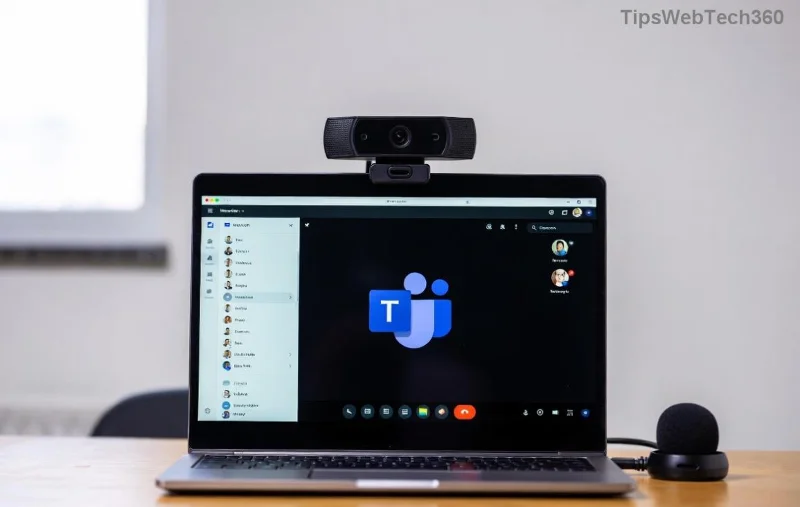
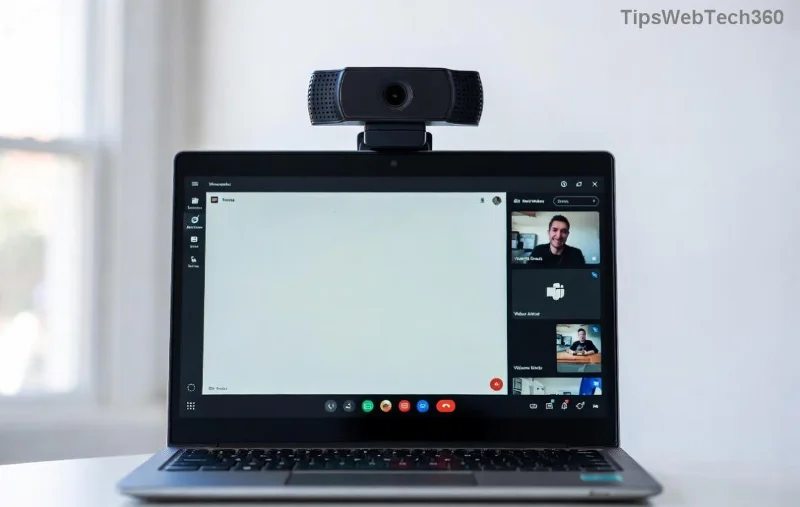
Imagine streamlining workflows, boosting team productivity, and delighting users with intelligent automation—all powered by a custom Microsoft Teams Bot. In 2026, building and managing bots has never been easier or more powerful. This concise guide walks you through how to create and manage a Bot in Microsoft Teams, from zero to hero. Whether you're a developer or admin, you'll gain actionable insights to deploy bots that shine. Let's dive in! 🌟
1️⃣ Prerequisites: Gear Up for Success
Before creating your Microsoft Teams Bot, ensure you have the essentials. No fluff—just what you need:
- Microsoft 365 Developer Account: Sign up for free at the Microsoft 365 Developer Program.
- Visual Studio Code with Teams Toolkit Extension—the go-to tool for 2026 bot development.
- Azure Subscription: For hosting your bot securely.
- Node.js (v20+) or .NET SDK for your preferred language.
Pro Tip: Teams Toolkit simplifies everything with one-click provisioning. Ready to build? 👉
2️⃣ Step-by-Step: How to Create a Bot in Microsoft Teams
Follow these focused steps using the latest Teams Toolkit v6+. It's wizard-like magic!
- Install Teams Toolkit: Open VS Code, search "Teams Toolkit" in Extensions, and install. Hit F1 > "Teams: Create New App".
- Select Bot Template: Choose "Bot" > "AI-powered Teams Bot" for conversational smarts or "Notification Bot" for alerts.
- Configure Your Bot: Name it, set capabilities like messaging or tabs. Teams Toolkit auto-generates code!
- Debug Locally: Press F5 to sideload into Teams. Test chats instantly. 😎
- Deploy to Azure: Right-click > "Provision in the Cloud". It handles Bot Service registration automatically.
That's it—your bot is live! For advanced logic, integrate Bot Framework Composer for visual dialogs. Microsoft Docs confirm this as the 2026 standard.
![Deploying Bot to Microsoft Teams]()
3️⃣ Register and Package Your Bot
To make your bot Teams-ready:
| Step |
Action |
Why It Matters |
| 1. Azure Bot Registration |
Portal.azure.com > Create "Azure Bot". Add Teams channel. |
Enables secure messaging endpoint. |
| 2. App Manifest |
Teams Toolkit > "Zip App Package". Edit manifest.json for botId. |
Defines permissions and UI. |
| 3. Sideload/Publish |
Teams > Apps > Manage your apps > Upload. |
Goes live across org! |
Stuck? Use ngrok for local tunneling during dev. Your bot now chats like a pro! 🎉
4️⃣ How to Manage a Bot in Microsoft Teams: Keep It Running Smoothly
Managing isn't just maintenance—it's optimization. Here's your 2026 playbook:
- Monitor Analytics: Teams Admin Center > Analytics & reports > Bot usage. Track messages, errors.
- Update Code: Edit in VS Code, redeploy via Toolkit. Zero downtime with Azure slots.
- Permissions Control: App Policies in Teams Admin > Manage apps. Approve for specific teams.
- Scale with Adaptive Cards: Design rich UI for better engagement. Test with Card Studio.
- Troubleshoot: Check Bot Framework diagnostics or Azure Application Insights. Fix 401 errors? Regenerate secrets! ⚠️
![Managing Microsoft Teams Bot Analytics]()
Want enterprise-grade? Integrate Copilot Studio for low-code AI enhancements.
5️⃣ Best Practices & Pro Tips for 2026
Elevate your Microsoft Teams Bot:
- ✨ Security First: Use OAuth 2.0, validate requests.
- 📱 Mobile-Responsive: Test on all devices.
- 🚀 AI Boost: Add Azure OpenAI for natural convos.
- 📊 Metrics Matter: Aim for <2s response time.
Common Pitfall: Forgetting Teams channel config—double-check in Azure portal! 😤
Ready to Automate? Your Next Move
You've got the blueprint for how to create and manage a Bot in Microsoft Teams. Start small, iterate fast, and watch productivity soar. Build your first bot today—what will it do? Share in comments! 👇 For deeper dives, explore official Bot docs. Happy botting! 🎊