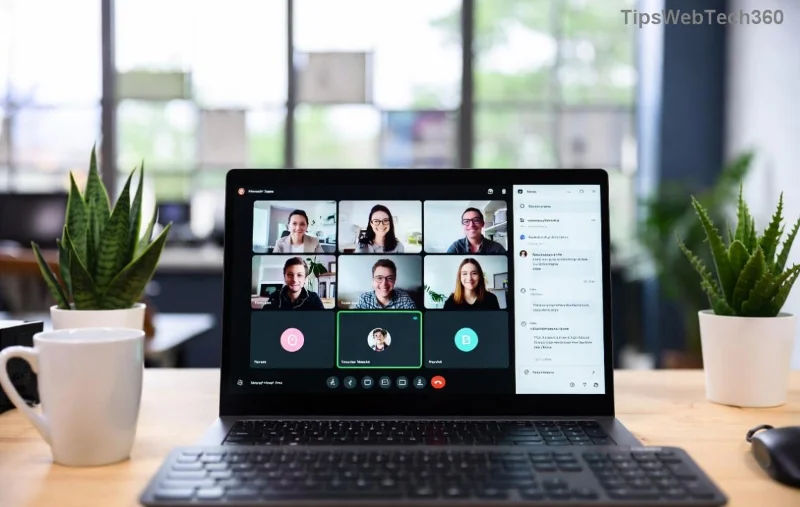
Imagine you're in the middle of an important Microsoft Teams meeting, ready to share a crucial video, only to hit the dreaded "Media Error". Frustrating, right? 😩 Don't worry—this common issue blocks video playback but is totally fixable with the right steps. In this guide, we'll walk you through how to fix Microsoft Teams "Media Error" for videos using the latest troubleshooting methods. You'll be back to smooth collaboration in no time!
What Causes Microsoft Teams Media Error for Videos? 🔍
Understanding the root causes helps you target the fix faster. Here are the top triggers:
- Corrupted cache or temporary files: Builds up and disrupts media loading.
- Outdated Teams app or browser: Missing latest patches for media support.
- Permission issues: Browser or app blocking camera/microphone access.
- Network glitches: Unstable connections interrupting video streams.
- Conflicting extensions or software: VPNs, ad-blockers, or antivirus interfering.
Spot your culprit? Great—let's dive into fixes! 👆
Quick Fixes: Start Here for Instant Relief ⭐
Try these first—they resolve 80% of cases without tech headaches.
- Refresh and Restart Teams
Close Teams completely (use Task Manager on Windows: Ctrl+Shift+Esc). Reopen and test video playback. Simple, yet effective!
- Clear Browser Cache (for Web Version)
In Chrome/Edge: Settings > Privacy > Clear browsing data (select Cached images/files). Restart browser and log back in.
- Check Permissions
Go to Teams Settings > Devices. Ensure camera/mic are allowed. In browser, click lock icon in address bar > Allow media access.
Still stuck? No sweat—advanced steps incoming. Keep reading for pro-level solutions! 📈
Advanced Troubleshooting: Step-by-Step Table Guide
For deeper issues, use this handy table. Match your symptom to the fix:
| Symptom |
Fix Steps |
Expected Time |
| Persistent after refresh |
1. Update Teams: Help > Check for updates.
2. Or download latest from official site.
|
5 mins |
| Network-related |
1. Run speed test.
2. Switch Wi-Fi to Ethernet.
3. Disable VPN temporarily.
|
3 mins |
| Extension conflicts |
Incognito mode (Ctrl+Shift+N). If it works, disable extensions one-by-one.
![Teams settings for clearing cache to fix media error]()
|
10 mins |
| Last resort: Reinstall |
Uninstall via Control Panel > Reinstall from Microsoft.
|
15 mins |
Pro tip: For Windows users, reset Teams via %appdata%\Microsoft\Teams > Delete contents (backup first). macOS? ~/Library/Application Support/Microsoft/Teams.
These steps are based on the latest Microsoft support docs. Always current! 👍
Prevent Future Microsoft Teams Media Errors 💡
Stay ahead:
- Enable auto-updates in Teams settings.
- Regularly clear cache weekly.
- Use wired connection for high-stakes calls.
- Test videos in a private chat first. 🧪
Bonus: If sharing external videos, ensure they're from supported sites like YouTube—Teams handles them best.
Ready to Test? Your Success Awaits! 🎉
There you have it—the complete blueprint to conquer Microsoft Teams "Media Error" for videos. Start with quick fixes, escalate as needed, and you'll be streaming flawlessly. Fixed it? Drop a comment below—we love success stories! If issues persist, check device compatibility on Microsoft's site.
Happy teaming! 🚀