Ever felt the chaos of a large Microsoft Teams meeting where discussions get lost in the shuffle? Enter breakout rooms – your secret weapon for focused, productive conversations! Whether you're a teacher dividing students into groups or a manager running workshops, mastering how to assign participants to breakout rooms in Microsoft Teams transforms overwhelming sessions into engaging triumphs. 😊
In this guide, we'll walk you through every method with crystal-clear steps, insider tips, and visuals to get you set up in minutes. Ready to level up your meetings? Let's dive in!
🔥 What Are Breakout Rooms in Microsoft Teams and Why Use Them?
Breakout rooms let meeting organizers create smaller, separate "rooms" within a Teams meeting for targeted discussions. Participants can collaborate intimately before returning to the main session – perfect for brainstorming, role-playing, or Q&A.
- ✅ Key Benefits: Boosts engagement, ensures everyone speaks, and saves time.
- ✅ Who Can Use It: Meeting organizers or co-organizers with the right licenses (Teams Premium or standard Education/Enterprise plans).
Pro Tip: Up to 50 breakout rooms per meeting, with 200 participants per room in the latest updates. Now, let's get to the good stuff – assigning participants!
1️⃣ Pre-Assign Participants: Plan Ahead for Seamless Starts
The smartest way to assign participants to breakout rooms in Microsoft Teams is pre-assignment. Do this before the meeting, and everyone auto-joins their room when it starts. No mid-meeting fiddling!
Step-by-Step: How to Pre-Assign in Teams
- Open Your Meeting: In Teams calendar, schedule a new meeting or edit an existing one. Click Breakout rooms in the meeting options.
- Create Rooms: Choose the number of rooms (e.g., 4-8) and select Pre-assign.
- Assign Manually: Drag and drop attendees from the participant list into rooms. Group by name, role, or custom logic.
- Customize: Set room names like "Team Alpha" or "Brainstorm Group 1" for clarity.
- Save & Send: Hit Save. Invitees see their assignment in the invite!
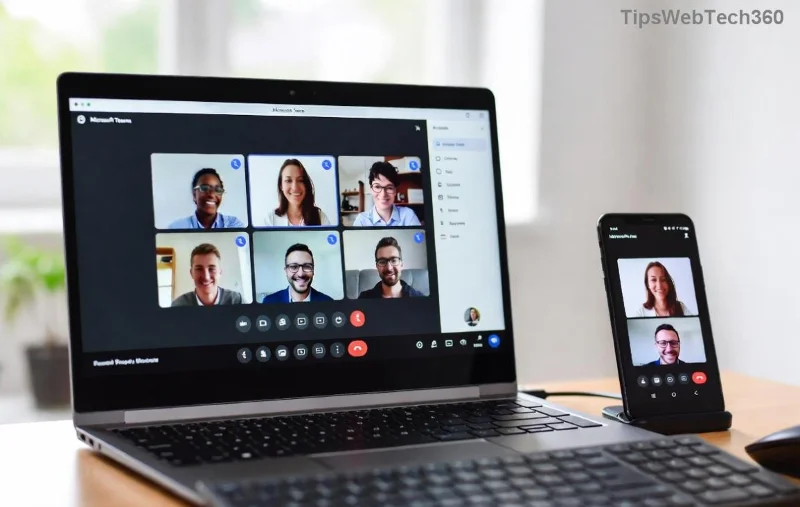
Voilà! Participants join their assigned room automatically. Microsoft Support confirms this works flawlessly in the newest versions.
2️⃣ Assign During the Meeting: Flexible On-the-Fly Changes
Meetings evolve – so should your rooms! Learn how to assign participants to breakout rooms in Microsoft Teams live for real-time adjustments.
Quick Live Assignment Steps
| Method |
Steps |
Best For |
| Manual Assign |
1. Start meeting > Breakout rooms > Create.
2. Select Assign participants.
3. Move people to rooms > Assign. |
Custom groups by skill/topic. |
| Random Assign |
1. Create rooms.
2. Choose Randomly > Assign. |
Quick, unbiased mixing. |
| Let Participants Choose |
1. Create rooms.
2. Select Let participants choose. |
Self-select for interests. |
![Live breakout room assignment panel in Microsoft Teams meeting]()
💡 Bonus: Switch assignments anytime via Edit in the breakout rooms pane. Admins love this flexibility!
3️⃣ Power Up with Excel Pre-Assignment: Scale for Large Groups
For 50+ participants, import from Excel – the pro hack for precise Teams breakout rooms assignment.
- Prepare Excel: Columns: Email, Room (e.g., Room1), Display Name. Download template from Teams.
- Upload: In meeting options > Breakout rooms > Import from Excel.
- Review & Assign: Teams auto-populates rooms. Tweak if needed > Save.
![Excel import for pre-assigning breakout rooms in Teams]()
This method shines for recurring events. Check Microsoft's Breakout Rooms Toolkit for templates. ⭐
⚡ Pro Tips to Assign Participants to Breakout Rooms Flawlessly
- Communicate Early: Notify groups via chat or email previews.
- Timers & Recalls: Set auto-close timers and use Recall to bring everyone back. ⏰
- Permissions: Co-organizers can manage rooms too – delegate!
- Mobile Optimization: Works on app/desktop; test on phones for hybrid teams.
- Recordings: Main session records; breakout chats save to channels.
❌ Common Issues & Fixes for Smooth Breakout Rooms Assignment
Stuck? Here's your troubleshoot table:
| Problem |
Fix |
| No breakout option |
Check license/organizer role. Update Teams app. |
| Can't assign guests |
Enable in meeting policy (Admin Center). |
| Wrong room joins |
Re-assign or restart rooms. |
Still issues? Restart Teams or consult your IT admin. 👍
🎉 Wrap-Up: Revolutionize Your Meetings Today
Now you know how to assign participants to breakout rooms in Microsoft Teams like an expert – from pre-planning to live magic. Implement these steps, and watch engagement soar! What's your next meeting? Try it and share your wins in the comments. For more Teams mastery, stick around – we've got guides on polls, reactions, and more. 🚀