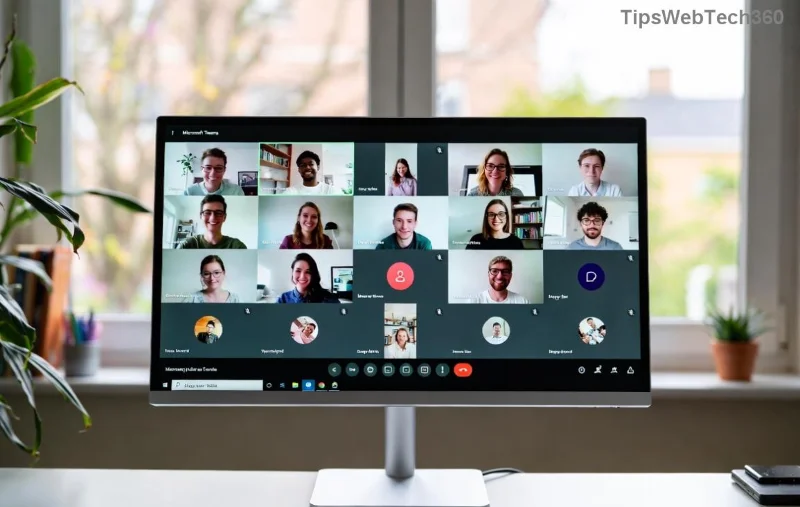
Ever missed a crucial Microsoft Teams video recorded by a colleague? Whether it's a training session, team update, or webinar, grabbing those Microsoft Teams recordings shouldn't be a hassle. This guide delivers precise, official steps to download Microsoft Teams videos recorded by others—legally and quickly. No fluff, just actionable advice to save you time. 👆 Let's dive in!
🛡️ Important: Ensure You Have Permission
Before starting, confirm the recording owner has shared access with you. Microsoft Teams videos are private by default, stored in OneDrive or Microsoft Stream. Unauthorized downloads violate policies—stick to shared links for compliance. Ready? Follow these proven methods.
Method 1: Download via Microsoft Stream (Easiest for Shared Recordings) ⭐
Most Microsoft Teams recordings end up in Stream after processing. If the owner shared the link, you're set.
- Open Teams: Launch the desktop app or web version (teams.microsoft.com).
- Locate the Recording: Go to the chat or channel where it was posted. Click the recording thumbnail or link. 👆
- Open in Stream: Select "Open in Microsoft Stream" (or it auto-redirects). Sign in if prompted.
- Download the Video: In Stream, hover over the video player. Click the Download icon (↓ arrow). Choose quality (e.g., 1080p MP4).
- Save Locally: Pick your folder and hit Save. Done! 🎉
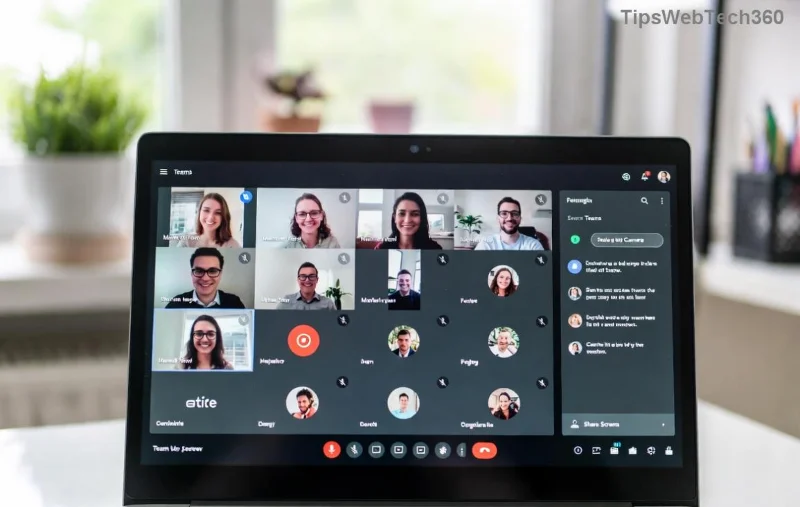
Pro Tip: For bulk downloads, check Stream's "My content" if you're the owner, but for others' videos, rely on shared access.
Method 2: Direct Download from OneDrive/SharePoint (For Channel Meetings) ⭐
Channel-based Microsoft Teams videos recorded by others save to SharePoint/OneDrive for the group. Perfect for team files.
- Access the Files Tab: In Teams, navigate to the channel > Files tab.
- Find the Recording: Open the "Recordings" folder (auto-created). Double-click the .mp4 file.
- Download: In the OneDrive preview, click Download (cloud arrow icon) or right-click > Download.
- Alternative Browser Trick: Copy the file link > Paste in OneDrive web (onedrive.live.com) > Download.
![OneDrive file preview showing <strong>download Microsoft Teams recordings</strong> option for shared videos]()
This method shines for ongoing access without Stream transcoding delays. Files are native MP4s—ready to edit in VLC or Premiere.
📊 Quick Comparison: Best Method for Your Scenario
| Method |
Best For |
Speed |
Quality |
Requirements |
| Microsoft Stream |
Personal/shared meetings |
Fast (post-processing) |
High (adaptive) |
Shared link |
| OneDrive/SharePoint |
Channel/team recordings |
Instant |
Original MP4 |
Team access |
| Teams Download Button |
Quick previews |
Very fast |
Preview only |
App access |
🔧 Troubleshooting Common Issues 🚫
- No Download Button? Recording not fully processed (wait 1-2 hours) or access revoked. Ask owner to re-share. 😊
- Grayed Out? Use incognito mode or clear cache. Ensure you're signed into the right Microsoft account.
- Mobile Download? Open link in browser > Request desktop site > Follow Stream steps.
- Large Files Slow? Use a wired connection or download overnight.
For official details, see Microsoft's Teams Recording Guide.
💡 Advanced Tips to Supercharge Your Downloads
- Batch Download: Use OneDrive sync client—recordings auto-sync to your PC folder.
- Quality Boost: Always pick highest resolution in Stream for crisp playback.
- Edit Post-Download: Import to free tools like HandBrake for compression or DaVinci Resolve for cuts.
- Prevent Future Hassles: Request owners enable "Download" in recording settings during setup.
❓ FAQ: Your Burning Questions Answered
- Can I download Microsoft Teams videos without permission?
- No—respect privacy. Only access shared content.
- What if the recording expires?
- Owners set expiration (30-365 days). Download ASAP!
- Works on Mac/Windows?
- Yes, cross-platform via web/desktop apps.
- Third-party tools safe?
- Stick to official methods to avoid risks. Extensions like Video DownloadHelper work but use cautiously.
Mastered downloading Microsoft Teams videos recorded by others? Share this guide with your team and never miss key content again. Got a tip? Drop it below! 🎉 Stay tuned for more Teams hacks.