Ever joined a Microsoft Teams meeting, excited for breakout rooms, only to stare at an empty toolbar? 😩 You're not alone. This frustrating glitch hits users worldwide, but don't worry—it's usually a quick fix. In this guide, we'll uncover the top reasons why you can't see breakout rooms in your Teams meeting and arm you with proven solutions. Stick around to reclaim your meeting control! ✅
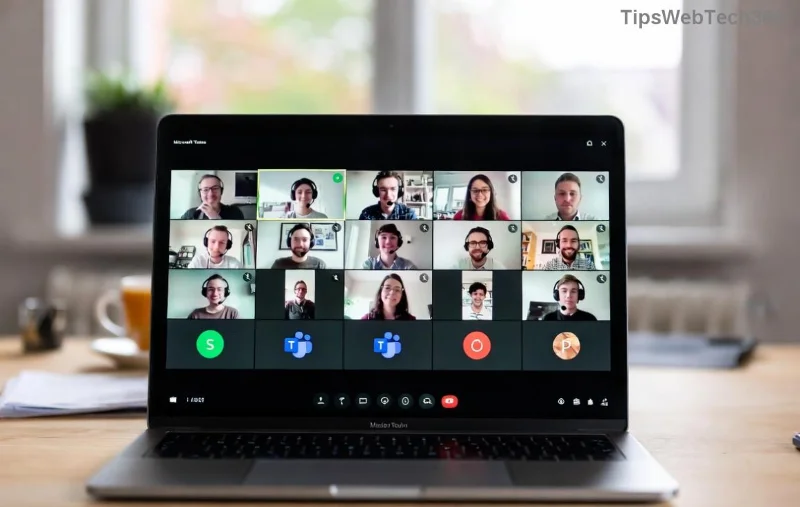
1️⃣ You're Not the Meeting Organizer or Co-Organizer – The #1 Culprit
The most common reason breakout rooms disappear? Permissions. Only Teams meeting organizers and assigned co-organizers can create, manage, and see the Breakout Rooms button during a meeting.
- ✅ Organizers see it immediately in the meeting toolbar (next to Share, Participants).
- ❌ Participants won't—they only get assigned to rooms and see a "Join" prompt later.
Quick Fix: Ask the organizer to promote you: More actions (⋯) > Make co-organizer. Boom—breakout rooms appear! If you're the organizer, double-check your role in Teams Calendar.
2️⃣ Meeting Hasn't Started or Breakout Rooms Aren't Created Yet
Breakout rooms in Teams only show after the meeting kicks off and you've hit "Create rooms." Pre-meeting? No dice.
| Status | Breakout Rooms Visible? |
|---|---|
| Pre-meeting lobby | ❌ No |
| Meeting live, rooms created | ✅ Yes (for organizers) |
| Participant assigned | ✅ Join button only |
Pro Tip: Organizers, create rooms via Breakout rooms > Create rooms > Assign participants. Participants, wait for the notification—it's automatic!
3️⃣ Outdated Teams App or Browser Glitches
Running an old Microsoft Teams version? Breakout rooms not showing is a classic symptom. Microsoft rolls out features in waves—stay updated for the latest Teams meeting perks.
Fix Steps:
- Desktop: Profile icon > Check for updates. Restart Teams. 🔄
- Web: Use Edge/Chrome latest—Teams web app fully supports breakout rooms.
- Mobile: App Store/Google Play update. Test in landscape mode for toolbar visibility.
Still missing? Clear cache: Settings > Apps > Teams > Storage > Clear cache. Refresh! 🎉
4️⃣ Admin Policies or License Restrictions Blocking Access
In enterprise setups, IT admins control features via Teams Admin Center. Policies might disable breakout rooms for security or compliance.
- Check: Meeting policies under Teams Admin Center > Meetings > Policies.
- License Note: Basic breakout rooms are free in all plans, but advanced (pre-assigned) needs Teams Premium.
Action: Contact your admin or switch to a personal Teams account to test. For details, see Microsoft's official guide: Breakout Rooms Support.
5️⃣ Device, Network, or UI Hiccups
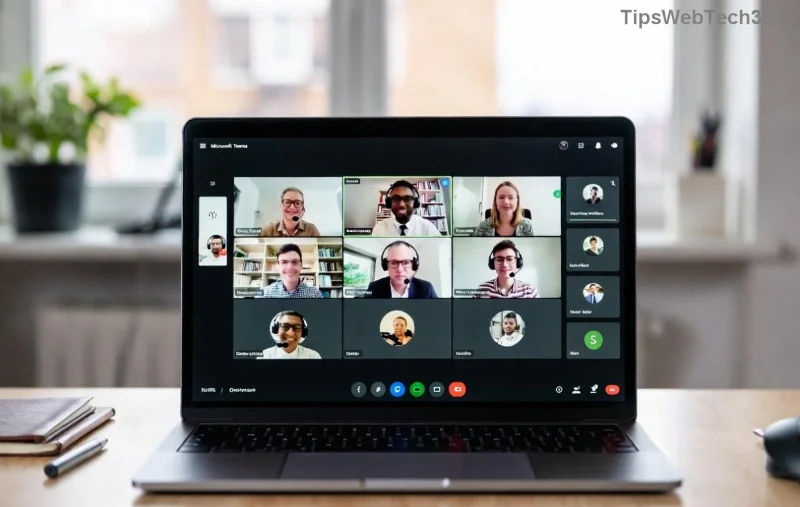
Rare but sneaky: Small screens hide the toolbar, firewalls block features, or you're in "Together mode" overriding options.
Troubleshoot:
- Expand window/full screen. 📱➡️💻
- Stable Wi-Fi—VPNs can interfere.
- Switch views: Gallery > Large gallery > Breakout rooms.
Bonus: Pre-Meeting Setup to Avoid Breakout Rooms Drama
Prevent future headaches:
- ⭐ In Calendar: Edit event > Breakout rooms > Room settings.
- ⭐ Auto-assign: Let Teams distribute participants evenly.
- ⭐ Timer: Set 5-10 min reminders for room returns.
"With these tweaks, your Teams meetings will flow like clockwork!" – Teams Power User
Still Stuck? Final Rescue Steps
If breakout rooms in Teams meeting remain invisible:
- Restart device and rejoin.
- Test new meeting.
- Submit feedback: Help > Give feedback.
Microsoft actively fixes these—your report helps everyone. 👏
Ready to master Teams breakout rooms? You've got the tools—schedule that meeting and shine! Share your wins in comments below. What's your biggest Teams pet peeve? 👇









