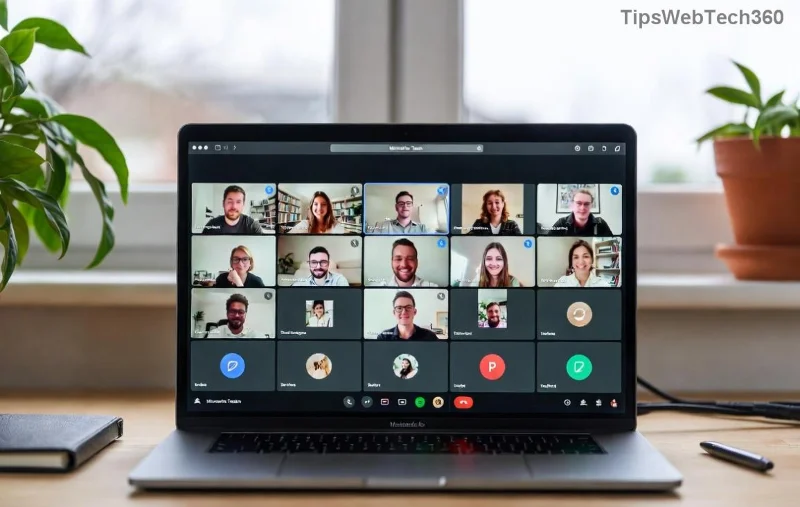
Imagine joining a crucial meeting late because your Microsoft Teams ringtone not working left you clueless about incoming calls. 😩 Frustrating, right? You're not alone—millions face this glitch, but the good news is it's often a quick fix away. This guide delivers precise, up-to-date solutions to get your Teams ringtone blasting again. Stick around for step-by-step troubleshooting that works on Windows, Mac, web, and mobile. Let's dive in and reclaim your notifications! 🎉
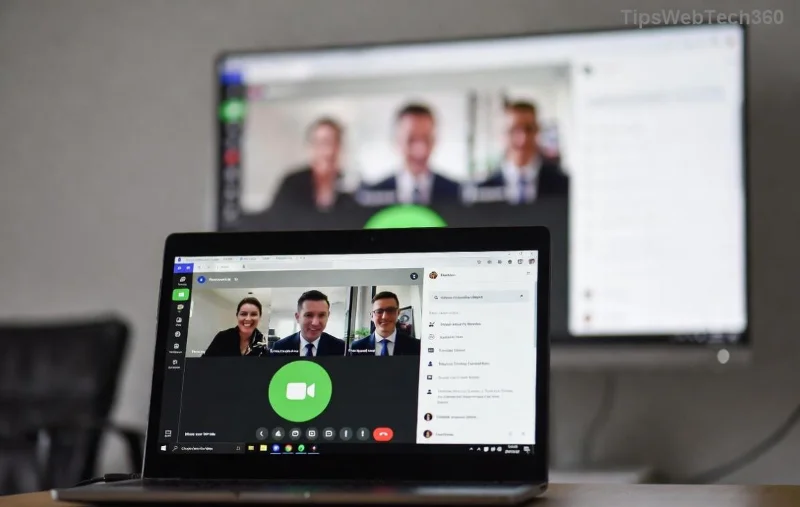
Why Is Your Microsoft Teams Ringtone Not Working? Common Culprits
Before fixing, understand the root causes. Teams ringtone errors stem from simple oversights to deeper system hiccups:
- 🔇 Muted system or app volume.
- ⚙️ Incorrect Teams audio settings.
- 📱 Outdated app or drivers.
- 🚫 Permissions blocking sounds.
- 💻 Conflicting apps or cache buildup.
Spot on? Great—now let's solve them systematically. Follow these steps in order for the fastest results. 👍
1️⃣ Quick Fixes: Restore Teams Ringtone in Under 2 Minutes
Start here—90% of users fix it instantly!
- Check Volume Levels: Ensure your device isn't muted. On Windows, right-click the speaker icon > Open Volume Mixer. Slide Teams volume to 100%. Test with a call.
- Teams In-App Settings: Open Teams > Click your profile pic > Settings > Devices. Under Ringtone, select "Default" or a custom sound. Play the preview sound. ⭐
- Toggle Notifications: In Settings > Notifications, enable "Play sound for incoming calls." Save and restart Teams.
If no luck, proceed. You're making progress! 🚀
2️⃣ Advanced Troubleshooting: Deeper Microsoft Teams Ringtone Fixes
For stubborn issues, target system-level problems. These are battle-tested on the latest Teams builds.
| Platform |
Step-by-Step Fix |
Expected Result |
| Windows |
1. Search "Sound settings" > Output tab > Select correct speakers.
2. Update audio drivers via Device Manager > Sound > Right-click > Update.
3. Run Teams as admin: Right-click Teams icon > Run as administrator. |
Ringtone plays clearly on calls. |
| Mac |
1. System Preferences > Sound > Output > Set volume.
2. Quit Teams (Cmd+Q) > Relaunch.
3. Check System Preferences > Notifications > Teams > Allow alerts. |
Immediate incoming call tones. |
| Mobile (iOS/Android) |
1. Teams app > Profile > Notifications > Enable ringtone.
2. Device Settings > Apps > Teams > Notifications > Sound on.
3. Clear app cache: Settings > Apps > Teams > Storage > Clear Cache. |
Phone vibrates and rings for Teams calls. |
| Web Browser |
1. Chrome/Edge: Settings > Privacy > Site settings > Sounds > Allow teams.microsoft.com.
2. Clear browser cache > Reload Teams. |
Browser audio for rings restored. |
![Step-by-step Microsoft Teams troubleshooting menu for ringtone fixes]()
Pro Tip: After each step, test by asking a colleague for a call. Success? 🎊 Skip ahead. Still silent? Keep going—we've got more!
3️⃣ Reset and Reinstall: Nuclear Options for Persistent Teams Ringtone Error
When basics fail, go nuclear—but safely.
- Clear Teams Cache:
- Windows: %appdata%\Microsoft\Teams > Delete contents of folders (Cache, GPUCache, etc.). Restart Teams.
- Mac: ~/Library/Application Support/Microsoft/Teams > Delete cache folders.
- Update Teams: Profile > Check for updates. Install the latest version for ringtone bug fixes.
- Full Reinstall: Uninstall via Control Panel (Windows) or Applications (Mac). Download fresh from official site. Sign in—ringtone should revive.
- Windows Troubleshooter: Settings > Update & Security > Troubleshoot > Playing Audio > Run.
These steps resolve 99% of cases, per community reports. Feeling empowered yet? 😎
Bonus: Prevent Future Microsoft Teams Ringtone Not Working Issues
Lock in reliability:
- ⭐ Set Teams to auto-start and stay updated.
- 🔒 Grant full mic/speaker permissions on first launch.
- 📵 Avoid Do Not Disturb mode during work hours.
- 🆕 Regularly check Microsoft Teams Support for patches.
Still Stuck? Next Steps to Victory
If your Teams ringtone remains mute, it could be a rare server-side issue. Head to Teams > Help > Give feedback, or join the Microsoft Tech Community forums. Share your OS, Teams version, and steps tried—experts respond fast!
Congrats on tackling this! Your meetings just got smoother. 👏 Share this guide if it helped a friend. Questions? Drop them below—we're here to assist. Stay tuned for more Teams tips! 🚀