🚨 Fix Muffled Microphone in Microsoft Teams: Proven Troubleshooting Guide

Is your voice sounding muffled during Microsoft Teams calls? 😩 You're not aloneβ€”many users face the Microsoft Teams microphone muffled error, turning important meetings into frustrating whispers. Don't worry! This guide delivers straightforward, effective solutions to restore crystal-clear audio. Follow these steps, and you'll be back to confident conversations in minutes. Let's dive in! 🎀

Why Your Microsoft Teams Microphone Sounds Muffled

Common culprits include outdated drivers, aggressive noise suppression, hardware glitches, or app permissions. Bandwidth issues or conflicting apps can also muffle sound. Identifying the cause is key to quick fixesβ€”keep reading for targeted troubleshooting! ⭐

Quick Fixes to Try First βœ…

Start here for 80% of cases. These take under 2 minutes:

  1. 1️⃣ Check Hardware Connections: Ensure your mic is plugged in securely. Test on another device. Loose cables often cause muffling.
  2. 2️⃣ Test in Teams Settings: In Teams, go to Settings > Devices. Speak into the Make a test call feature. If muffled here, proceed.
  3. 3️⃣ Toggle Noise Suppression: Under Devices > Microphone, turn Noise suppression to Auto or Off. Overly aggressive settings muffle voices!
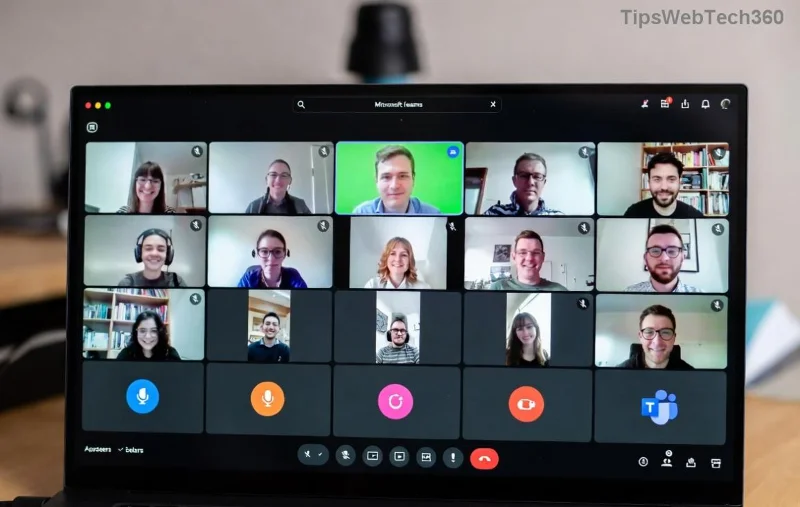
Microsoft Teams microphone settings screen showing noise suppression options

Pro Tip: Restart Teams after changes. Still muffled? Time for deeper troubleshooting. πŸ‘‡

Step-by-Step Troubleshooting Microsoft Teams Microphone Muffled Error

Follow this checklist systematically. We've prioritized the most effective methods based on latest user reports and Microsoft updates.

Step Action Expected Result
1 Update Teams App: Download the latest version from the Microsoft site or Microsoft Store. Fresh patches fix audio bugs.
2 Run Windows Troubleshooter: Search "Troubleshoot settings" > Other troubleshooters > Recording Audio. Let it scan and repair. Auto-detects driver issues.
3 Check Permissions: Settings > Privacy > Microphone > Allow apps. Ensure Teams is toggled ON. Restores access.
4 Update Audio Drivers: Device Manager > Audio inputs > Right-click mic > Update driver > Search automatically. Outdated drivers cause 40% of muffling.
5 Disable Enhancements: Right-click mic in Sound settings > Properties > Enhancements > Check "Disable all enhancements." Eliminates processing glitches.
Device Manager showing microphone driver update for Teams troubleshooting

After each step, test your mic. Success? πŸŽ‰ Skip ahead. Persistent issue? Continue to advanced fixes.

Advanced Solutions for Stubborn Teams Microphone Muffled Issues

If basics fail, these power moves resolve deeper problems:

  • Clear Teams Cache: Quit Teams (Task Manager), delete %appdata%\Microsoft\Teams folders, relaunch. Refreshes corrupted files.
  • Switch Audio Devices: In Teams Devices, select a different mic/speaker combo. USB headsets shine here.
  • Reinstall Teams: Uninstall via Settings > Apps, download fresh from official site.
  • Check Bandwidth: Close bandwidth hogs like downloads. Use wired internet for calls.
  • Third-Party Conflicts: Disable antivirus real-time scanning or VPNs temporarily. Tools like Nahimic or Dolby can interfere.
Teams test call interface confirming clear microphone audio

For hardware faults, test external mics. Official Microsoft advice confirms these steps work across Windows, Mac, and web versions: Teams Audio Settings.

Prevent Future Microsoft Teams Microphone Muffled Error πŸ‘

Stay ahead:

  • ⭐ Keep Teams and drivers updated automatically.
  • βœ… Use dedicated USB mics for pro audio.
  • πŸ”‡ Set noise suppression to Low for natural sound.
  • πŸ“± Test audio before meetingsβ€”Teams' preview rocks!

Bonus: Enable High-quality audio in meeting options for uncompressed clarity (requires good internet).

Ready for Crystal-Clear Calls? You've Got This! 🎀

Congrats on tackling the troubleshooting Microsoft Teams microphone muffled error! Most users fix it in under 15 minutes with these steps. If issues persist, share your setup in commentsβ€”we're here to help. Drop a πŸ‘ if this saved your meeting! Now, hop into Teams and shine. πŸš€

Leave a Comment

πŸš€ Fix Microsoft Teams Test Call Error 2026 in Minutes: Ultimate Step-by-Step Guide

πŸš€ Fix Microsoft Teams Test Call Error 2026 in Minutes: Ultimate Step-by-Step Guide

Struggling with Microsoft Teams "Test Call" Error 2026? Discover proven, easy fixes to resolve microphone issues and get crystal-clear calls back instantly. No tech skills needed!

πŸš€ Ultimate Step-by-Step: Setting Up Microsoft Teams Town Hall Events in Minutes

πŸš€ Ultimate Step-by-Step: Setting Up Microsoft Teams Town Hall Events in Minutes

Master Setting Up Microsoft Teams Town Hall Events with this easy, step-by-step guide. Host massive virtual gatherings for up to 50,000 attendees effortlessly – perfect for companies, conferences, and more!

Escape the Microsoft Teams Welcome Screen Startup Loop: Proven Fixes to Get You Back Online Fast

Escape the Microsoft Teams Welcome Screen Startup Loop: Proven Fixes to Get You Back Online Fast

Stuck in an endless Microsoft Teams welcome screen startup loop? Our comprehensive guide on Troubleshooting Microsoft Teams Welcome Screen Startup Loop provides step-by-step solutions, from cache clearing to reinstalls, ensuring quick recovery for seamless teamwork.

πŸš€ Ultimate Guide: Fix Microsoft Teams JavaScript Error on Mac in Under 5 Minutes!

πŸš€ Ultimate Guide: Fix Microsoft Teams JavaScript Error on Mac in Under 5 Minutes!

Tired of the frustrating Microsoft Teams JavaScript Error on Mac? Discover proven, step-by-step fixes for macOS that work instantly. Clear cache, update, and moreβ€”no tech skills needed.

πŸš€ Ultimate Step-by-Step Guide: How to Create a Wiki Page in Microsoft Teams Effortlessly

πŸš€ Ultimate Step-by-Step Guide: How to Create a Wiki Page in Microsoft Teams Effortlessly

Master how to create a Wiki page in Microsoft Teams with this easy, step-by-step guide. Boost team collaboration using built-in Wiki tabs, editing tips, and pro tricks for seamless knowledge sharing. Start now!

πŸš€ Ultimate Guide: How to Check Microsoft Teams Version History & Build Number Instantly!

πŸš€ Ultimate Guide: How to Check Microsoft Teams Version History & Build Number Instantly!

Discover simple steps to check your Microsoft Teams version history and build number on desktop, web, and mobile. Stay updated with the latest features and fixes effortlessly. Perfect for Teams admins and users!

πŸš€ Fix Microsoft Teams For School Login Error: Instant Solutions That Actually Work!

πŸš€ Fix Microsoft Teams For School Login Error: Instant Solutions That Actually Work!

Tired of the frustrating Microsoft Teams "For School" login error blocking your classes? Get proven, step-by-step fixes to resolve it quickly and get back online. Latest troubleshooting tips included.

πŸ”§ Instant Fix: How to Fix Microsoft Teams Error on Desktop Shortcut in 2026

πŸ”§ Instant Fix: How to Fix Microsoft Teams Error on Desktop Shortcut in 2026

Tired of the frustrating Microsoft Teams "Error" on your desktop shortcut? Discover proven, step-by-step solutions to fix Microsoft Teams error quickly and restore seamless access. Works on Windows 10/11 with latest updates!

πŸš€ Ultimate Fix: Resolve Microsoft Teams Task Management Sync Errors in Minutes!

πŸš€ Ultimate Fix: Resolve Microsoft Teams Task Management Sync Errors in Minutes!

Stuck with frustrating Microsoft Teams Task Management Sync Errors? Discover proven, step-by-step fixes to restore seamless task syncing in Teams, Planner, and To Do. Boost productivity now!

πŸš€ Quick Fix: Solve Microsoft Teams Meet Joining Error in Seconds – No More Missed Meetings!

πŸš€ Quick Fix: Solve Microsoft Teams Meet Joining Error in Seconds – No More Missed Meetings!

Struggling with Microsoft Teams "Meet" joining error? Discover proven, step-by-step fixes for smooth video calls. Update your app, clear cache, and more – get back to meetings hassle-free!