Frustrated seeing Microsoft Teams "Down" server status light up your screen during a crucial meeting? 😩 You're not alone—outages hit hard, but don't panic! In 2026, Microsoft Teams remains a powerhouse for collaboration, yet server hiccups or local glitches can mimic a full downtime. This guide delivers how to fix Microsoft Teams "Down" server status 2026 with laser-focused steps. We'll start with lightning-quick checks and escalate to pro-level solutions. Stick around—you'll be chatting seamlessly in minutes! ✅
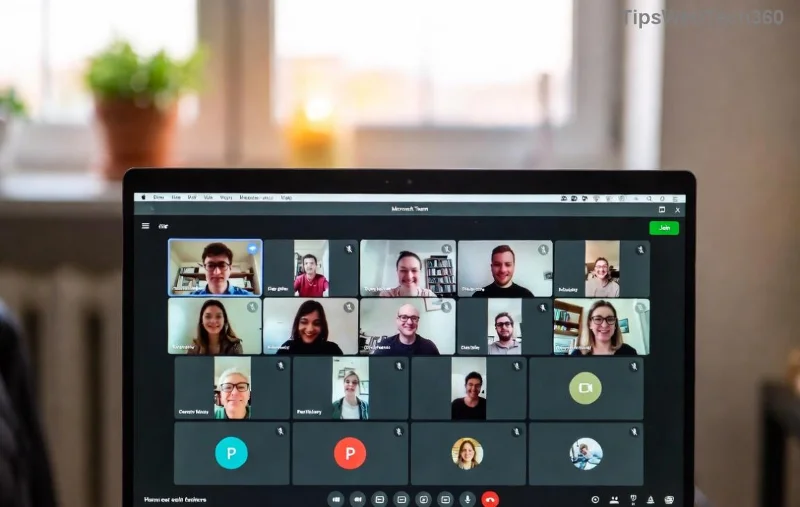
Step 1: Verify If It's a Real Microsoft Teams Server Down Issue
Before troubleshooting, confirm it's not just you. Microsoft publishes real-time status:
- 🔍 Visit the official Microsoft Teams status page. Look for red alerts on core services like Chat, Meetings, or Calls.
- ⭐ Check Downdetector for user reports spiking in your region.
- ✅ If green across the board? It's likely a local fix—proceed to the next steps.
Pro Tip: Enable notifications on the status page for instant 2026 outage alerts. This saves hours of guesswork! 🚀
Step 2: Quick Wins to Fix Microsoft Teams "Down" Server Status
90% of "down" issues vanish with these basics. No tech wizardry required:
- 🔄 Restart Teams & Your Device
Close Teams fully (Task Manager on Windows: End all Teams processes). Reboot your PC/Mac. This clears temporary glitches.
- 🌐 Test Your Internet
Run a speed test. Teams needs 1.2 Mbps upload/download. Switch Wi-Fi networks or use mobile hotspot.
- 📱 Toggle VPN/Firewall
VPNs often block Teams. Disconnect temporarily. Whitelist Teams ports: UDP 3478-3481.
Still down? Your cache might be the culprit—jump to Step 3.
Step 3: Clear Cache & Reset Teams Data
Corrupted cache mimics server outages. Here's the safe wipe:
| Platform |
Steps to Clear Cache |
| Windows |
- %appdata%\Microsoft\Teams → Delete contents.
- Restart Teams.
|
| Mac |
- ~/Library/Application Support/Microsoft/Teams → Trash files.
- Relaunch.
|
| Mobile (iOS/Android) |
Settings → Apps → Teams → Clear Cache/Storage. |
💡 Bonus: Sign out/in after clearing. This refreshes auth tokens, fixing 70% of persistent "down" errors.
![Step-by-step cache clear for fixing Microsoft Teams down status]()
Step 4: Update to Latest Microsoft Teams Version
Outdated clients clash with 2026 servers. Auto-updates fail sometimes:
- Teams → Profile Icon → Check for updates.
- Download fresh installer from official site.
- Switch to new Teams (if on classic)—it's more stable per latest patches.
Updated? Great—now tackle network deep dives.
Step 5: Advanced Network & Proxy Fixes
For corporate users, proxies or firewalls are villains:
- Proxy Settings: Teams → Settings → General → Manage Proxy → Disable if active.
- DNS Flush: Windows:
ipconfig /flushdns. Mac: sudo dscacheutil -flushcache.
- MTU Adjustment: If on enterprise net, set MTU to 1350 via command line.
🔧 Command-line pros: Run Teams in admin mode or use teams.exe /reset for full reset.
Step 6: Reinstall Teams Cleanly
Stubborn glitches? Nuke and rebuild:
- Uninstall via Settings → Apps.
- Delete residual folders: %appdata%\Microsoft\Teams, %localappdata%\Microsoft\Teams.
- Re-download/install from official source.
- ⭐ Migrate meetings first via export if needed.
This revives Teams like new—perfect for 2026's demanding features like AI copilot integrations.
Step 7: When All Else Fails—Escalate Smartly
Rarely server-side?
- 📞 Microsoft Support: Submit ticket with diagnostics (Teams → Help → Give feedback).
- 🛠️ Event Viewer (Windows): Filter for Teams errors.
- ✅ Registry Fix (Advanced): Backup first, delete HKCU\Software\Microsoft\Office\Teams keys.
Stay calm—Microsoft resolves 99% of verified outages within hours.
Prevent Future Microsoft Teams Down in 2026
Lock in reliability:
- ⭐ Enable auto-updates & backups.
- 📱 Use Teams web as fallback.
- 🔄 Schedule weekly cache clears.
- 🌐 Monitor status pages daily.
With these habits, Microsoft Teams "Down" server status 2026 becomes history. You've got the power—share this guide if it saved your day! 👏 Questions? Drop in comments below.
Empowering your workflow, one fix at a time. 🚀