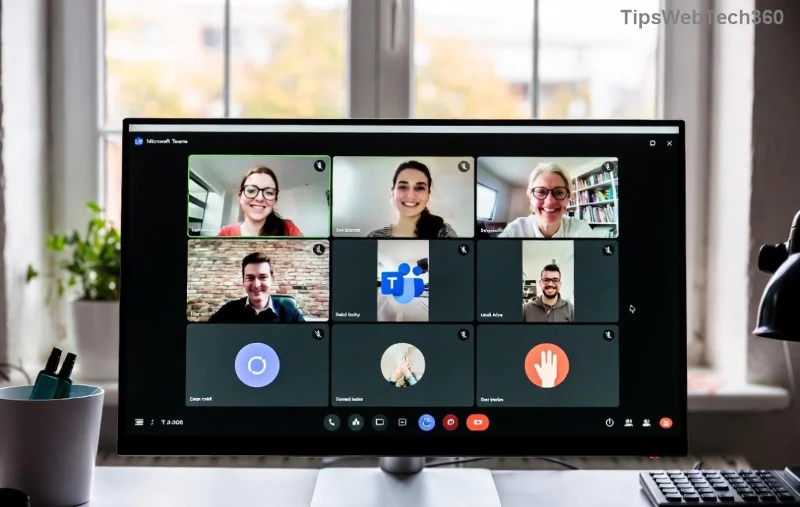
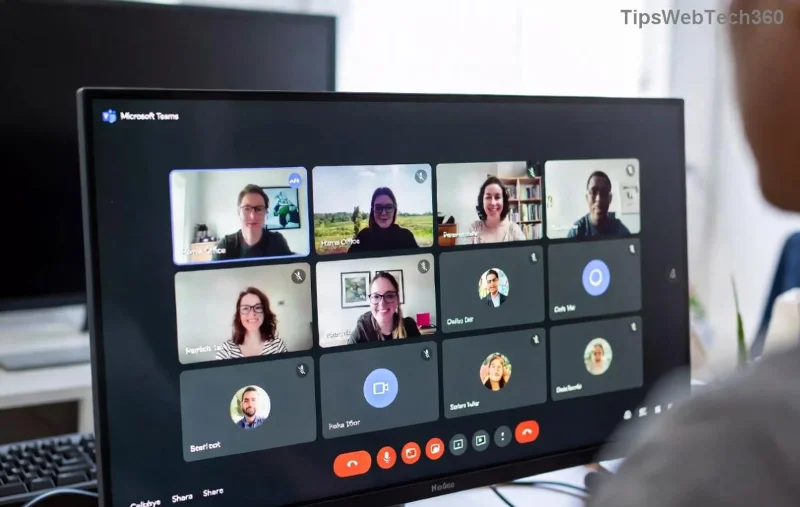
Encountering a Microsoft Teams green screen video error during calls? You're not alone—this pesky issue turns your video feed into an unwanted St. Patrick's Day special, disrupting meetings and frustrating everyone. 😩 Don't worry; we've got your back with targeted, up-to-date fixes that work on Windows, Mac, and web versions. Follow these steps in order, and you'll be back to seamless video chats in minutes. Let's dive in!
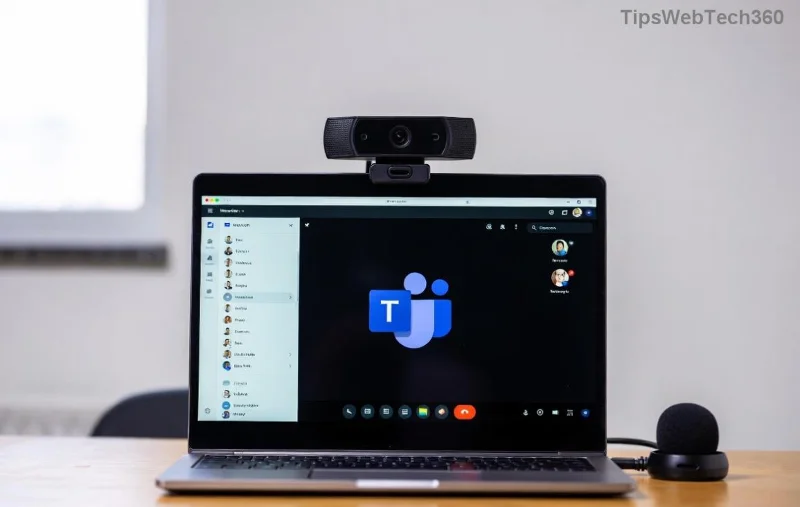
🚀 Quick Diagnosis: Why Does Teams Green Screen Happen?
Understanding the root cause speeds up your fix. Common culprits include:
- Outdated graphics drivers: Incompatible GPU handling video rendering.
- Hardware acceleration conflicts in Teams.
- Camera permissions or app glitches.
- Overlays from apps like Discord, NVIDIA ShadowPlay, or antivirus software.
- Network hiccups or corrupted cache.
Pro tip: Test your camera in another app like Zoom first. If it's fine there, Teams is the issue. Ready for the fixes? Start with the easiest ones—they resolve 80% of cases.
Step 1: Toggle Hardware Acceleration in Microsoft Teams ⭐
The #1 fix for Teams green screen video error. Hardware acceleration offloads video to your GPU, but it often clashes.
- Open Teams > Click your profile picture > Settings > General.
- Uncheck Enable GPU hardware acceleration.
- Sign out, restart Teams, and test video.
Still green? No sweat—re-enable it later if needed. This tweak fixed it for thousands, per Microsoft forums.
![Teams settings for disabling hardware acceleration]()
Step 2: Update Graphics Drivers & Teams App
Outdated drivers are a silent killer for Teams video error green screen.
| Device |
Update Steps |
| Windows |
Device Manager > Display adapters > Right-click GPU > Update driver. Or use NVIDIA/AMD/Intel sites. |
| Mac |
System Settings > Software Update. Restart. |
| Teams |
Profile > Check for updates. Or reinstall from official site. |
After updating, clear Teams cache: %appdata%\Microsoft\Teams > Delete contents > Relaunch. Boom—video restored! 👏
Step 3: Disable Overlays & Conflicting Apps
Game overlays love causing green screen error Microsoft Teams.
- NVIDIA GeForce Experience: Open app > Settings > General > Disable In-Game Overlay.
- Discord: User Settings > Overlay > Turn off.
- Antivirus/Firewall: Temporarily disable real-time scanning or add Teams exception.
- Close browser extensions if using Teams web.
Restart your PC. Test in a new meeting. If it persists, VPN users: Disconnect and retry—network acceleration can trigger this.
![Overlays causing Teams green screen issue]()
Step 4: Advanced Fixes for Stubborn Green Screen Teams
Not fixed yet? These power moves handle edge cases:
- Reset Teams Permissions: Windows Settings > Privacy > Camera/Microphone > Ensure Teams is allowed.
- Run as Admin: Right-click Teams shortcut > Run as administrator.
- Switch Video Devices: Settings > Devices > Select different camera.
- Registry Tweak (Windows Pros Only): Search "regedit" > HKEY_CURRENT_USER\Software\Microsoft\Office\Teams > Add DWORD "DisableGpuEffect" = 1. Backup first!
For Mac: Force quit Teams via Activity Monitor > Relaunch.
Prevention Tips: Keep Microsoft Teams Video Error-Free Forever
Lock in success:
- ⭐ Auto-update drivers via tools like GeForce Experience.
- Regularly clear Teams cache weekly.
- Use wired Ethernet over Wi-Fi for stability.
- Monitor with Microsoft's troubleshooter.
Congrats—you've conquered the Teams green screen fix! Your meetings will now shine without glitches. If issues linger, drop a comment below—what fixed it for you? Share and help others. Happy calling! 🎉