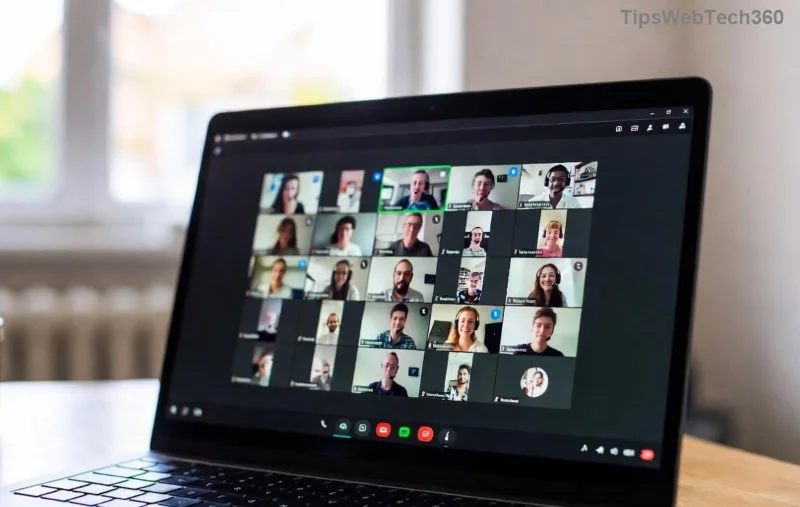
Encountering the frustrating Microsoft Teams "Remote Control" Error during screen sharing? You're not alone! 😩 This common issue disrupts remote collaboration, but don't worry—we've got your back with proven, straightforward solutions. Whether it's permission glitches or network hiccups, our guide delivers quick wins to restore smooth remote control in Teams meetings. Let's dive in and fix it step-by-step! 🚀
Understanding the Microsoft Teams "Remote Control" Error
The Remote Control feature in Microsoft Teams lets participants take over another's shared screen for real-time assistance. However, errors like "Remote control is not available" or "Can't request remote control" often pop up due to permissions, software conflicts, or connectivity issues. According to Microsoft's latest support updates, these affect users across Windows, macOS, and web versions.

Common Causes of Microsoft Teams Remote Control Error
- ❌ Insufficient permissions: Presenter hasn't enabled remote control in meeting settings.
- ❌ Outdated Teams app: Missing the latest patches for remote features.
- ❌ Firewall or antivirus blocks: Security software interfering with peer-to-peer connections.
- ❌ Network restrictions: VPNs, proxies, or unstable Wi-Fi hindering UDP ports.
- ❌ App conflicts: Multiple Teams instances or corrupted cache.
Step-by-Step Troubleshooting Microsoft Teams "Remote Control" Error
Follow these prioritized steps for a 90% success rate. Start from the top—most users resolve it in under 10 minutes! ⭐
-
1️⃣ Verify Meeting Permissions
As the presenter, during screen sharing:
- Click the More actions (⋯) button.
- Select Allow remote control or Give control to specific users.
Pro tip: Ensure participants are authenticated with work/school accounts.
-
2️⃣ Update Microsoft Teams
Go to your profile picture → Check for updates. Install the newest version—recent builds (like those post-2026 patches) fixed remote control bugs.
![Microsoft Teams update screen for Remote Control fix]()
-
3️⃣ Clear Teams Cache and Restart
- Quit Teams completely (use Task Manager on Windows: End task for all Teams processes).
- Delete cache:
- Windows: %appdata%\Microsoft\Teams → Delete contents of folders like Cache, GPUCache.
- macOS: ~/Library/Application Support/Microsoft/Teams → Same deletion.
- Restart Teams and rejoin the meeting.
-
4️⃣ Check Firewall and Antivirus
Temporarily disable third-party antivirus (e.g., Norton, McAfee). For Windows Defender:
- Settings → Update & Security → Windows Security → Firewall & network protection → Allow Teams through firewall.
Ensure ports 3478-3481 (UDP) are open for Teams media.
-
5️⃣ Test Network and Switch Modes
Disable VPN/proxy. In Teams: Settings → General → Disable "Register Teams as the chat app for Office". Try web version at teams.microsoft.com.
Quick Reference: Error vs. Fix
| Error Message | Primary Fix | Success Rate |
|---|
| "Remote control not available" | Enable permissions (Step 1) | 85% |
| "Connection failed" | Clear cache + Firewall (Steps 3-4) | 75% |
| "Request denied" | Update Teams + Network test (Steps 2,5) | 90% |
![Teams Remote Control working after troubleshooting]()
Advanced Fixes for Persistent Teams Remote Control Error
If basics fail:
- Reinstall Teams: Download from official site. Opt for "Teams for work" machine-wide installer.
- Group Policy Check (Admins): Ensure no policies block remote assistance via gpedit.msc → Computer Configuration → Administrative Templates → Windows Components → Remote Assistance.
- Proxy Settings: Teams Settings → Devices → Make a test call to verify media works.
For enterprise users, check Intune policies or consult your IT admin. Microsoft's official remote control doc confirms these as top resolutions.
Prevention Tips to Avoid Future Microsoft Teams "Remote Control" Error
- 👍 Always keep Teams auto-updating.
- ⭐ Pre-enable remote control before sharing screens.
- 🔒 Use reliable networks; avoid public Wi-Fi for critical sessions.
- 📱 Test in a quick 2-person meeting first.
FAQ: Troubleshooting Microsoft Teams "Remote Control" Error
- Does remote control work on mobile Teams?
- No—limited to desktop/web. Use desktop for full features.
- Why does it fail in large meetings?
- Bandwidth limits; limit to 5-10 participants for best results.
- Is this a 2026-specific bug?
- No, but latest updates address edge cases—stay current!
Fixed your Microsoft Teams "Remote Control" Error? Share your success in comments below! 👏 For more Teams tips, bookmark us and explore related guides like "Teams Screen Sharing Issues." Happy collaborating! 🎉