How to Download Microsoft Teams for Mac and MacBook Air/Pro – Fastest 2026 Guide

Are you ready to supercharge your collaboration on Mac, MacBook Air, or MacBook Pro? Microsoft Teams is the ultimate app for seamless video calls, chats, and file sharing. Whether you're working remotely or teaming up with colleagues, downloading the latest Microsoft Teams for Mac is straightforward. This guide walks you through every step, ensuring a smooth setup. Let's dive in! 🚀
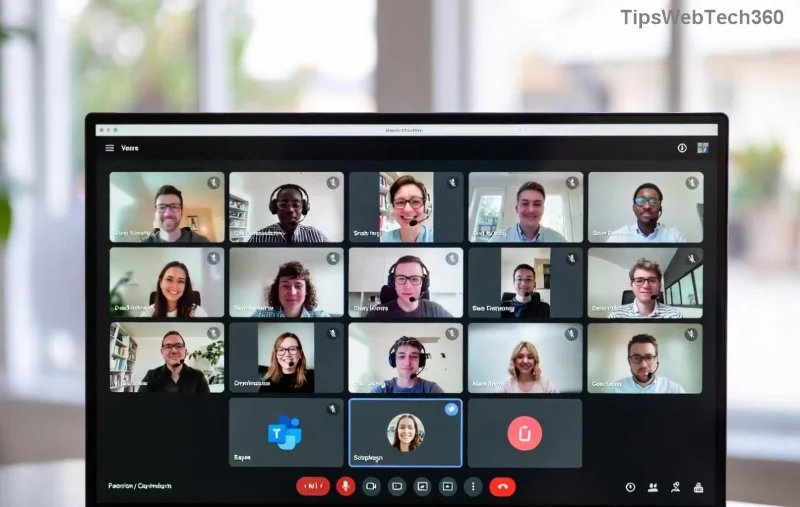
<strong>Microsoft Teams</strong> download interface on Mac

System Requirements for Microsoft Teams on Mac

Before downloading, confirm your device meets the basics:

  • macOS: Ventura 13.0 or later (optimized for Sonoma and Sequoia)
  • RAM: 4 GB minimum (8 GB recommended ⭐)
  • Processor: Apple Silicon (M1/M2/M3) or Intel-based
  • Storage: 2.5 GB free space
  • Stable internet connection 👆

Works flawlessly on MacBook Air, MacBook Pro, iMac, and Mac Mini. Check your version via Apple menu > About This Mac.

Method 1: Download Microsoft Teams for Mac from Official Website (Recommended)

The Microsoft site offers the newest builds with auto-updates. Here's how:

  1. Open Safari or your preferred browser on Mac.
  2. Visit the official Microsoft Teams download page.
  3. Click "Download for Mac" – it detects your OS automatically.
  4. The .dmg file (~200 MB) downloads to your Downloads folder.
  5. Double-click the file to mount it.
  6. Drag the Teams icon to your Applications folder. ✨

Launch from Applications or Spotlight (Cmd + Space, type "Teams"). Sign in with your Microsoft account – free for personal use!

Method 2: Get Microsoft Teams from Mac App Store

Prefer one-click installs? Use the App Store for seamless updates.

  1. Open Mac App Store (blue icon in Dock).
  2. Search "Microsoft Teams".
  3. Select the official app by Microsoft Corporation.
  4. Hit "Get" or the cloud icon if previously installed.
  5. Enter your Apple ID if prompted.
  6. Wait for download and auto-install. 👍
Feature Microsoft Website Mac App Store
Update Speed Fastest (direct) App Store managed
File Size ~200 MB Similar
Customization Choose classic/new UI New UI default
Best For Power users Beginners
Installing <strong>Microsoft Teams</strong> on <strong>MacBook Pro</strong>

Step-by-Step Installation and First Launch

Post-download:

  1. Mount the .dmg and drag to Applications (if from website).
  2. Open Teams – macOS may prompt "Open anyway" in System Settings > Privacy & Security.
  3. Sign in: Work, school, or personal account.
  4. Grant permissions: Camera, mic, notifications.
  5. Customize: Set status, join teams, or explore channels. 🎉

Pro tip: Pin to Dock for quick access (right-click > Options > Keep in Dock).

Troubleshooting Common Issues

Stuck? Quick fixes:

  • Download fails: Clear browser cache or try another browser. ❌
  • "App damaged": Right-click > Open, or run xattr -d com.apple.quarantine /Applications/Microsoft\ Teams.app in Terminal.
  • Black screen: Update macOS/graphics drivers.
  • Slow performance on MacBook Air: Close tabs, enable hardware acceleration in Settings > General.
  • No sound? Check System Settings > Sound > Input/Output.

For M1/M2/M3 chips, Rosetta auto-handles Intel apps – no worries!

Why Choose Microsoft Teams for MacBook Air/Pro?

Optimized for Apple Silicon, it sips battery on MacBook Air during long meetings. Features like breakout rooms, live captions, and integrations (Outlook, OneDrive) make it indispensable. Personal version is free forever – upgrade for advanced security.

Alternatives if Needed

Teams not your vibe?

  • Zoom: Simpler video focus.
  • Slack: Chat-heavy teams.
  • Web Version: No download – teams.microsoft.com.

But for Microsoft 365 users, Teams reigns supreme. 💪

Final Tips for Success

Enable auto-updates in Teams Settings > General. Join a test call to verify setup. Now you're connected – boost productivity today!

Questions? Drop a comment below. Happy teaming! 👏
Leave a Comment

🔧 Instant Fix: Conquer Microsoft Teams For Linux Installation Error in 5 Minutes!

🔧 Instant Fix: Conquer Microsoft Teams For Linux Installation Error in 5 Minutes!

Tired of the frustrating Microsoft Teams "For Linux" installation error? Discover proven, step-by-step fixes for Ubuntu, Fedora, and more. Get back to seamless video calls without the hassle!

Fix Microsoft Teams Web App Login Problems Fast – Ultimate Troubleshooting Guide

Fix Microsoft Teams Web App Login Problems Fast – Ultimate Troubleshooting Guide

Struggling with Microsoft Teams Meeting Web App login problems? Get instant fixes for cache issues, browser glitches, and account errors. Step-by-step solutions to rejoin meetings seamlessly.

🚀 Microsoft Teams Error Report Not Sending? Fix It in Minutes with This Ultimate Guide!

🚀 Microsoft Teams Error Report Not Sending? Fix It in Minutes with This Ultimate Guide!

Struggling with Microsoft Teams error report not sending? This comprehensive guide provides proven troubleshooting Microsoft Teams error report not sending steps to resolve crashes, failed reports, and connectivity issues fast. Get back to productive meetings!

🚀 Fix Microsoft Teams Guest Access Error in Minutes: Ultimate Troubleshooting Guide

🚀 Fix Microsoft Teams Guest Access Error in Minutes: Ultimate Troubleshooting Guide

Stuck with Microsoft Teams "Guest" access error? Follow our step-by-step troubleshooting guide to resolve guest invite issues, enable access, and get teams collaborating seamlessly. Proven fixes for admins and users alike.

🚀 Fix Microsoft Teams Code Error Redemption Instantly: Proven Troubleshooting Guide

🚀 Fix Microsoft Teams Code Error Redemption Instantly: Proven Troubleshooting Guide

Stuck with Microsoft Teams "Code Error" during redemption? Discover step-by-step fixes for code redemption issues, common causes, and pro tips to resolve it fast and redeem your licenses without hassle. Updated with the latest solutions.

🚀 Fix Microsoft Teams Errors Instantly: Ultimate Troubleshooting Guide for Bị Lỗi Issues

🚀 Fix Microsoft Teams Errors Instantly: Ultimate Troubleshooting Guide for Bị Lỗi Issues

Struggling with Microsoft Teams errors like "Bị lỗi"? Discover proven troubleshooting Microsoft Teams steps to resolve general errors, crashes, sign-in issues, and more. Quick fixes for seamless collaboration!

🚀 Fix Microsoft Teams Logs Error Access Denied in 5 Minutes – Proven 2026 Solutions!

🚀 Fix Microsoft Teams Logs Error Access Denied in 5 Minutes – Proven 2026 Solutions!

Struggling with Microsoft Teams "Logs Error" Access Denied? Discover quick, step-by-step fixes to resolve this frustrating issue and get back to seamless collaboration. Updated with the latest Teams patches for instant relief!

🚀 Fix Microsoft Teams User Not Authorized Error: Proven Steps to Get Back Online Fast!

🚀 Fix Microsoft Teams User Not Authorized Error: Proven Steps to Get Back Online Fast!

Stuck with Microsoft Teams "User Not Authorized" error? Follow our expert, step-by-step guide to quickly fix it and resume seamless collaboration. Simple solutions that work every time.

🚀 Microsoft Teams Whiteboard Not Syncing? Fix It Fast with Proven Steps!

🚀 Microsoft Teams Whiteboard Not Syncing? Fix It Fast with Proven Steps!

Struggling with Microsoft Teams Whiteboard not syncing properly? Discover step-by-step fixes for syncing issues, from cache clearing to network tweaks. Get your collaborative whiteboard back on track in minutes!

🚀 Fix Microsoft Teams Time Limit Error FAST: 7 Proven Steps for Instant Relief!

🚀 Fix Microsoft Teams Time Limit Error FAST: 7 Proven Steps for Instant Relief!

Struggling with the frustrating Microsoft Teams "Time Limit" Error? Discover proven, step-by-step fixes to resolve it quickly. Update Teams, clear cache, and more—no tech skills needed! Works on latest versions.









