Imagine kicking off your next virtual workshop with perfectly organized breakout rooms in Microsoft Teams already set up—participants dive straight into focused discussions without a hitch. Whether you're a teacher facilitating classes, a manager running team brainstorms, or an event host engaging large groups, pre-configuring breakout rooms saves time and amps up interaction. In this guide, we'll walk you through how to create breakout rooms in Microsoft Teams before a meeting using the latest features for maximum efficiency. Let's get your sessions supercharged! 🚀
Why Pre-Set Breakout Rooms in Microsoft Teams? The Game-Changing Benefits
Creating breakout rooms ahead of time isn't just convenient—it's transformative. Here's why:
- ✅ Seamless Flow: No mid-meeting setup disruptions. Guests join ready-to-go rooms.
- Boosted Engagement: Smaller groups foster deeper conversations, idea-sharing, and collaboration.
- Time Savings: Assign participants in advance based on roles, topics, or randomly for fairness.
- Scalability: Handle up to 50 rooms with 200 participants per room in the latest updates.
Perfect for webinars, training sessions, or hybrid events. Ready to set it up? Follow these precise steps on desktop, web, or mobile (desktop recommended for full control).
Prerequisites: Who Can Create Breakout Rooms in Microsoft Teams Before a Meeting?
Quick checklist before diving in:
| Requirement | Details |
|---|---|
| Role | Meeting organizer or co-organizer with Teams Premium/Education license for advanced features. |
| App Version | Latest Microsoft Teams (desktop/web preferred). |
| Meeting Type | Scheduled channel or non-channel meetings only (not ad-hoc calls). |
Pro tip: Verify your license in Teams settings under About Teams. If you're set, let's create those rooms! 👆
Step-by-Step: How to Create Breakout Rooms in Microsoft Teams Before a Meeting
We'll use the intuitive Teams Calendar interface. These steps reflect the most current UI for effortless setup.
- 1️⃣ Open Teams Calendar and Schedule/Edit a Meeting
Launch Microsoft Teams, click Calendar on the left. Hit New meeting or select an existing scheduled event and click Edit. Add title, date, time, and invitees as usual. - 2️⃣ Access the Breakout Rooms Tab
In the meeting editor, scroll to the Breakout rooms section (below Details). Toggle Turn on breakout rooms to enable. You'll see options to create rooms instantly. - 3️⃣ Create and Name Your Rooms
Click Create rooms. Choose Number of rooms (up to 50) or let Teams auto-generate based on participants. Rename rooms for clarity, e.g., "Group A - Brainstorm," "Group B - Q&A." Customize settings like Allow attendees to move between rooms or Automatically move all to main meeting before countdown ends. - 4️⃣ Assign Participants
Click Assign participants. Drag-and-drop attendees to rooms manually, use Randomly for even distribution, or count off. Unassigned? They'll join the main meeting. Preview assignments before saving. - 5️⃣ Save and Send Updates
Hit Save. For edited meetings, choose Send an update to attendees now so everyone knows about the breakout rooms. Done—your setup is locked in!
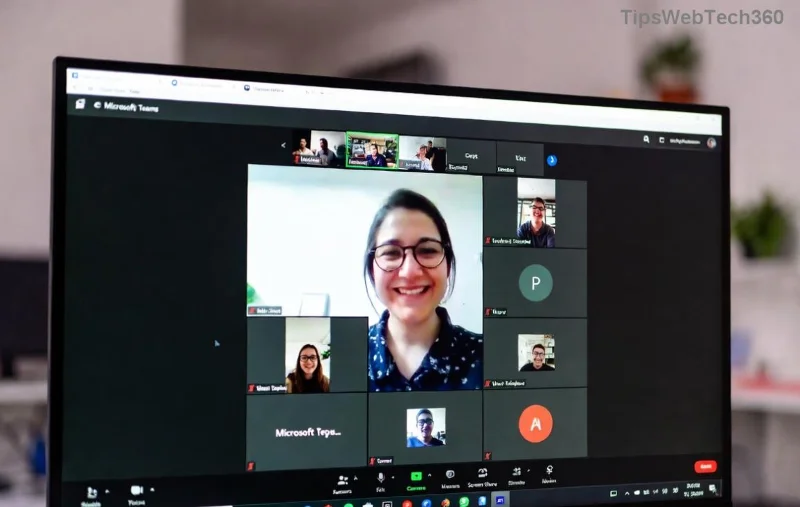
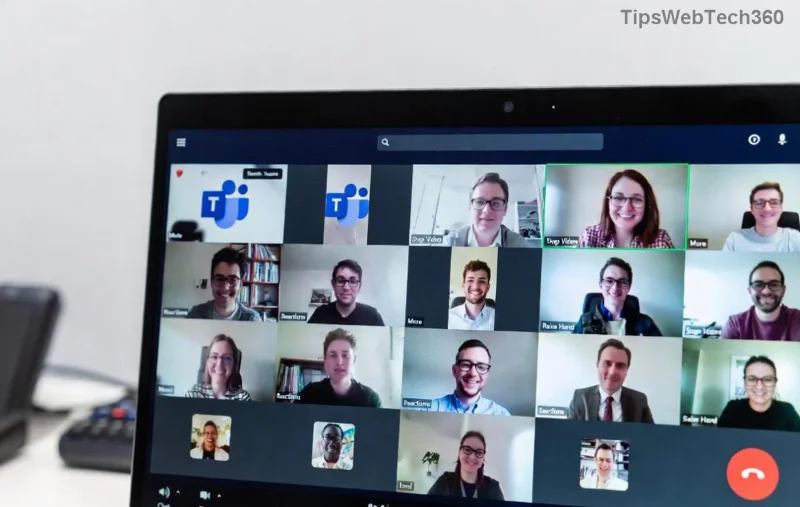
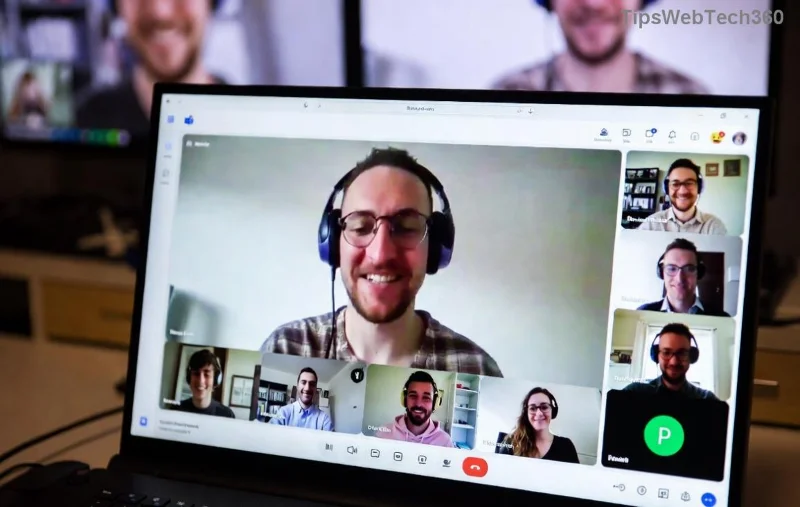
For more details, check Microsoft's official guide: Manage Breakout Rooms.
Pro Tips for Killer Teams Breakout Rooms Experiences
- 🎯 Room Limits: Max 50 rooms, 200 per room—plan accordingly for large events.
- Timers & Recalls: Set countdown timers during the meeting; recall participants anytime.
- Permissions: Co-organizers can manage rooms too—delegate for smooth hosting.
- Mobile Access: Participants join via app; presenters need desktop for controls.
- Hybrid Twist: Works great with in-room mics for physical attendees.
Avoid common pitfalls: Test assignments pre-meeting and communicate room purposes via chat or email for better prep. Your group will thank you! 😊
Troubleshooting: Quick Fixes for Breakout Rooms in Microsoft Teams
| Issue | Fix |
|---|---|
| No Breakout Tab | Use scheduled meetings; update Teams app. |
| Can't Assign | Ensure Education/Premium license; re-invite if needed. |
| Guests Missing | External users need proper permissions; check lobby settings. |
Still stuck? Restart Teams or visit Teams Support.
Level Up Your Meetings Today
Mastering how to create breakout rooms in Microsoft Teams before a meeting unlocks dynamic, inclusive sessions that keep everyone hooked. Implement these steps for your next event, and watch productivity soar. Got questions or a success story? Drop a comment below—we're all ears! Share this guide to help others nail their virtual facilitation. 🎉
Streamline your workflow—start scheduling with breakout rooms now!









