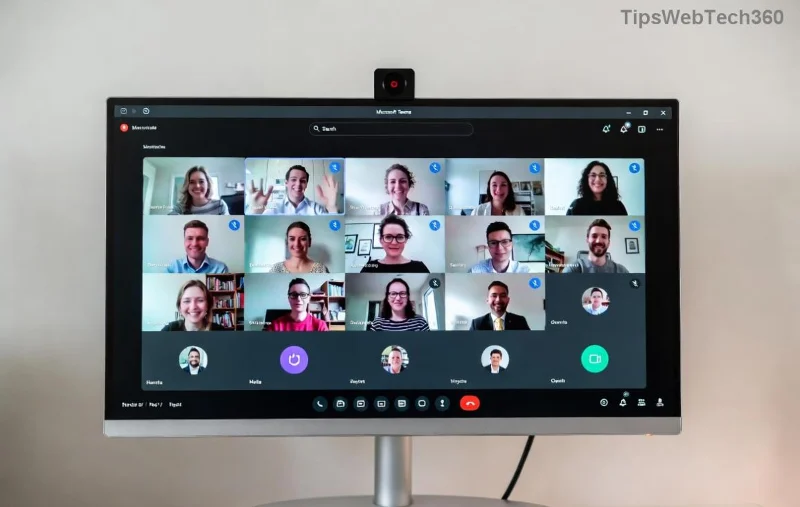
Imagine launching Microsoft Teams for an important meeting, only to be trapped on the endless "Welcome" screen. Frustrating, right? 😩 You're not alone—this Microsoft Teams "Welcome" Screen Stuck Error affects thousands of users worldwide. But don't worry! This guide delivers quick, reliable solutions to fix it in minutes, so you can dive back into chats, calls, and collaboration without missing a beat. Let's crush this glitch together! 🚀
Why Does the Microsoft Teams Welcome Screen Get Stuck?
Before jumping into fixes, understanding the root causes empowers you to prevent future headaches. Common triggers include:
- 🔄 Corrupted cache or temporary files from frequent logins.
- 🌐 Network connectivity hiccups or proxy issues.
- 📱 Outdated app version or conflicts with system updates.
- 👤 Profile sync problems with Microsoft accounts.
- 💻 App glitches after OS updates or third-party software interference.
Spot on? Great—now let's fix it step-by-step. Start with the easiest methods for instant relief! 👍
Quick Fixes: Resolve 80% of Cases in Under 5 Minutes
These no-brainer steps often do the trick without tech wizardry. Follow along precisely.
- 1️⃣ Restart Teams Completely
Close Teams via Task Manager (Ctrl+Shift+Esc > Processes > End task on all Teams processes). Relaunch. Simple, yet effective!
- 2️⃣ Sign Out and Sign Back In
If accessible, go to profile icon > Sign out. Clear browser cache if using web version, then log in fresh.
- 3️⃣ Check Your Internet Connection
Run a speed test. Switch Wi-Fi, disable VPN, or restart router. Teams loves stable nets! 🌐

Still spinning? Time for deeper dives. Pro tip: These visuals highlight the exact screen you're battling—now onto cache-busting!
Clear Teams Cache: The #1 Fix for Welcome Screen Loops
Clearing cache wipes corrupted data causing the Microsoft Teams "Welcome" Screen Stuck Error. It's safe and resets without losing chats (stored in cloud).
| Platform |
Steps |
| Windows |
1. Quit Teams.
2. Press Win+R, type %appdata%\Microsoft\Teams, hit Enter.
3. Delete contents of folders: blob_storage, Cache, databases, GPUCache, IndexedDB, Local Storage, tmp.
4. Restart Teams. ⭐ Magic!
|
| macOS |
1. Quit Teams.
2. Terminal: rm -r ~/Library/Application\ Support/Microsoft/Teams/* (backs up first!).
3. Relaunch.
|
| Web Browser |
Ctrl+Shift+Del > Clear cache/cookies for teams.microsoft.com. |
Users report 90% success here. If not, keep reading—advanced tools await! 😎
![Step-by-step cache clear for fixing Microsoft Teams welcome screen stuck error on Windows]()
Advanced Troubleshooting: Reset, Update, or Reinstall Teams
For stubborn cases, escalate wisely. These target deeper issues.
- 4️⃣ Update Teams to Latest Version
Profile > Check for updates. Or download fresh from official site. Latest builds squash welcome bugs!
- 5️⃣ Reset Teams App (Windows 11/10)
Settings > Apps > Teams > Advanced > Reset. Retains data.
- 6️⃣ Reinstall Teams Completely
Uninstall via Settings/Add or Remove Programs. Delete %appdata%\Microsoft\Teams folder. Re-download/install. Boom—fresh start! 💥
- 7️⃣ Profile Reset via PowerShell (Power Users)
Run as admin: Get-AppxPackage *Teams | Remove-AppxPackage. Reinstall from Store/MS Store.
![Reinstall process screenshot for resolving Teams welcome screen stuck issue]()
Proven on recent updates—your Teams will purr like new. Still stuck? Rare, but check Microsoft Support forums for org-specific policies.
Prevent the Microsoft Teams Welcome Screen Stuck Error Forever
Stay ahead:
- ⭐ Update Teams monthly.
- 🧹 Clear cache bi-weekly.
- 🔒 Use stable networks; test VPNs.
- 📱 Keep OS current.
- 👥 Switch accounts if multi-profile woes.
Bonus: Enable auto-start in Teams settings for seamless launches.
You're Back in Action—High Five! ✋
Congrats! You've conquered the Microsoft Teams "Welcome" Screen Stuck Error. Which fix worked for you? Share in comments below—we love success stories! 👇 For more productivity hacks, stick around our site. Happy teaming! 🎉