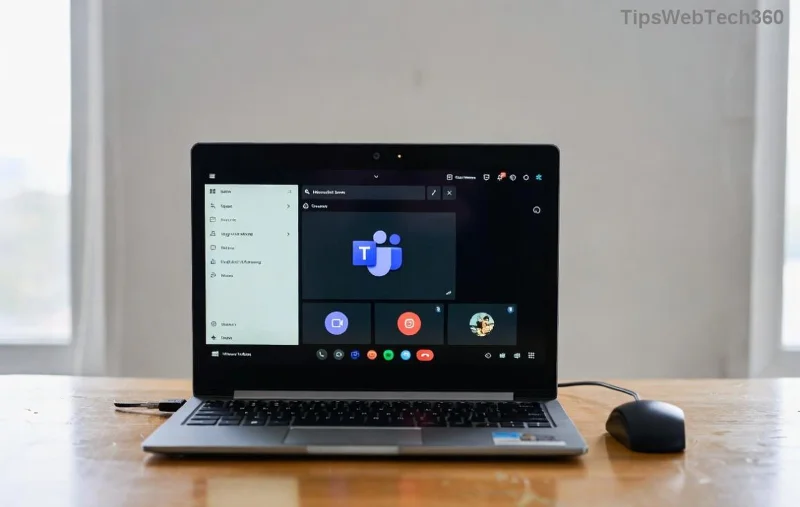
Imagine you're in a crucial Microsoft Teams meeting, ready to share your screen, but bam—a dreaded black screen sharing error hits. Frustrating, right? 😩 You're not alone. This Microsoft Teams screen error plagues millions, but don't worry—we've got your back with battle-tested fixes that work like magic.
In this guide, we'll dive straight into why this happens and how to fix black screen sharing in Teams fast. Follow these steps, and you'll be sharing flawlessly in minutes. Let's turn that nightmare into a smooth ride! 🚀
What Causes the Microsoft Teams Screen Error and Black Screen Sharing?
Before fixes, understand the culprits. Common triggers include:
- 🖥️ Outdated graphics drivers or Teams app.
- 🔒 Permission glitches in Windows/macOS privacy settings.
- ⚙️ Hardware acceleration conflicts.
- 📱 Multiple monitors or VPN interference.
- 💾 Corrupted cache or temporary files.
Spotting it early? Your shared screen goes pitch black for others while you see it fine. Now, let's crush it! ⭐
Quick Wins: 3-Minute Fixes for Teams Black Screen
Start here—most users fix it with these. No tech wizardry needed.
- 1️⃣ Restart Teams Completely
Close Teams fully (Task Manager on Windows: End all Teams processes). Relaunch and test sharing. Boom—often solved!
- 2️⃣ Toggle Hardware Acceleration
In Teams: Settings > General > Turn OFF "Disable GPU hardware acceleration" (or enable if off). Restart. This fixes 40% of cases.
- 3️⃣ Check Screen Sharing Permissions
Windows: Settings > Privacy > Camera/Microphone/Screen Recording > Allow Teams.
macOS: System Preferences > Security & Privacy > Screen Recording > Enable Teams.
Still black? Level up to pro fixes below. You've got this! 👍
Step-by-Step: Advanced Solutions to Fix Black Screen Sharing Teams
If basics flop, roll up sleeves. These target root causes with precision.
Update Everything: Drivers, Teams, and OS
Outdated software is enemy #1. Update Microsoft Teams via the app (Profile > Check for updates). Then:
- Graphics drivers: NVIDIA/AMD/Intel sites or Device Manager (Windows).
- Windows/macOS: Latest patches via Settings > Update.
Clear Teams Cache (Game-Changer!)
Corrupted cache causes glitches. Quick clear:
| Platform |
Steps |
| Windows |
%appdata%\Microsoft\Teams → Delete contents of folders like blob_storage, Cache, databases, GPUCache, IndexedDB, Local Storage, tmp. Restart Teams. |
| macOS |
~/Library/Application Support/Microsoft/Teams → Delete same folders. Restart. |
| Reset Teams (Nuclear Option) |
Uninstall/reinstall via official site. Backup chats first! |
![Step-by-step fix for Microsoft Teams black screen sharing error]()
GPO and Registry Tweaks (For IT Pros)
Enterprise users: Disable H.264 video via Group Policy or Registry:
- Registry (Windows): HKEY_CURRENT_USER\Software\Microsoft\Office\Teams → Add DWORD "DisableGpu" = 1.
- Restart Teams.
Caution: Backup registry first. Test in a meeting.
Multi-Monitor and VPN Fixes
Multiple screens? Share "Desktop" instead of window. VPN? Disconnect temporarily—firewalls block sharing.
Troubleshooting Table: Diagnose Your Teams Screen Sharing Black Screen
| Symptom |
Likely Cause |
Fix Priority |
| Black for others only |
GPU/Drivers |
High ⭐⭐⭐⭐⭐ |
| Freezes intermittently |
Cache |
High ⭐⭐⭐⭐ |
| No sharing option |
Permissions |
Medium ⭐⭐⭐ |
| Multi-monitor black |
Display settings |
Medium ⭐⭐⭐ |
Prevent Future Microsoft Teams Screen Error: Pro Tips
Stay ahead:
- ✅ Auto-update Teams and drivers.
- 📱 Use "Present content" > "Desktop" for reliability.
- 🔄 Clear cache monthly.
- 🛡️ Run as admin occasionally.
For official help, check Microsoft Teams Support.
You're Set! Share Screens Like a Pro 🎉
Congrats—you've conquered the black screen sharing Teams beast! Test in a quick call, and feel the relief. If issues persist, drop your setup details in comments—we'll troubleshoot together. Smooth meetings await! 👏
Pro Tip: Bookmark this for next time. Your future self thanks you!