🚀 Imagine transforming your dull Microsoft Teams meetings into vibrant, professional showcases with your own photos or designs. Whether it's a serene beach sunset or your company logo, uploading custom backgrounds to Microsoft Teams is simpler than ever. This guide delivers a crystal-clear, step-by-step process to get you set up fast—boosting your video presence without hassle. Let's dive in and make your calls pop! 😎
Why Use Custom Backgrounds in Microsoft Teams?
Custom backgrounds hide clutter, enhance branding, and add fun to virtual interactions. With recent updates, Teams supports high-res images seamlessly across devices. Perfect for remote workers, educators, or teams craving that personal touch. Ready? First, prep your files.
Prerequisites: Prepare Your Custom Background Files
Ensure your image meets Teams' specs for flawless results:
| Requirement |
Details |
| Supported Formats |
JPG, PNG, BMP |
| Recommended Resolution |
1920 x 1080 pixels (Full HD) for best quality |
| File Size |
Up to 4 MB per image |
| Aspect Ratio |
16:9 preferred; auto-crops others |
| Pro Tip |
Use tools like Canva or Photoshop for edits |
✅ Download free templates from Microsoft's design hub or create your own. Now, let's upload!
Step-by-Step: Uploading Custom Backgrounds on Desktop (Windows/Mac)
Most users start here—Teams desktop app shines for this. Follow these numbered steps:
- Open Microsoft Teams and join or start a test meeting. (Pro tip: Use "New meeting" from Calendar for practice.)
- Click your profile icon (top-right) → Settings → Devices.
- Under Background effects, hit More choices or the Upload background button.
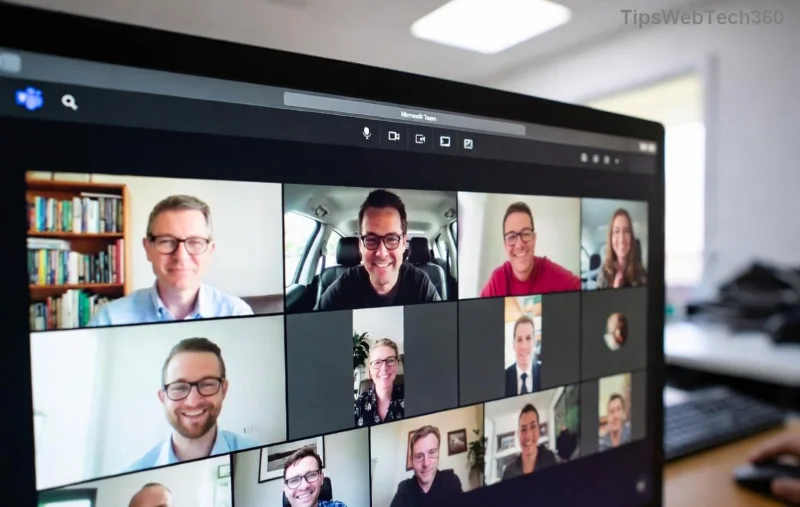
- Select your prepared image from your computer. Teams previews it instantly!
- Click Preview → Apply (and Apply to all meetings if desired). Voila! 🎉
Your custom background now blurs or replaces your real backdrop in real-time. Test it in a call to confirm.
Uploading on Teams Web Browser
No app? No problem—web version works similarly:
- Join a meeting via teams.microsoft.com.
- Click More actions (three dots) → Show background effects.
- Select Add new → Choose file → Apply.
![Teams web meeting controls with background effects menu open]()
💡 Note: Web uploads are per-meeting; save favorites in the desktop app for persistence.
Mobile App: Quick Custom Background Upload on iOS/Android
On-the-go? Mobile supports it too:
- Open Teams app → Join/Start meeting.
- Tap More (...) → Turn on background effects.
- Tap + → Select photo from gallery → Done.
Teams optimizes mobile images automatically. Prefer gallery picks for speed!
Troubleshooting Common Issues
Hit a snag? Quick fixes:
- ❌ Upload button missing? Update Teams to the latest version via profile → Check for updates.
- ❌ Image not showing? Check file size/resolution; restart app.
- ❌ Admin restrictions? Contact IT—some orgs limit customs (toggle in admin center).
- ❌ Blurry background? Stick to 1920x1080 JPGs.
For official details, visit Microsoft's Teams background support page.
Pro Tips to Elevate Your Teams Custom Backgrounds
- ⭐ Theme it: Match backgrounds to holidays or events.
- ⭐ Blur + Custom: Combine for hybrid looks.
- ⭐ Share Packs: Admins can deploy team-wide backgrounds.
- ⭐ Video Backgrounds: Latest feature—upload MP4 clips under 3.7MB for dynamic effects!
Now you're equipped to dazzle in every meeting. Experiment today and share your favorites in comments below—what's your go-to background? 👇 Stay tuned for more Teams hacks to supercharge your workflow!










Thu Hue -
Question: what file sizes work best for custom backgrounds? Mine got blurry
Vy Beauty -
OMG yes! My makeup studio bg is perfect. Clients love it in calls 💄
Huyền Lizzie -
Love this! Shared with my team. Everyone's uploading their faves
Bro Max -
Bro, you're the real MVP. Just did it with my car pic. Vroom vroom in Teams! 🚗
Sis Fun -
Sis thanks a ton! Shared this with my girl squad. Party backgrounds incoming 🎉 What’s your fave custom bg idea
Lan Anh -
Thanks! This worked perfectly for my custom backgrounds in Teams. Super easy steps!
Trang HR -
Team-building idea: everyone upload fun backgrounds! Thanks for the how-to
Nam Pro -
Spot on guide. Saved me hours. 10/10 would recommend
Yen SG -
From Sài Gòn here - guide is gold. Beach pic bg for virtual vacation vibes.
Phúc KT -
Yes! Step-by-step is clear. No more boring default Teams backgrounds for me
Long Dragon -
Dragon mode activated 🐲 Custom backgrounds rule Teams now.
Em Xinh -
yay! found solution to my boring meetings. custom backgrounds ftw 💖
Quang vn -
hay quá! works on web version too. vietnam flag bg ftw 🇻🇳
Chau Au -
Super helpful post! I followed every step and uploaded my family photo as background in under 5 minutes. Made my daily stand-ups way more fun. One suggestion: add a note on where Teams stores the files for editing later. Cheers! (42 words)
Bangkok Girl -
Perfect timing! Needed this for work calls. Upload to Teams done in 2 mins flat
Hoang King -
King approved! Easiest way to pimp my Teams room
Linh mèo -
haha my boss will freak when he sees my meme background tomorrow!
Sơn GameR -
GG! Fortnite skin as Teams background. Meetings just got lit 🔥
Vinh Dev -
As a dev, I appreciate the screenshots. No guesswork for upload to Teams
Kitty 123 -
lol finally! custom backgrounds in Microsoft Teams without hassle. you're a lifesaver!
Anh Thư -
This tutorial changed my work life. No more plain walls - hello personal touch! I've been searching for a reliable way to upload custom backgrounds to Microsoft Teams for weeks, and this step-by-step nailed it. Even helped my colleagues who are tech-noobs. Highly recommend trying it with high-res images for best results. Total game-changer for virtual meetings! (72 words)
Tuan Anh 456 -
Worked first try. What about animated gifs? Possible in Microsoft Teams
Nga Nurse -
Thanks doc! Hospital shift meetings now with calming ocean views. 😌
Mai Flower -
Beautiful steps. My floral custom backgrounds make calls so zen. 🌸
Duy 99 -
thx dude. my gaming setup bg now in meetings. epic win!
Hanoi Boy -
Great tutorial. Just uploaded my Hanoi skyline pic. Works on mobile too
Mèo con -
Meow! Custom cat pic as background. Teams looks cuter now. 🐱
Bao IT -
Finally found a foolproof method! Tried others but they failed on Mac. Yours worked seamlessly across devices. Bonus: tips on aspect ratio saved my blurry pics. Will bookmark and share on Reddit. Anyone else using dark mode with custom backgrounds? Looks sick! (58 words)
Kien Eng -
Pro tip: resize images to 1920x1080 before upload for crisp custom backgrounds. Thumbs up
Dat Pro -
Quick question: does this work for personal Teams accounts or only business? Mine is free version. Loving the guide so far tho! (28 words)
Sakura-chan -
Arigato! Tried it and my cherry blossom background is live. Kawaii desu~
Minh IT -
Awesome guide! I was struggling with upload backgrounds forever. Now my meetings look pro. 😎