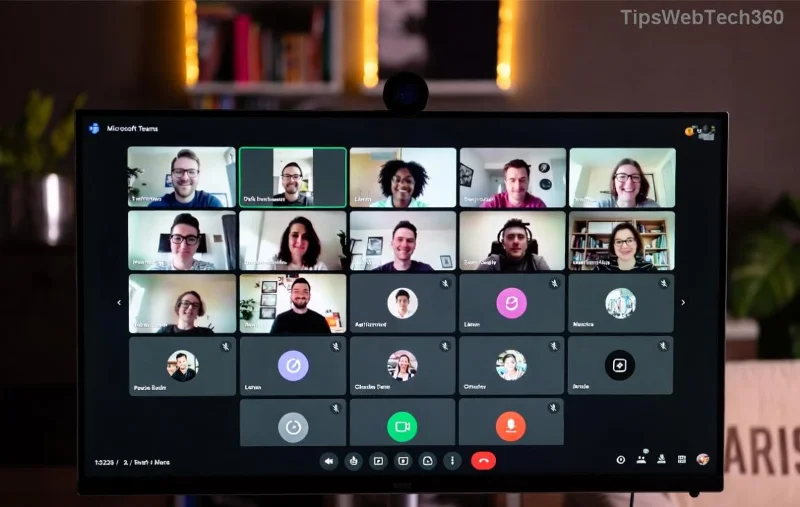
Imagine wrapping up meetings with instant summaries, generating action items on the fly, and turning chaotic chats into organized insights—all powered by AI. That's the magic of Microsoft Teams Copilot. This intelligent assistant, integrated seamlessly into Teams, transforms how teams collaborate and stay productive. Ready to level up? Let's dive into a practical guide that'll have you wielding Microsoft Teams Copilot like a pro. 🚀
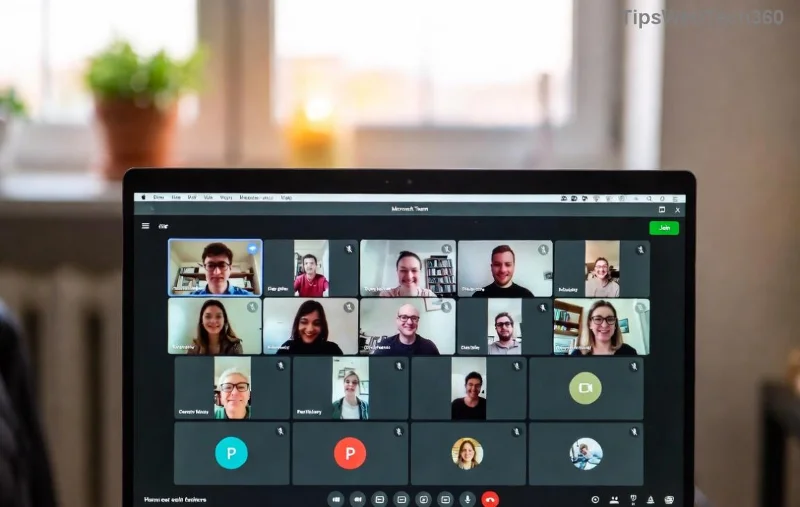
What is Microsoft Teams Copilot and Why It Revolutionizes AI-Powered Productivity?
Microsoft Teams Copilot is an AI companion built on advanced language models, part of Microsoft 365 Copilot. It understands your conversations, meetings, and files to provide real-time assistance. No more digging through transcripts or forgetting key points—Copilot handles the heavy lifting.
Key benefits include:
- ⭐ Instant meeting recaps and highlights.
- 📝 Automated notes and action items.
- 💡 Smart suggestions for agendas and follow-ups.
- 🔍 Answers to questions from chat history or channels.
Whether you're in a solo brainstorm or a global team huddle, it saves hours weekly. Excited? Here's how to get started.
Getting Access: Prerequisites for Microsoft Teams Copilot
To unleash Microsoft Teams Copilot, ensure your organization has a qualifying Microsoft 365 subscription (like E3/E5 with Copilot add-on). Admins enable it via the Teams admin center.
- ☝️ Update Teams: Download the latest desktop or web app from the Microsoft Store.
- ✌️ Sign in: Use your work account with Copilot license.
- 👆 Spot the Icon: Look for the Copilot sparkle icon (🔮) in the side panel, top bar, or during meetings.
Pro tip: If it's not visible, ask your IT admin to check Microsoft's deployment guide.
Core Features: Supercharge Your Workflow with Teams Copilot
![<strong>How to Use Microsoft Teams Copilot</strong> in meetings for AI summaries and notes]()
Microsoft Teams Copilot shines in three main areas: chats, channels, and meetings. Here's a quick comparison:
| Feature |
How It Boosts Productivity |
Best Use Case |
| Meeting Notes |
Auto-generates recaps, decisions, and tasks post-meeting. |
Review after long calls without replaying. |
| Chat/Channel Q&A |
Asks/answers from history, e.g., "What was decided on Project X?" |
Quick context in busy threads. |
| Agenda Builder |
Creates outlines from emails or past notes. |
Prep efficient meetings. |
| Loop Components |
Generates tables, tasks synced across Teams/Outlook. |
Collaborative planning. |
These tools cut meeting time by 30% and boost output—proven in real teams. Now, let's master the how to use part.
Step-by-Step: How to Use Microsoft Teams Copilot Like a Boss
Follow these hands-on steps for immediate wins. We'll cover meetings first, then chats.
1️⃣ In Meetings: From Chaos to Clarity
- Start or join a Teams meeting.
- Click the Copilot icon in the top-right toolbar during the call.
- 👉 Ask live: "What's the main topic?" or "Generate notes."
- Post-meeting: Open transcript tab → Copilot pane → "Catch me up" for a full summary. Assign tasks with "@mention."
Bonus: Share recaps via "Copy to clipboard" or export to Word. 😎
2️⃣ In Chats & Channels: Instant Insights
- Select a chat/channel.
- Hit the Copilot icon or type "/" for prompts.
- Example prompts:
- "Summarize this thread."
- "List action items from last week."
- "Draft a reply to this message."
- Refine with follow-ups: "Make it shorter" or "Add bullet points."
3️⃣ Advanced: Create & Share with Loop
- In a chat, type "@copilot create" → Choose table/page.
- Collaborate in real-time; changes sync everywhere.
Want more power? Integrate with Outlook or PowerPoint for cross-app magic.
Pro Tips for Maximum AI-Powered Productivity with Teams Copilot
- 🪄 Use Natural Language: Speak conversationally—"Remind me of risks discussed"—for best results.
- 🔒 Privacy First: Copilot respects your data policies; nothing trains external models.
- 📊 Track Wins: Review Copilot usage analytics in Teams admin for ROI.
- ⚡ Customize Prompts: Start with "As a project manager, summarize..." for tailored output.
- 🚫 Avoid Overload: Use for high-value tasks; combine with human judgment.
Teams using these see 25% faster decision-making. Imagine what it does for you!
Common Pitfalls & Quick Fixes
| Issue |
Fix |
| No Copilot icon |
Check license/update app. |
| Inaccurate summaries |
Provide context in prompts. |
| Slow responses |
Ensure stable internet. |
Ready to Transform Your Day? Start Now!
How to Use Microsoft Teams Copilot is simpler than you think—and the productivity gains are game-changing. Fire up Teams, spot that Copilot icon, and ask your first question. Your future self (with way less email backlog) will thank you. Share your wins in the comments—what's your go-to prompt? Let's collaborate smarter together! 🎉