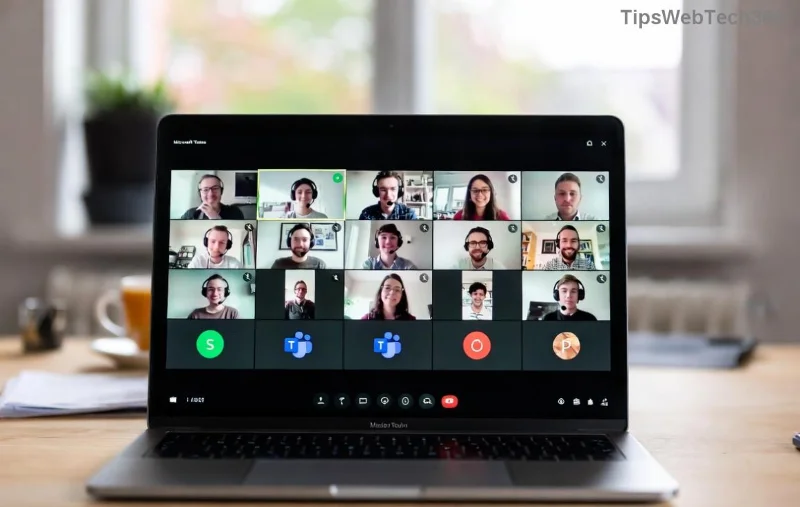
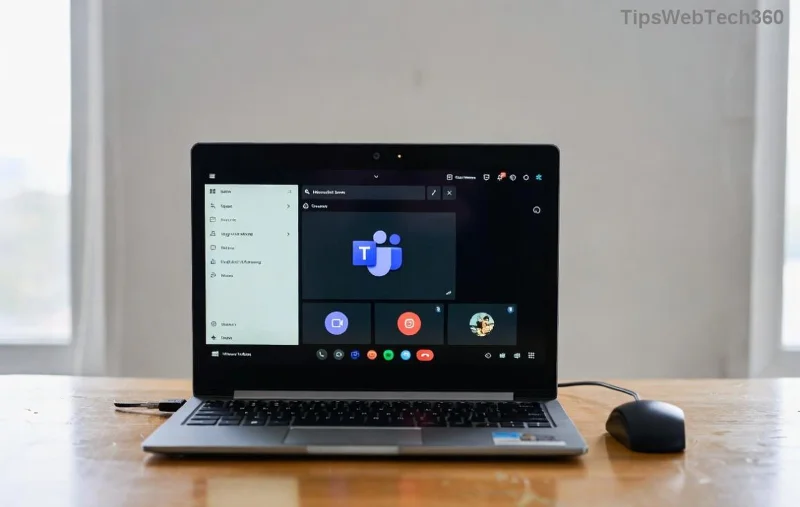
Imagine transforming your standard Microsoft Teams meetings into interactive powerhouses where every participant thrives. That's the magic of breakout rooms in Microsoft Teams. These virtual sub-rooms let you split large groups into smaller, focused discussions, fostering deeper collaboration and fresh ideas. Whether you're leading workshops, training sessions, or team brainstorms, mastering how to create breakout rooms in Microsoft Teams will supercharge your meetings. Ready to dive in? Let's get started! 👆
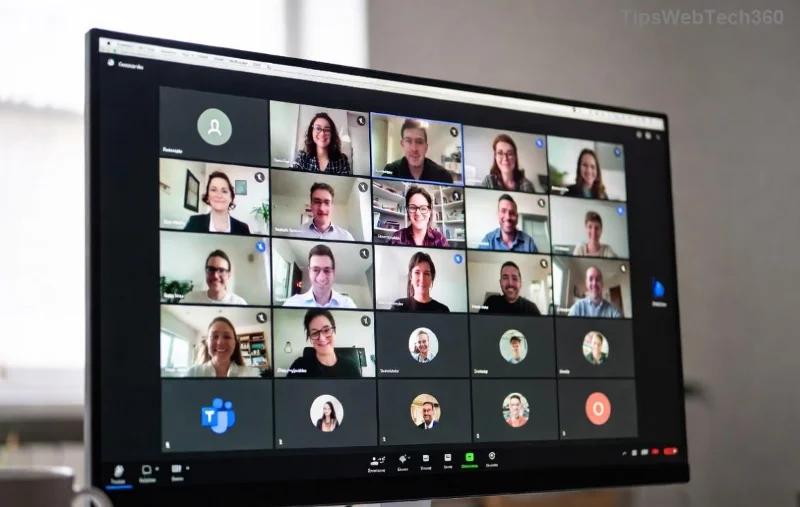
What Are Breakout Rooms in Microsoft Teams and Why Use Them?
Breakout rooms are separate chat and video sessions within a main Teams meeting. Perfect for group activities, they allow organizers to divide up to 50 rooms with 200 participants each. Benefits include:
- ⭐ Increased engagement through intimate discussions
- 👥 Better idea generation in smaller groups
- ⏱️ Time-efficient topic-focused sessions
- 📊 Seamless reporting back to the main room
According to official Microsoft Teams features, these rooms support video, screen sharing, and whiteboards—just like the main meeting. No more monotonous monologues!
Prerequisites for Creating Breakout Rooms
Before jumping in, ensure:
- You are the meeting organizer or a designated co-organizer.
- Your Teams account has the latest updates (check via profile icon > Check for updates).
- Meeting attendees are signed in with appropriate licenses (most standard ones work).
- Enable breakout rooms in meeting options if needed.
Pro tip: For education or large events, verify Microsoft's official guide for any role-specific tweaks.
How to Create Breakout Rooms Before the Meeting (Pre-Assign Participants)
Planning ahead? Pre-assign for control. Here's the step-by-step:
| Step | Action |
|---|
| 1 | Open Teams Calendar > Schedule a new meeting. |
| 2 | Add title, date, and invitees. |
| 3 | Click Breakout rooms in the meeting options ribbon. |
| 4 | Select Create rooms > Choose number (e.g., 5) or Assign automatically/Let participants choose. |
| 5 | Drag participants into rooms or auto-assign. |
| 6 | Save and send invites. |
![Step-by-step creating pre-assigned breakout rooms in Microsoft Teams]()
This method shines for structured agendas. Participants join assigned rooms automatically when opened!
Creating and Managing Breakout Rooms During the Live Meeting
Spontaneous? No problem—create on the fly mid-meeting.
- Start your meeting in Teams.
- Click Breakout rooms in the meeting toolbar (top-right, participants pane).
- Select Create rooms.
- Choose: Automatically (even/uneven distribution), Manually, or From pre-assigned.
- Set room count > Add or Create.
![Managing breakout rooms during a live Microsoft Teams meeting]()
Key Management Features
Once live, wield these powers:
- Open all rooms: Send everyone in (with optional countdown timer ⏳).
- Recreate or add rooms: Adjust as discussions evolve.
- Assign or reassign participants: Drag-drop or search.
- Visit rooms: Pop in as organizer (participants notified).
- Close rooms: Bring everyone back with a 1-minute warning (customizable).
- Download attendance: Track participation per room.
Bonus: Enable room timers for paced sessions—set via room settings.
Advanced Tips for Breakout Rooms in Microsoft Teams Success
Elevate your game:
- ⭐ Name rooms descriptively (e.g., "Group A: Marketing Ideas").
- 👉 Use whiteboard integration for collaborative brainstorming.
- 📱 Ensure mobile users can join (full support on apps).
- 🔧 Troubleshoot common issues: If rooms don't appear, restart Teams or check permissions.
- 🎯 Rotate participants mid-session for diverse perspectives.
Breakout Room Assignment Options Comparison
| Method | Best For | Pros | Cons |
|---|
| Automatic | Quick splits | Fast, balanced | Less control |
| Manual | Custom groups | Precise assignment | Time-consuming |
| Pre-assigned | Planned events | Seamless, organized | Requires prep |
Troubleshooting Breakout Rooms: Quick Fixes
Encounter glitches?
- No breakout option? Verify organizer role or update Teams.
- Participants can't join? Check if they're muted or in another call.
- Audio issues? Remind using meeting mic/speaker settings.
For deeper dives, explore Microsoft Learn resources.
Wrap Up: Revolutionize Your Teams Meetings Today
Now that you know how to create breakout rooms in Microsoft Teams, your meetings will never be the same. From pre-planning to live magic, these tools make collaboration effortless and exciting. Experiment in your next session—what's your first breakout topic? Share in the comments below and keep the energy high! 🚀