🚀 Make Google Your Default Search Engine on Microsoft Edge – Lightning-Fast Guide!

Are you tired of Bing popping up in your searches on Microsoft Edge? Switching to Google as your default can supercharge your browsing with faster, more accurate results. This guide walks you through every step to make Google the default search engine on Microsoft Edge – no tech skills required! You'll be searching like a pro in under 2 minutes. Let's dive in! ➡️

Why Switch to Google on Microsoft Edge?

  • Precise results: Google's algorithm crushes it for relevance.
  • Speed boost: Instant suggestions and lightning loads.
  • 😊 Familiar interface: Feels just like Chrome but with Edge's perks.

Ready? Follow these foolproof steps for the latest Microsoft Edge version.

Step-by-Step: Make Google the Default Search Engine on Desktop (Windows/Mac)

  1. 🖱️ Open Microsoft Edge: Launch your browser and ensure it's updated for the smoothest experience.
  2. ⚙️ Access Settings: Click the three-dot menu (⋮) in the top-right corner, then select Settings.
  3. 🔍 Navigate to Search Options: In the left sidebar, click Privacy, search, and services. Scroll to the Services section and select Address bar and search.
  4. 🎯 Choose Google: Under Search engine used in the address bar, click the dropdown. Select Google from the list. Boom – instant change!
  5. ✅ Manage Additional Engines (Optional): Scroll down to Search engines. Add or prioritize Google here for new tabs and shortcuts.
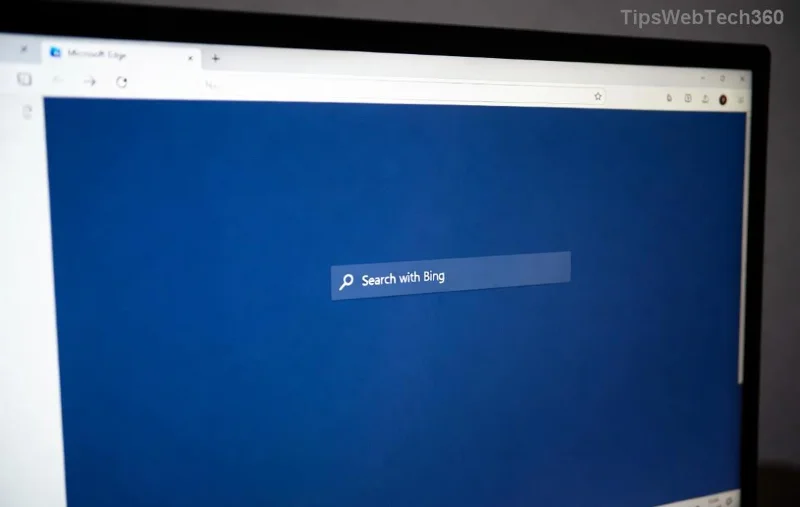
<strong>Microsoft Edge</strong> search engine settings page – select <strong>Google</strong> here

That's it! Test by typing a query in the address bar – Google now handles it. Pro tip: Enable Search suggestions for even quicker results. 🎉

Mobile Magic: Set Google as Default on Microsoft Edge Android/iOS

Edge on mobile is just as easy. Sync your changes across devices for seamless browsing!

Platform Quick Steps
Android 1. Tap ⋮ > Settings > Privacy and security > Search engine. Pick Google. ✅
iOS 1. Tap ⋮ > Settings > Scroll to Search engine. Select Google. Done! 🚀
Selecting <strong>Google</strong> as <strong>default search engine</strong> in <strong>Microsoft Edge</strong> mobile settings

🚨 Common Issues & Quick Fixes

Stuck? Here's how to troubleshoot:

  • Google not listed? Add it manually: Settings > Search engines > Add with URL: https://www.google.com/search?q=%s.
  • Changes not sticking? Clear cache: Settings > Privacy > Clear browsing data. Restart Edge.
  • Extensions interfering? Disable ad blockers temporarily – they can hijack searches.

For official tweaks, check Microsoft's guide: Microsoft Edge Support.

Bonus Tips to Supercharge Your Edge + Google Combo

  1. ⭐ Pin Google Shortcuts: Right-click address bar > Add to favorites for one-click access.
  2. 🔒 Privacy Boost: Pair with Edge's tracking prevention – Google searches stay yours.
  3. 📱 Sync Everywhere: Sign in to Edge for cross-device magic.

Now you're unstoppable! Make Google the default search engine on Microsoft Edge today and feel the difference. Got questions? Drop a comment below – happy searching! 👇

FAQ: Microsoft Edge Search Engine Essentials

How do I revert to Bing?
Follow the same steps – select Bing in the dropdown. Easy peasy! 😊
Does this affect new tabs?
Yes! It covers address bar, new tabs, and shortcuts uniformly.
Can I use DuckDuckGo instead?
Absolutely – the dropdown has options. Customize away!

Stick around for more browser hacks – your ultimate Edge upgrade starts here. 🚀
Leave a Comment

🔒 Bulletproof Your Microsoft Edge: Ultimate Guide to Phishing Protection

🔒 Bulletproof Your Microsoft Edge: Ultimate Guide to Phishing Protection

Secure your Microsoft Edge browser from phishing attacks with proven steps. Enable SmartScreen, tracking prevention, and more for ironclad defense against scams. Stay safe online today!

Fix Microsoft Edge aptX & LDAC Audio Errors Fast: Ultimate 2026 Troubleshooting Guide

Fix Microsoft Edge aptX & LDAC Audio Errors Fast: Ultimate 2026 Troubleshooting Guide

Struggling with Microsoft Edge aptX and LDAC audio errors? Discover proven fixes for choppy Bluetooth audio, dropouts, and codec issues. Step-by-step guide to restore crystal-clear sound in Edge today!

🚀 Fix Microsoft Edge Your PC Offline Login Error Instantly – Proven 2026 Solutions!

🚀 Fix Microsoft Edge Your PC Offline Login Error Instantly – Proven 2026 Solutions!

Struggling with Microsoft Edge "Your PC Offline" login error? Discover step-by-step fixes to resolve it quickly, from basic tweaks to advanced solutions. Get back online in minutes!

🚀 Make Google Your Default Search Engine on Microsoft Edge – Lightning-Fast Guide!

🚀 Make Google Your Default Search Engine on Microsoft Edge – Lightning-Fast Guide!

Discover how to make Google the default search engine on Microsoft Edge effortlessly. Step-by-step for desktop, mobile, and troubleshooting – get precise results every time!

Fix Microsoft Edge Video Playback Stuttering: 10 Proven Steps for Ultra-Smooth Playback

Fix Microsoft Edge Video Playback Stuttering: 10 Proven Steps for Ultra-Smooth Playback

Tired of Microsoft Edge video playback stuttering? Follow our expert, step-by-step guide to eliminate lag and enjoy seamless streaming. Quick fixes that actually work.

🚀 Fix Microsoft Edge File Not Found Error in Windows Explorer – Instant Solutions!

🚀 Fix Microsoft Edge File Not Found Error in Windows Explorer – Instant Solutions!

Struggling with the frustrating Microsoft Edge "File Not Found" error in Windows Explorer? Discover proven, step-by-step fixes to resolve it quickly and get back to smooth browsing. Perfect for Windows 11 users!

Unlock Epic Full-Page Screenshots: Master Microsoft Edge Web Capture in Minutes!

Unlock Epic Full-Page Screenshots: Master Microsoft Edge Web Capture in Minutes!

Step-by-step guide on how to use Microsoft Edge Web Capture for full-page screenshots. Capture entire webpages effortlessly, edit, and share like a pro—no extra tools needed!

Fix Microsoft Edge Status In Page Error FAST: Ultimate Troubleshooting Guide 2026

Fix Microsoft Edge Status In Page Error FAST: Ultimate Troubleshooting Guide 2026

Tired of Microsoft Edge "Status In Page Error" ruining your browsing? Discover proven, step-by-step troubleshooting fixes to resolve it quickly and restore smooth performance. Works on latest Edge versions!

Microsoft Edge Acrylic Effect Not Showing? Restore the Stunning Blur in Seconds!

Microsoft Edge Acrylic Effect Not Showing? Restore the Stunning Blur in Seconds!

Tired of Microsoft Edge Acrylic Effect not showing? Discover proven fixes to restore the beautiful Fluent Design blur on tabs, menus, and more. Quick steps for Windows users. Works on latest Edge versions!

🚀 Fix Microsoft Edge Bad Image Error After Windows Update in Minutes – Proven Steps!

🚀 Fix Microsoft Edge Bad Image Error After Windows Update in Minutes – Proven Steps!

Tired of Microsoft Edge crashing with "Bad Image" after Windows Update? Discover simple, effective fixes to restore smooth browsing. Step-by-step guide with proven methods for instant relief.









