Frustrated by Microsoft Edge auto-start slowing down your Windows 11 boot? You're not alone! This default browser loves crashing the party at startup, hogging RAM and CPU. But don't worry—disabling it is a breeze and will supercharge your PC's launch speed. In this guide, we'll walk you through the easiest ways to disable Microsoft Edge auto-start on Windows 11, from simple clicks to pro tweaks. Let's reclaim your boot time! 👆
Why Disable Microsoft Edge Auto-Start on Windows 11?
Edge launches silently on startup, eating resources before you even open it. Result? Slower boots, higher memory use, and battery drain on laptops. Disabling it frees up to 200MB RAM instantly. Ready for the fixes? ⭐
Method 1: Quick Disable via Task Manager (Easiest for Beginners)
The fastest way to stop Microsoft Edge from auto-starting on Windows 11. No restarts needed initially!
- Right-click the Taskbar and select Task Manager. (Or press Ctrl + Shift + Esc.)
- Click the Startup apps tab (might say "Startup impact").
- Find Microsoft Edge in the list.
- Right-click it and choose Disable, or select and click the Disable button. Done! ✅
Reboot to test—Edge won't pop up. Here's a visual:
Method 2: Through Windows 11 Settings (Built-in Power)
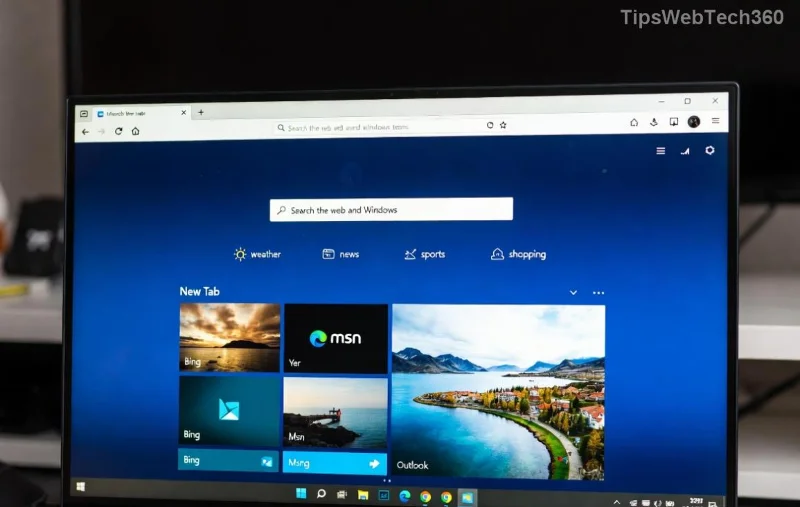
For a cleaner approach, use native Settings to disable Microsoft Edge startup on Windows 11.
- Hit Windows + I to open Settings.
- Go to Apps > Startup.
- Locate Microsoft Edge.
- Toggle it to Off. Boom—fixed! 🎉
Method 3: Inside Microsoft Edge Settings (Browser-Level Control)
Edge has its own startup switch. Perfect if it re-enables itself.
- Open Microsoft Edge.
- Click the three dots (...) > Settings.
- Navigate to System and performance.
- Turn off Continue running background extensions and apps when Microsoft Edge is closed.
- Bonus: Under Startup, home, and new tabs, clear any auto-open pages.
Pro tip: Combine with Method 1 for bulletproof results. 😎
Advanced: Registry Edit for Permanent Disable (Power Users Only ⚠️)
Want ironclad control? Tweak the Registry—but backup first (search "Registry backup Windows 11").
- Press Windows + R, type
regedit, Enter. - Navigate to:
HKEY_LOCAL_MACHINE\SOFTWARE\Policies\Microsoft\EdgeUpdate - If no "EdgeUpdate" key, right-click Microsoft > New > Key > name it "EdgeUpdate".
- Right-click EdgeUpdate > New > DWORD (32-bit) Value > name
Autolaunch> set to0. - Reboot. Edge stays dormant forever!
Caution: Wrong edits can glitch your system. Newbies, stick to Methods 1-3.
Compare Methods at a Glance
| Method | Difficulty | Reboot Needed? | Best For |
|---|---|---|---|
| Task Manager | ⭐ Easy | No | Quick fix |
| Settings | ⭐ Easy | Optional | Daily users |
| Edge Settings | ⭐⭐ Medium | No | Background apps |
| Registry | ⭐⭐⭐⭐ Hard | Yes | Admins |
Tips to Keep Edge from Sneaking Back
- Update Windows 11 regularly—patches can reset startups.
- Check for Edge updates: Microsoft Edge Support.
- Use third-party tools like Autoruns sparingly (advanced).
- Monitor with Startup apps monthly. 🔍
Final Thoughts: Boot Faster Today!
Disabling Microsoft Edge auto-start on Windows 11 takes minutes but saves hours of frustration. Start with Task Manager for instant wins, then layer on more if needed. Your PC will thank you with snappier performance! Got issues? Drop a comment below—we've got more Windows tweaks coming. 🚀









