Home
» INTERNET
»
How to Clean a Camera Lens on a Phone Without Scratching It
How to Clean a Camera Lens on a Phone Without Scratching It
A blurry phone photo does not always mean something is wrong with the camera. Fingerprints, skin oil, pocket dust, and residue on the camera cover can soften detail, create haze around lights, or make autofocus struggle. The good news is that the safest first fix is also the simplest: use a clean, soft, lint-free cloth and very little pressure.
This guide is written for someone cleaning a phone camera for the first time. It starts with what you are actually touching, then covers what to prepare, the safest cleaning sequence, what not to do, and how to tell when the problem is no longer a cleaning issue.
First, know what you are actually cleaning
When people say “phone camera lens,” they usually mean the small exposed glass surface over each rear or front camera. In normal maintenance, you are cleaning that exterior camera cover glass. You should not open the phone or try to reach the internal optical lens.
A microfiber cloth is a soft cloth made from very fine fibers that can lift oil and dust without needing much pressure. A lint-free cloth is one that does not leave fuzz behind. Camera-lens cloths are a good example.
Manufacturer guidance is unusually consistent on the basic method. Samsung says a soft, dry microfiber cloth can remove fingerprints, smudges, and dust from the phone’s lenses. Google tells Pixel owners with blurry or hazy images to gently wipe the camera lens and laser sensor with a soft, clean cloth. Apple likewise specifies a soft, lint-free cloth for cleaning iPhone surfaces. See the current Samsung camera troubleshooting guidance, Google Pixel camera guidance, and Apple iPhone cleaning guidance.
What you need before you start
Item
Why you need it
Clean, dry microfiber or lens cloth
This is the default tool for fingerprints, dust, and ordinary smudges.
Good light
Side lighting makes oily streaks and dust on the camera cover easier to see.
A clean surface
It keeps grit from getting back onto the cloth or phone.
Your phone maker’s care page, if needed
Moisture and cleaning-solution rules can differ by model and surface.
You do not need a special liquid for routine lens cleaning. In fact, the safest generic approach is to start dry. This matters because guidance for the whole phone and guidance for the camera lens are not always identical. Samsung’s general Galaxy cleaning page allows a tiny amount of distilled water on a cloth for stubborn dirt, but its camera-specific troubleshooting page tells users to clean the lenses with a soft, dry microfiber cloth. That is why this guide treats moisture as a model-specific escalation rather than a default step. You can compare the two instructions on Samsung’s general device-cleaning page.
How to clean a phone camera lens safely
1. Turn the phone off, unplug it, and remove the case
Powering down is a sensible first step before cleaning the exterior of an electronic device, and both Apple and Samsung include it in their general cleaning instructions. Remove the case so you can reach the complete camera area and so dust trapped along the case edge does not immediately transfer back to the glass.
Place the phone on a clean surface with the camera facing up. Look at the camera area from an angle under a lamp or window light. You are looking for fingerprints, a greasy film, obvious dust, or debris around the edges of the camera bump.
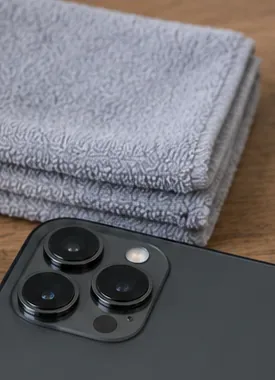
Prepare a clean microfiber or lens cloth and uncover the entire camera area before touching the glass.
2. Inspect every camera window before wiping
Modern phones may have several rear cameras plus a flash and other sensors. A smudge on only one camera can make the problem seem intermittent because the phone may switch cameras as you zoom or change shooting modes. Samsung specifically advises cleaning all the lenses on the device.
If you can see gritty particles, do not start by pressing hard and dragging them across the glass. Use a clean section of the soft cloth and minimal pressure. The goal is to lift ordinary loose material without grinding it into the surface.
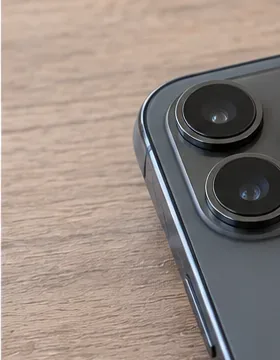
Check each camera window separately; a multi-camera phone can switch lenses without making that obvious to a new user.
3. Wipe gently with the dry microfiber cloth
Fold the cloth so your fingers have a clean section to work with. Gently wipe each camera cover using short strokes or small circles. You do not need to press hard. Reposition the cloth as it picks up oil so you are not spreading the same smear across the glass.
For routine fingerprints and haze, stop here. A dry microfiber cloth is the most broadly supported method across the manufacturer guidance reviewed for this article.
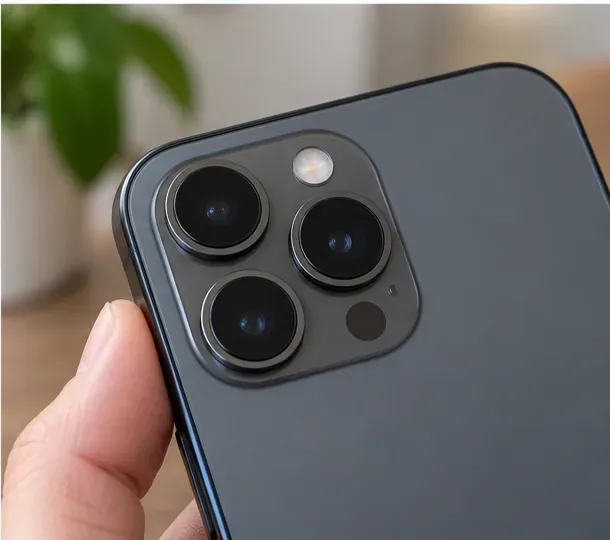
Use light pressure with a clean microfiber cloth; the cloth should do the work rather than forceful scrubbing.
4. Inspect again, then take a test photo
Use a clean part of the cloth for one final pass, then inspect the camera glass from an angle. It should look clear rather than oily or streaked. Turn the phone back on and take a photo of a well-lit, detailed subject such as printed packaging, a bookshelf, or a textured wall. If your phone has multiple zoom choices, test the main camera and the other camera options you commonly use.
A clean lens should not have a visible film on it, but image sharpness still depends on focus distance, lighting, motion, the selected camera, and the phone’s hardware. Cleaning is a first troubleshooting step, not a guarantee that every blurry image will become sharp.
After cleaning, inspect for remaining streaks and test the camera in good light before assuming there is a hardware problem.
What if a dry cloth does not remove the residue?
This is where beginners should slow down rather than automatically reach for alcohol or glass cleaner.
For a generic phone camera lens, there is no single liquid-cleaning rule that applies to every device. Apple’s current iPhone cleaning instructions allow a soft, slightly damp, lint-free cloth for the phone exterior and provide specific disinfecting options. Samsung’s general Galaxy instructions allow a small amount of distilled water on a cloth for stubborn grime and certain disinfectants on the cloth, while Samsung’s camera-specific troubleshooting guidance says to use a soft, dry microfiber cloth on the lenses. Google’s camera troubleshooting guidance simply tells Pixel users to wipe the camera lens gently with a soft, clean cloth.
The useful action is simple: if a dry lens cloth does not remove a sticky contaminant, look up the cleaning instructions for your exact phone model before introducing moisture or a solvent. Never spray a liquid directly onto the camera area. Samsung explicitly warns against applying liquid solutions directly to the device, and Apple tells users to keep moisture out of openings.
Mistakes to avoid
Do not use compressed air as a default cleaning tool
It can seem logical to blast dust away, but both Apple and Samsung tell users not to use compressed air for routine phone cleaning. Use the soft-cloth method instead.
Do not scrub with an abrasive material
Apple warns that abrasive materials can damage coatings and may scratch the device. A camera cover is small, so there is no benefit to aggressive pressure. If a mark does not move with gentle cleaning, stop and check the manufacturer’s instructions rather than scrubbing harder.
Do not spray cleaner onto the phone
Even on phones advertised with water resistance, liquid resistance is not a reason to spray the camera area. Samsung says cleaning solutions should be applied to the cloth rather than directly to the device. Apple similarly warns against getting moisture into openings.
Do not assume disinfecting and lens cleaning are the same job
Some manufacturers permit specific alcohol-based wipes for disinfecting exterior surfaces. That does not mean alcohol is required for ordinary fingerprints on a camera lens. For image clarity, a clean dry microfiber cloth is usually the appropriate starting point.
If the image is still blurry after cleaning
Once the camera glass is visibly clean, stop polishing it repeatedly. Persistent blur can have other causes.
Check the case or camera protector. Make sure nothing overlaps the camera area and temporarily test without removable accessories if they appear to sit over the lenses.
Change the subject distance. Phones have minimum focusing distances, and close-up blur can be normal when the subject is too close.
Use better light and hold the phone still. Low light and motion can make photos look soft even with a spotless camera.
Test more than one camera. If only one zoom level stays blurry, that can help narrow the problem to one camera module or accessory.
Restart and update if appropriate. Google’s Pixel troubleshooting flow continues from lens cleaning to restarting, checking the Camera app, and installing updates when the issue persists.
If you see haze that appears to be under the camera glass, a crack, condensation, a loose camera cover, or blur that remains in every app after the exterior is clean, home cleaning is unlikely to fix the cause. Use the manufacturer’s support or repair channel rather than trying to open the camera assembly.
A simple maintenance routine
You do not need to polish the camera every day. Clean it when you notice fingerprints, haze, obvious dust, or a drop in image clarity. Keep a small clean lens cloth in your bag or camera kit, but store it where it will not collect grit. If the cloth becomes dirty, replace or wash it according to its care instructions before using it on the camera again.
The beginner-friendly rule is easy to remember: inspect first, use a clean dry microfiber cloth with light pressure, and escalate only according to your phone manufacturer’s instructions. That approach handles the most common smudges while avoiding unnecessary chemicals and force.