Home
» INTERNET
»
How to Clean an Epson Printhead Safely: Nozzle Check, Head Cleaning, and When to Stop
How to Clean an Epson Printhead Safely: Nozzle Check, Head Cleaning, and When to Stop
If an Epson printer starts producing missing lines, faint colors, white streaks, or partially blank output, the safest first response is usually not to open the printer and wipe the printhead. For most Epson home and office inkjet models, printhead cleaning means using the printer’s built-in maintenance functions, checking the result with a nozzle pattern, and escalating only when the model-specific guide says to do so.
This practical reference focuses on that supported workflow. Epson model families differ, so menu names, button combinations, cleaning limits, and wait times can vary. Use the steps below as a decision framework, then confirm your exact model in Epson Official Support before using stronger maintenance functions such as Power Cleaning or Power Ink Flushing.
Quick Reference: Which Maintenance Tool Should You Use?
What you see
Best first action
Why
Missing or broken lines in the nozzle pattern
Run normal Head Cleaning
The printed nozzle check shows that one or more nozzles may be clogged.
Nozzle pattern is complete, but a normal print still looks wrong
Stop cleaning and check settings, paper, alignment, or software
A complete nozzle check suggests the nozzles are functioning; repeated cleaning may waste ink without addressing the real cause.
Almost the entire nozzle pattern is missing
Check the exact model guide for Power Cleaning or another stronger maintenance function
Some EcoTank guides specifically direct users to Power Cleaning when most or all nozzle lines are missing.
No improvement after the model’s allowed cleaning attempts
Wait the specified time, test again, then escalate only if instructed
Epson guides commonly require a rest period before additional cleaning.
Printer shows a hardware error, cannot move ink normally, or still fails after supported cleaning
Contact Epson support
Further cleaning may not solve a mechanical, ink-delivery, maintenance-box, or electronic problem.
Before You Start: Five Checks That Prevent Unnecessary Cleaning
Load a few sheets of plain paper so you can print nozzle checks.
Make sure the printer is not displaying an error that should be resolved first.
Check ink levels. Some Epson tank printers will not clean correctly when ink is too low, and stronger cleaning functions may require substantially more ink.
Do not turn the printer off, open covers, or interrupt a cleaning cycle unless the manual for your model specifically tells you to do so.
Do not assume a third-party syringe, solvent, alcohol, or manual printhead wipe is equivalent to Epson’s maintenance process. Epson documentation for many products warns users not to touch or manually move the printhead; specialized large-format models that permit physical maintenance use their own specified tools and procedures.
For a representative EcoTank workflow, Epson’s ET-2800/L3260 nozzle-check instructions show the basic sequence: print a nozzle check, inspect for gaps, and clean only when the pattern indicates a problem.
Step 1: Run a Nozzle Check Before Cleaning
A nozzle check is the most useful diagnostic step because it separates a likely clog from unrelated print-quality problems. On many Epson models, the command appears under a Maintenance menu on the printer. It may also be available through Epson’s printer utility on Windows or macOS.
Do not begin with repeated cleaning cycles “just in case.” A clean nozzle pattern gives you a reason to stop and investigate another cause instead.
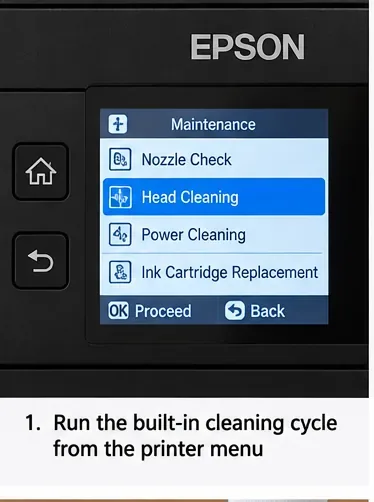
A representative Epson maintenance menu with Head Cleaning selected; exact wording and layout vary by model.
What a nozzle check tells you
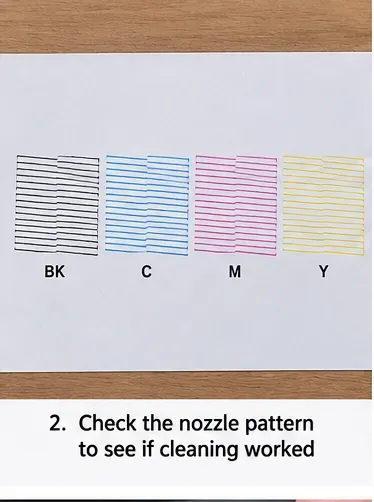
Look for continuous line segments in every printed color block. Broken, faint, or missing sections point toward clogged or poorly firing nozzles. If the pattern is complete, printhead cleaning is generally not the next logical step.
A nozzle check pattern is the decision point: broken or missing segments indicate that cleaning may be needed.
Step 2: Run Normal Head Cleaning If the Pattern Has Gaps
If the nozzle pattern has gaps or faint lines, start with the normal Head Cleaning function. On a compatible Epson control panel, this is usually under Maintenance. On a computer, Epson’s utility may call it Head Cleaning or Print Head Cleaning. Epson’s computer-utility cleaning instructions describe starting the cycle and then printing a nozzle check when it finishes.
Allow the cycle to finish completely. Epson explicitly cautions in multiple user guides not to turn off the printer or open relevant covers while the cleaning cycle is running. Cleaning consumes ink, so the goal is not to run as many cycles as possible; the goal is to restore a complete nozzle pattern with the fewest supported cycles necessary.
Step 3: Print Another Nozzle Check and Judge the Result
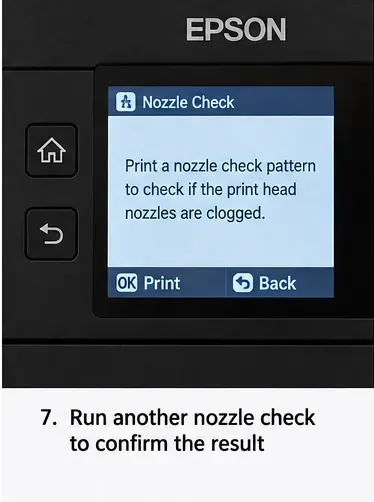
After a cleaning cycle, print another nozzle check. This is more reliable than printing a photograph or text page and deciding by eye whether things “look better,” because the nozzle pattern exposes missing line segments directly.
After a cleaning cycle, run another nozzle check rather than judging the result only from a normal document.
Use the result to choose the next action:
No gaps: stop cleaning. The printhead maintenance goal has been met.
Fewer gaps, but some remain: another normal cleaning may be appropriate if your model guide allows it.
No improvement: do not continue indefinitely. Follow the retry limit and waiting period for your exact printer.
Most or all lines are missing: check whether your model provides Power Cleaning or another stronger maintenance option.
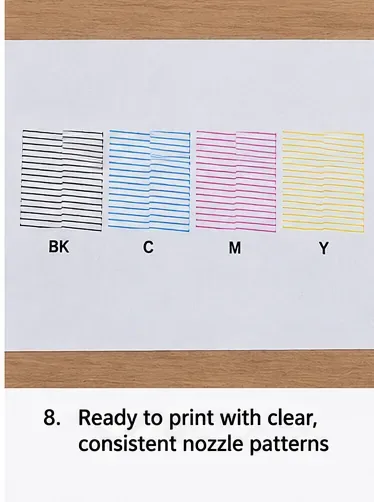
When the nozzle check is complete with no visible gaps, stop cleaning and return to normal printing.
Step 4: Respect the Model-Specific Retry Limit and Wait Time
This is where generic internet advice often becomes unreliable. Epson does not use one universal retry count for every printer.
For example, Epson’s ET-2800/L3260 guidance says that if there is no improvement after cleaning the printhead up to three times, turn the product off and wait at least 12 hours before trying again. By contrast, Epson’s WorkForce WF-3820 nozzle-check guidance says that after up to four cleaning attempts without improvement, wait at least six hours without printing before trying again. These examples were verified from Epson support material in September 2026.
The practical rule is simple: once you reach your model’s stated limit, stop. More back-to-back cleaning is not automatically better. Give the printer the prescribed rest period, then run another nozzle check before deciding what comes next.
Step 5: Use Power Cleaning Only When Your Model Calls for It
Power Cleaning is stronger than normal Head Cleaning and is not a routine first step. Epson states that it consumes a large amount of ink. On supported tank models, Epson also warns that each tank should be at least one-third full before Power Cleaning; running it with insufficient ink can damage the product. Epson further notes that stronger cleaning can bring ink pads or a maintenance box to capacity sooner.
See Epson’s ET-2800/L3260 Power Cleaning instructions for one documented example. That guide requires at least one-third of each ink tank and at least 12 hours before another Power Cleaning attempt.
Some newer or different Epson products use a function named Power Ink Flushing instead, or place stronger maintenance elsewhere in the menu. Do not substitute one procedure for another. Search your exact model number on Epson Support.
How to Know the Printhead Cleaning Worked
The clearest success criterion is not “the page looks a little darker.” It is a complete nozzle-check pattern with no visible gaps in the expected line groups. Once you reach that point, further printhead cleaning has little value and only consumes ink.
If the nozzle check is complete but output still shows banding, color shifts, fuzzy text, or misplaced lines, move to other diagnostics. Depending on the model and symptom, that may include printhead alignment, paper-type settings, print-quality settings, paper condition, driver settings, or software color management.
When Cleaning Is Unlikely to Fix the Problem
Symptom
Why cleaning may not help
Next check
Complete nozzle pattern but horizontal lines are misaligned
The issue may be alignment rather than clogged nozzles
Run the model’s printhead alignment procedure
Colors print but do not match the screen
Color settings, profiles, paper, or display differences may be involved
Check media and color-management settings
Printer cannot print a nozzle check at all
The cause may be an error, paper-feed issue, ink-delivery problem, or hardware fault
Resolve displayed errors and run the model’s product check
Cleaning repeatedly produces no change
The problem may be beyond a recoverable nozzle clog
Stop repeated cleaning and contact Epson support
Do Not Manually Wipe or Flush a Desktop Epson Printhead Without Model-Specific Instructions
Many online tutorials recommend moving the carriage by hand, touching the nozzle plate with a swab, injecting cleaning fluid through ink ports, or soaking the printhead. Those methods are outside the normal maintenance sequence Epson documents for mainstream EcoTank and WorkForce home/office printers.
Epson documentation for several printer families cautions against touching or manually moving the printhead. Specialized SureColor and commercial printers sometimes do include physical cleaning procedures, but those procedures specify exact maintenance positions, cleaning sticks, and approved fluids. That is not evidence that the same method is appropriate for a desktop EcoTank or WorkForce model.
Unless the user guide for your exact printer explicitly provides a manual printhead-cleaning procedure, stay with the built-in maintenance tools and Epson support. This avoids turning a print-quality issue into a damaged carriage, cable, nozzle surface, ink system, or maintenance component.
Practical Checklist
Print a nozzle check first.
If the pattern is complete, stop; do not clean unnecessarily.
If gaps appear, run normal Head Cleaning.
Do not interrupt the cleaning cycle.
Print another nozzle check after cleaning.
Follow your model’s retry limit and required rest period.
Use Power Cleaning only when the exact model guide recommends it and all ink-level requirements are met.
If the nozzle pattern remains bad after the supported sequence, contact Epson rather than escalating to improvised manual flushing.
Bottom Line
For most Epson home and office inkjets, “cleaning the printhead” is best treated as a measured diagnostic process: nozzle check, normal Head Cleaning, another nozzle check, then a model-specific rest or stronger cleaning step only if needed. The stopping point matters as much as the cleaning itself. A complete nozzle check means the maintenance objective is achieved; persistent problems after the supported sequence are a reason to change troubleshooting paths, not simply to keep cleaning.