Home
» INTERNET
»
How to Clean an HP Printer Head Safely: Start With the Built-In Cleaning Tool
How to Clean an HP Printer Head Safely: Start With the Built-In Cleaning Tool
If an HP inkjet printer is producing white lines, missing colors, faded blocks, or streaked text, the safest first move is usually not to remove the printhead and scrub it. Start with the printer’s built-in printhead-cleaning routine. HP’s current support instructions for many DeskJet, Tango, OfficeJet, and Smart Tank models use an automated cleaning tool because it pushes ink through the nozzles in a controlled way and then prints a page you can evaluate.
The exact menu name varies by model. You may see Clean Printhead, Clean, or Clean Cartridges, either on the printer control panel, in the HP app/HP Smart app, or in the printer’s Embedded Web Server. That variation matters: the right procedure is the one listed for your specific printer model, not a generic manual-cleaning video.
The short answer: use automatic cleaning first
For most home and small-office HP inkjet printers, use this four-step workflow:
Print or inspect a print-quality page so you know what defect you are trying to fix.
Run the printer’s built-in printhead-cleaning tool.
Inspect the new test page and stop if print quality is acceptable.
If defects remain, run the next cleaning level only when your model supports it; if repeated cleaning does not help, switch to alignment, cartridge checks, model-specific service steps, or HP support.
This approach is preferable because cleaning cycles use ink. HP explicitly notes on some printer families that unnecessary cleaning wastes ink, and several support pages tell users to evaluate the printed test page between cleaning stages before continuing.
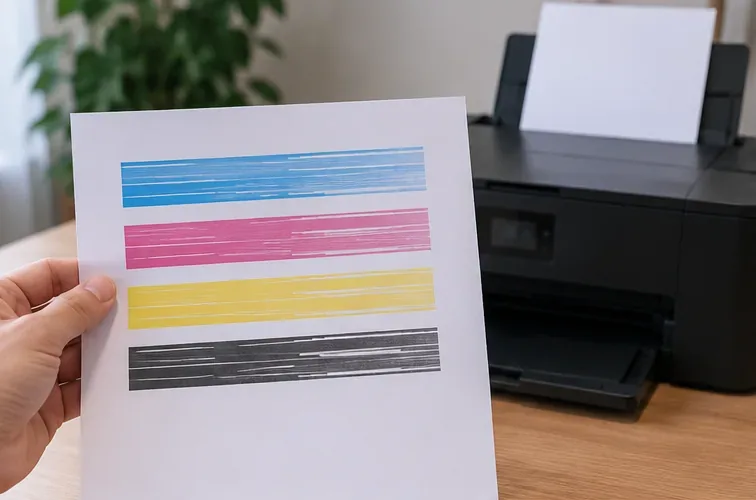
Start by identifying the defect. White gaps, faded blocks, or missing sections in a print-quality page are signs that a cleaning cycle may be appropriate.
Step 1: confirm that the problem looks like a clogged or poorly firing printhead
Cleaning is a good match for certain symptoms: repeated horizontal white lines in colored blocks, missing color segments, faded output, or one color that does not print correctly. HP’s Print Quality Diagnostic Report guidance uses test patterns specifically to distinguish printhead reliability problems from alignment problems.
If the lines in an alignment pattern are crooked or disconnected, alignment may be the better next step. If the back of the paper is smeared, HP provides a separate “Clean Smear” or “Clean Ink Smear” function on some models. If the printer reports an incompatible, empty, or failed cartridge, address that error first instead of repeatedly cleaning the printhead.
What you see
Best first action
White gaps, faded color blocks, or missing color
Run the built-in printhead cleaning tool.
Crooked or disconnected alignment lines
Run printhead or cartridge alignment instead.
Ink smears on the back of the sheet
Use the printer’s smear-cleaning tool if your model provides one.
Cartridge or printhead error message
Follow the error-specific HP procedure before cleaning.
Step 2: run Clean Printhead from the printer or HP software
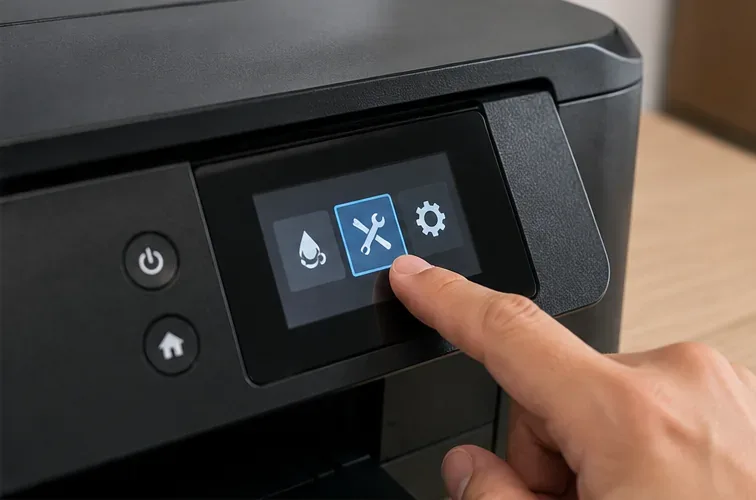
Load plain white paper before starting. Then use the maintenance or print-quality tools available for your model. On many current HP support pages, the app route is similar to printer image > Diagnostics or Tools > Print Quality Tools > Clean Printhead. Other models place the command under Alignment & Maintenance, while printers with a touchscreen may provide a path such as Tools > Troubleshooting > Print Quality > Clean Printhead.
For example, HP’s current Tango print-quality instructions direct users to the HP app’s print-quality tools, while the Smart Tank support procedure shows a control-panel route. Some Smart Tank models instead label the action “Clean Cartridges,” so do not worry if your screen does not match another HP family exactly.
Use the printer’s maintenance or print-quality controls to start the automated cleaning routine. The exact icon and menu wording vary by HP model.
Let the cleaning cycle finish without switching the printer off. Depending on the model, the printer may automatically print a test page. HP also warns on some printer families to use the power button for normal shutdown rather than cutting power abruptly, because improper shutdown can contribute to print-quality problems.
Step 3: inspect the test page before doing anything else
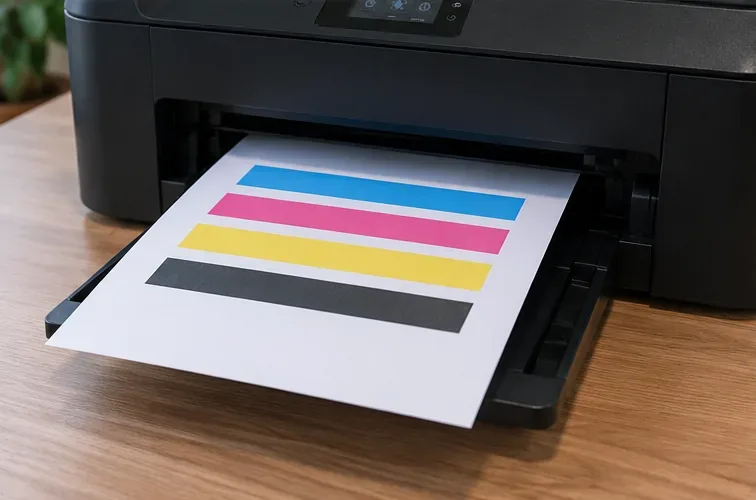
After cleaning, look at the printed page in good light. You are looking for a clear improvement: color blocks should be more uniform, white gaps should be reduced or gone, and text or line patterns should look continuous. If the output is now acceptable, stop. More cleaning is not “better” once the defect has been corrected.
A successful cleaning cycle should produce more uniform color blocks with fewer or no visible gaps. Stop cleaning once the print quality is acceptable.
If the test page still has obvious defects, check your model’s instructions for a second or third cleaning level. HP’s DeskJet 2800, 4200, and 4900 support page, for example, allows deeper cleaning levels through the HP Smart app. The same page notes that a badly clogged printhead may need another cycle after a wait of at least 30 minutes. Treat that timing as model-specific guidance rather than a universal rule for every HP printer.
Step 4: compare the result and know when to change course
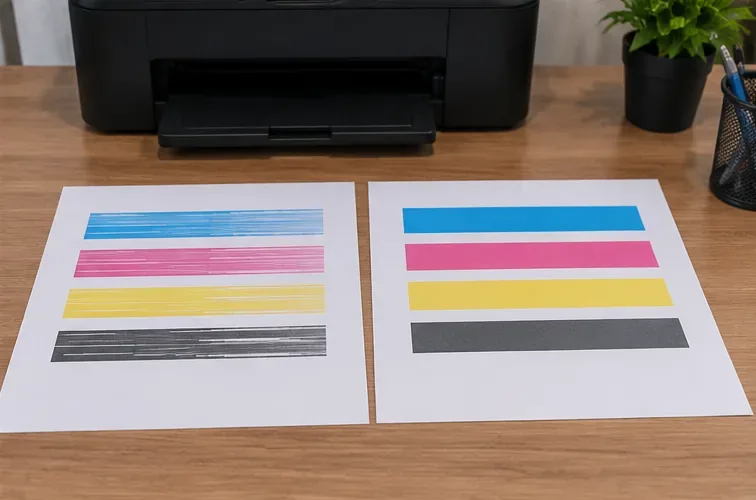
The goal is not to make the printer complete a certain number of cleaning cycles. The goal is an acceptable diagnostic page and normal output. Compare the before-and-after sheets. If the gaps have disappeared or the missing color has returned, print a normal document or photo and confirm the fix in real use.
Judge the result by the before-and-after output. A visibly cleaner pattern means the maintenance cycle helped; persistent defects mean it is time to troubleshoot a different cause.
If there is little or no change after the cleaning levels recommended for your model, continuing to burn through ink is usually the wrong strategy. Move to the next diagnosis: align the printhead, verify ink levels and cartridge condition, check that the correct paper and print settings are selected, or follow the printhead/cartridge service procedure for your exact model.
Should you clean an HP printhead manually?
Only when HP’s instructions for your exact printer explicitly tell you to. Manual printhead cleaning is not one universal HP procedure. Some professional or large-format HP printers do have documented steps for removing a printhead and cleaning specific surfaces, but HP also warns that the process is delicate and can damage the printhead. Other models tell users not to touch nozzles or electrical contacts at all.
For that reason, do not assume that advice for a DesignJet, Smart Tank, DeskJet, or OfficeJet is interchangeable. HP’s Smart Tank printhead-error guidance, for example, cautions users not to touch the print nozzles or electrical contacts during handling. HP’s large-format printhead-cleaning guidance permits manual nozzle cleaning only after automated cleaning and still warns that the process can damage the printhead.
A useful rule is simple: if the HP support page for your printer does not specifically tell you to remove and wipe the printhead, do not improvise with alcohol, tap water, paper towels, compressed air, or household cleaners. Use the automated procedure and the model-specific service instructions instead.
How many cleaning cycles are reasonable?
There is no single number that applies to every HP printer. Some HP printers use multiple cleaning stages, and HP tells users to evaluate quality between stages because each stage consumes more ink. On other models, the app offers a second or third level only after the first test page is still unacceptable.
A practical stopping rule is:
Stop immediately when the diagnostic page looks acceptable.
Continue to the next cleaning level only if your printer offers one and the page still shows a printhead-related defect.
If repeated cleaning produces little or no improvement, stop and troubleshoot alignment, cartridges, printhead seating, or hardware service.
If your model’s HP instructions specify a waiting period before another cycle, follow it.
When cleaning will not solve the problem
Printhead cleaning is not a cure-all. It will not fix every faded print, and it will not repair a damaged printhead. It is also unlikely to solve problems caused by the wrong paper type, unsuitable print settings, a nearly empty cartridge, a cartridge communication error, mechanical damage, or a failing ink system.
If the diagnostic page shows straightness or alignment errors rather than missing ink, run alignment. If only the back of the paper is dirty, use the smear-cleaning procedure where available. If a color remains completely absent after the recommended cleaning stages, follow HP’s model-specific cartridge or printhead replacement path.
How to get a reliable result
You should consider the job complete when three things are true: the diagnostic page is visibly improved, a normal document prints without the original streaks or missing colors, and no new printer error appears. That outcome-based check is more useful than counting cleaning cycles.
For the most accurate instructions, search HP Support using the exact model number printed on your printer and open the print-quality troubleshooting page for that model. The names and locations of maintenance tools change across HP product families, so model-specific documentation should always take priority over generic instructions.