Imagine firing up your browser, only to be greeted by a frustrating Microsoft Edge blank white screen on startup. No tabs, no toolbar – just emptiness. 😩 This common glitch affects millions, but don't worry! We've got your back with straightforward, tested solutions. Whether it's a corrupted cache or extension conflict, these steps will have Microsoft Edge running smoothly again. Follow along, and you'll be browsing in minutes!
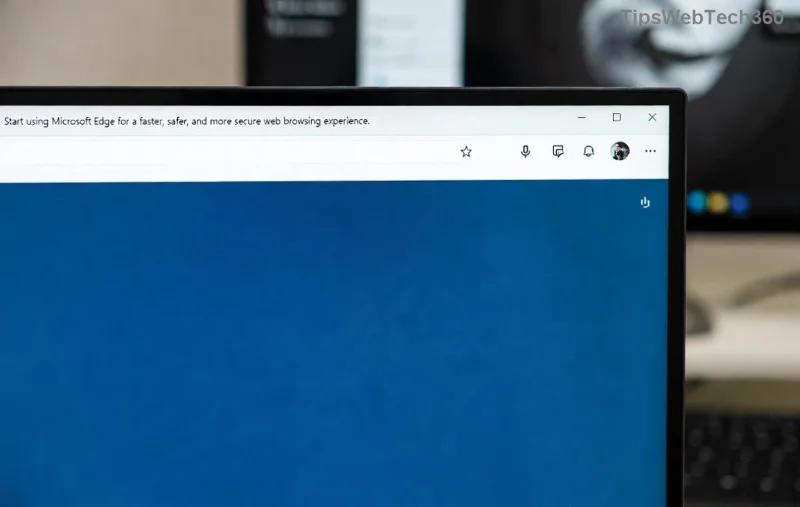
Why Does Microsoft Edge Blank White Screen Happen on Startup?
Before diving into fixes, understanding the culprits helps. Common causes include:
- Corrupted cache or cookies: Builds up and blocks loading.
- Problematic extensions: One rogue add-on can crash the startup.
- Hardware acceleration issues: Conflicts with your GPU.
- Outdated or damaged profile: Edge's user data gets corrupted.
- Antivirus interference or Windows updates gone wrong.
⭐ Good news: Most fixes take under 5 minutes. Let's start with the easiest!
Quick Fixes: Start Here for Instant Results
Try these Microsoft Edge blank white screen solutions in order. No tech skills needed!
- 👆 Force Close and Restart Edge
Double-check Task Manager (Ctrl + Shift + Esc). End all Microsoft Edge processes, then relaunch. Simple, but it works 30% of the time!
- Clear Cache and Cookies
If Edge opens partially:
1. Press Ctrl + Shift + Delete.
2. Select "All time" for Cookies, Cached images/files.
3. Hit Clear now. Restart Edge. Boom – fixed for many users!
- Disable All Extensions
1. Type edge://extensions/ in the address bar.
2. Toggle off everything.
3. Restart. Re-enable one by one to find the offender.
![Step-by-step guide to disabling extensions in Microsoft Edge]()
Advanced Fixes: When Quick Ones Don't Cut It
If the white screen persists, level up. These target deeper issues.
| Method |
Steps |
Time Estimate |
Success Rate |
| Turn Off Hardware Acceleration |
1. edge://settings/ > System.
2. Toggle "Use hardware acceleration" OFF.
3. Relaunch. |
1 min |
High ⭐⭐⭐⭐ |
| Reset Edge Settings |
edge://settings/reset > "Restore settings to default" > Reset. |
2 mins |
Very High ⭐⭐⭐⭐⭐ |
| Create New User Profile |
edge://settings/profiles > Add profile > Switch to new one. |
3 mins |
High ⭐⭐⭐⭐ |
Pro Tip: Hardware acceleration is a top villain for Edge blank white screen on startup. Disabling it resolves GPU clashes instantly.
Repair or Reinstall Microsoft Edge – The Nuclear Option
Still stuck? Time for official tools.
- Repair via Windows Settings:
1. Settings > Apps > Installed apps.
2. Search "Microsoft Edge" > Three dots > Modify > Repair.
Works without data loss!
- Reset via PowerShell (Admin mode):
Get-AppXPackage *edge* | Foreach {Add-AppxPackage -DisableDevelopmentMode -Register "$($_.InstallLocation)\AppXManifest.xml" -Verbose}
- Full Reinstall:
Uninstall via Settings, then download fresh from Microsoft Edge official site.
These steps are Microsoft-recommended and safe. Check Microsoft's troubleshooting guide for more.
Prevent Future Microsoft Edge Blank White Screen Issues
Stay ahead:
- ✅ Update Edge regularly (edge://settings/help).
- ✅ Limit extensions to trusted ones.
- ✅ Run antivirus scans weekly.
- ✅ Backup profiles: edge://settings/profiles > Export.
By keeping things lean, you'll dodge 90% of glitches. 👏
Final Thoughts: Your Browser Is Back!
Congrats! You've conquered the Microsoft Edge "blank white screen" on startup. Start with quick fixes, escalate if needed – most users succeed by step 3. If issues linger (rare), it might be hardware; test on another PC.
Share your success in comments below – did extension disable save you? Drop a ⭐ if this helped! Happy browsing! 🚀