Ever juggled work, personal browsing, and family tabs in one chaotic browser window? 😩 Say goodbye to that mess! With Microsoft Edge multiple profiles, you can keep everything organized while Edge sync keeps your data flowing across devices. This guide dives straight into the essentials, empowering you to boost productivity and privacy like a pro. Ready to transform your browsing? Let's dive in! 🚀
Why Use Microsoft Edge Multiple Profiles and Sync?
Imagine separate spaces for work emails, gaming sessions, and shopping sprees—no more accidental logins or cluttered history. Microsoft Edge multiple profiles let you customize each one with unique bookmarks, extensions, and themes. Pair it with Edge sync, and your settings follow you from PC to phone seamlessly. Perfect for professionals, families, or anyone hating browser overload! ✅
Step-by-Step: Creating Microsoft Edge Multiple Profiles
Getting started is a breeze in the latest Microsoft Edge. Follow these quick steps:
- 🔍 Click your profile icon in the top-right corner (next to the three dots).
- 👆 Select Add profile.
- 📝 Choose Add under "Work" or "Personal," or create a custom one.
- ✨ Sign in with a Microsoft account (or skip for local profile) and customize name, photo, and shortcuts.
- 🎉 Done! Your new profile launches instantly.

Pro tip: Use distinct colors or avatars for each profile to spot them at a glance. This setup shines for freelancers switching between clients! 🌟
Switching Between Microsoft Edge Profiles Like a Pro
No more profile hunting! Hover over the profile icon to preview and click to switch. For power users:
- 📱 Pin profiles to the taskbar for one-click access.
- ⌨️ Keyboard shortcut: Ctrl + Shift + M toggles profiles.
- 🔒 Lock profiles with a PIN for added security.
Switching keeps your workflows uninterrupted—work mode on, distractions off! 💪

Managing and Editing Your Edge Profiles
Profiles outgrown? Manage them smartly:
| Action | Steps |
|---|---|
| Edit Profile | Profile icon → Manage profile settings → Update name/photo. |
| Delete Profile | Profile icon → Select profile → Remove → Confirm (data lost unless synced!). |
| Set Default | Settings → Profiles → Set as default startup. |
Caution: Deleting unsynced profiles wipes data forever. Always back up first! ⚠️
Unlocking Microsoft Edge Sync Across Devices
Edge sync is your secret weapon for continuity. Here's how to master it:
- 1️⃣ Go to edge://settings/profiles/sync.
- 2️⃣ Turn on Sync and sign in with your Microsoft account.
- 3️⃣ Customize: Sync passwords, bookmarks, tabs, history, extensions, or everything.
- 4️⃣ On another device? Sign in—boom, everything appears!
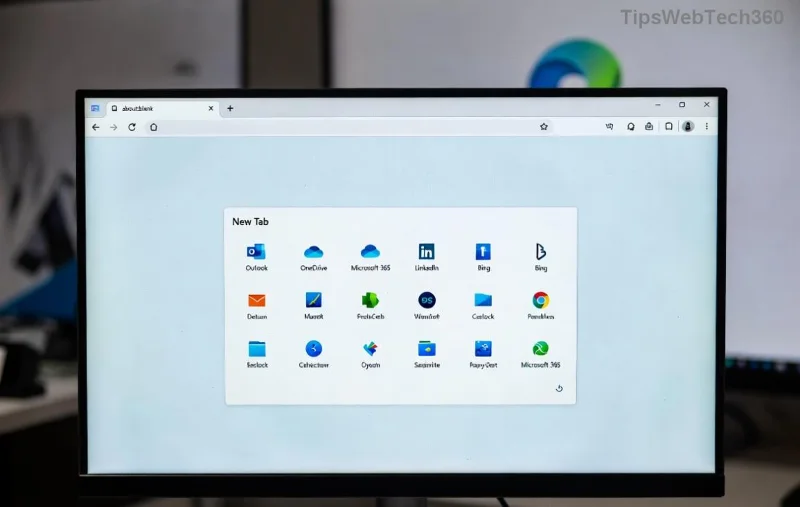
Selective sync keeps sensitive data private. Sync across Windows, macOS, Android, iOS—pure magic! ✨ For official tweaks, check Microsoft's Edge sync guide.
Troubleshooting Microsoft Edge Multiple Profiles and Sync Issues
Stuck? Common fixes:
- ❌ Sync not working? Verify internet, re-sign in, or toggle sync off/on.
- 🔄 Profile won't switch? Restart Edge or clear cache via edge://settings/clearBrowserData.
- 🚫 Duplicate profiles? Merge via settings or delete extras.
Still issues? Update to the latest Edge—it patches most glitches automatically.
Pro Tips to Supercharge Your Setup
- ⭐ Use Work profile for Microsoft 365 integration.
- 📱 Enable Continue on other devices for tab syncing.
- 🛡️ Guest profiles for sharing without data leaks.
Wrap-Up: Elevate Your Browsing Today!
Mastering Microsoft Edge multiple profiles and sync means less chaos, more control. You've got the tools—create your first profile now and feel the difference! Questions? Drop them below. Happy browsing! 👏









