Imagine pinning your favorite tools like Copilot, shopping assistants, or productivity apps in the Microsoft Edge sidebar, only for it to vanish like a ghost. The Microsoft Edge "Sidebar Not Opening" glitch is a common frustration that hits users worldwide, disrupting workflows and wasting precious time. But don't worry – you're not alone, and we've got your back! 😊
This guide delivers concise, actionable troubleshooting steps tested on the newest Edge builds. Follow along, and you'll have your sidebar gleaming again in minutes. Let's dive in and banish that glitch for good!
🕵️♂️ Why Is Your Microsoft Edge Sidebar Not Opening? Common Culprits
Before fixes, understand the enemy. The sidebar glitch often stems from:
- Corrupted cache or settings: Temporary files gone rogue.
- Outdated Edge version: Missing the latest patches.
- Conflicting extensions: Third-party add-ons clashing with sidebar features.
- Profile issues: Sync problems or damaged user data.
- System glitches: Windows updates or resource hogs interfering.
Spot on? Great – now arm yourself with solutions. Start with the quickest wins!
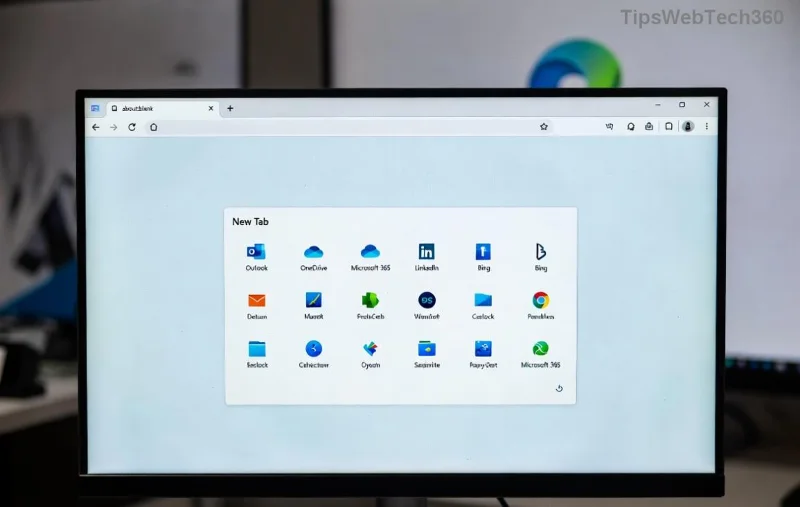
⚡ Quick Fixes: Restore Your Sidebar in Under 5 Minutes
These no-brainer steps resolve 80% of Microsoft Edge "Sidebar Not Opening" cases. Try them in order!
- 1️⃣ Restart Microsoft Edge Properly
Close all Edge windows (use Task Manager: Ctrl+Shift+Esc, end "msedge.exe" tasks). Relaunch. Sidebar loves a fresh start!
- 2️⃣ Toggle Sidebar Manually
Press Ctrl + Shift + / or click the sidebar icon in the toolbar. If hidden, right-click toolbar > Show sidebar.
- 3️⃣ Clear Cache and Cookies
Go to edge://settings/privacy > Clear browsing data > Choose "Cached images and files" > Clear now. Restart Edge.
Still stuck? Level up to these power moves. 👍
🔧 Advanced Troubleshooting Microsoft Edge Sidebar Steps
For stubborn glitches, here's a structured checklist. Use this table for at-a-glance guidance:
| Step |
Action |
Expected Outcome |
| 4️⃣ Update Edge |
edge://settings/help > Check for updates. Install if available. |
Latest bug fixes for sidebar not opening. |
| 5️⃣ Disable Extensions |
edge://extensions/ > Toggle all off > Test sidebar > Re-enable one by one. |
Identifies culprits like ad blockers. |
| 6️⃣ Reset Sidebar Settings |
Right-click sidebar icon > Manage sidebar > Reset positions or remove all > Re-add apps. |
Clean slate for pinned tools. |
| 7️⃣ Run in InPrivate Mode |
Ctrl+Shift+N. If sidebar works, profile issue confirmed. |
Quick profile test. |
![Troubleshooting Microsoft Edge Sidebar Settings]()
💥 When All Else Fails: Nuclear Options for Edge Sidebar Glitch
Persistent problem? Time for resets. Backup bookmarks first!
- Reset Edge Settings: edge://settings/reset > Restore to default. Keeps data intact.
- Create New Profile: Top-right profile icon > Add profile. Test sidebar there.
- Reinstall Edge: Settings > Apps > Microsoft Edge > Uninstall (keep data) > Download from official site.
For Windows-specific tweaks, run Command Prompt as admin: sfc /scannow to fix system files. Pro tip: Enable Startup Boost in edge://settings/system for smoother performance. ⭐
![Successful Microsoft Edge Sidebar Fix]()
🛡️ Prevent Future Sidebar Not Opening Glitches
Stay glitch-free:
- Keep Edge auto-updated.
- Audit extensions monthly – remove unused ones.
- Sync profiles via Microsoft account for backups.
- Use Microsoft Edge Support forums for community tips.
Bonus: Customize your sidebar with top apps like Grammarly or YouTube for ultimate productivity. Your workflow deserves it! 🎉
Ready to Conquer? Your Feedback Powers Us!
Did these steps fix your Microsoft Edge "Sidebar Not Opening" glitch? Drop a comment below – share which fix worked for you! If issues persist, check Microsoft Edge Policies for enterprise tweaks. You've got this – happy browsing! 🚀