Unlock Seamless Browsing: How to Link Your Microsoft Edge Account to Your Phone Effortlessly

Imagine opening your phone and instantly accessing all your PC tabs, bookmarks, and passwords from Microsoft Edge. That's the magic of linking your Microsoft Edge account to your phone! This quick sync feature keeps your browsing experience unified across devices, saving you time and frustration. Whether you're on Android or iOS, our guide makes it straightforward. Let's dive in and get you synced up in minutes! 🚀

Why Link Your Microsoft Edge Account to Your Phone? The Game-Changing Benefits

Syncing isn't just convenient—it's essential for modern browsing. Enjoy:

  • 🔄 Instant access to open tabs, history, and favorites.
  • 🛡️ Secure password and autofill sync.
  • ⭐ Personalized settings like themes and extensions across devices.
  • 📱 Collections and reading lists that follow you everywhere.

Ready to experience this? First, ensure you have a Microsoft account (sign up at account.microsoft.com if needed). Now, follow our precise steps.

Prerequisites Before Linking

Requirement Details
Microsoft Account Active account signed into Edge on PC.
Edge App Latest version from Google Play or App Store.
Internet Stable Wi-Fi or data connection.
Device Android 7.0+ or iOS 15+.

Step-by-Step: How to Link Microsoft Edge Account to Android Phone

Android users, this is your path to perfection. Download the Microsoft Edge app from the Google Play Store if not already installed.

  1. 1️⃣ Open the Microsoft Edge app on your phone.
  2. 2️⃣ Tap your profile icon (bottom center) and select Sign in.
  3. 3️⃣ Enter your Microsoft account email and password. Verify with any 2FA if prompted.
  4. 4️⃣ On the sync screen, toggle ON options like Tabs, Favorites, and Passwords.
  5. 5️⃣ Tap Done—your data syncs automatically! 👍
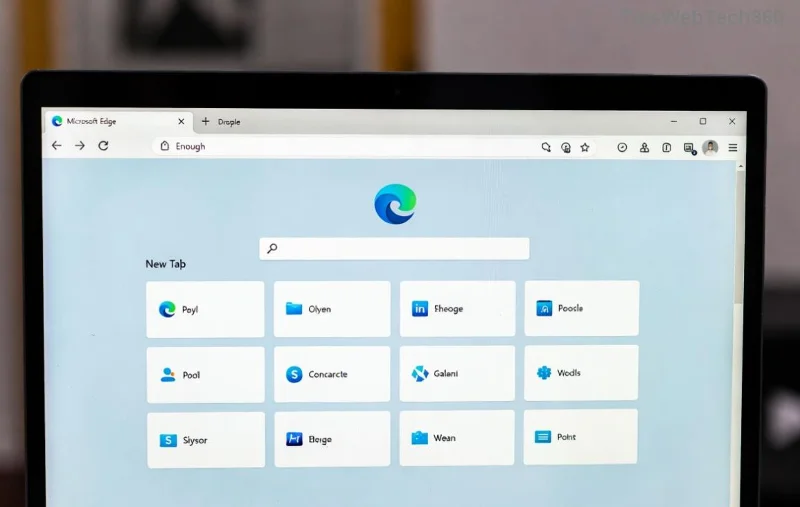
Microsoft Edge Android sign-in screen for linking account to phone

Pro tip: Enable Continue on PC for seamless handoffs between devices.

How to Link Microsoft Edge Account to iPhone (iOS)

iOS is equally simple. Grab the app from the App Store.

  1. 1️⃣ Launch Microsoft Edge on your iPhone.
  2. 2️⃣ Tap the profile icon (bottom right) > Sign in to Sync.
  3. 3️⃣ Input your Microsoft account credentials.
  4. 4️⃣ Choose sync preferences (e.g., History, Payments).
  5. 5️⃣ Confirm and watch the sync happen live! 🎉
iOS Microsoft Edge sync settings for linking account to phone

Your favorites and tabs now appear effortlessly. Test by opening a PC tab on your phone!

Troubleshooting Common Issues When Linking Microsoft Edge Account to Phone

Stuck? Don't worry—quick fixes ahead:

  • Sign-in fails: Clear app cache (Settings > Apps > Edge > Storage > Clear Cache) and retry.
  • Sync not starting: Ensure both devices use the latest Edge version. Check Microsoft Edge support.
  • Slow sync: Switch to Wi-Fi and restart the app.
  • Account mismatch: Sign out from PC Edge and re-link both.
Troubleshooting Microsoft Edge sync on mobile for account linking

95% of issues resolve with these steps. Still stuck? Use Edge's in-app feedback.

Advanced Tips to Maximize Your Microsoft Edge Phone Sync

Go beyond basics:

  • ⭐ Use Edge Collections for shared project boards.
  • 📲 Set Edge as default browser for one-tap access.
  • 🔒 Enable biometric sign-in for faster logins.
  • ⚙️ Customize sync frequency in Settings > Profiles > Sync.

Want more? Explore Microsoft Edge extensions on mobile for ad-blocking and productivity boosts.

Final Thoughts: Sync Today, Browse Smarter Tomorrow

Linking your Microsoft Edge account to your phone transforms chaotic browsing into a smooth symphony. You've got the steps—now implement them and feel the difference! Share your sync success in the comments below. What's your favorite synced feature? Stay tuned for more Edge tips to supercharge your digital life. Happy browsing! 😊
Leave a Comment

🔒 Bulletproof Your Microsoft Edge: Ultimate Guide to Phishing Protection

🔒 Bulletproof Your Microsoft Edge: Ultimate Guide to Phishing Protection

Secure your Microsoft Edge browser from phishing attacks with proven steps. Enable SmartScreen, tracking prevention, and more for ironclad defense against scams. Stay safe online today!

Fix Microsoft Edge aptX & LDAC Audio Errors Fast: Ultimate 2026 Troubleshooting Guide

Fix Microsoft Edge aptX & LDAC Audio Errors Fast: Ultimate 2026 Troubleshooting Guide

Struggling with Microsoft Edge aptX and LDAC audio errors? Discover proven fixes for choppy Bluetooth audio, dropouts, and codec issues. Step-by-step guide to restore crystal-clear sound in Edge today!

🚀 Fix Microsoft Edge Your PC Offline Login Error Instantly – Proven 2026 Solutions!

🚀 Fix Microsoft Edge Your PC Offline Login Error Instantly – Proven 2026 Solutions!

Struggling with Microsoft Edge "Your PC Offline" login error? Discover step-by-step fixes to resolve it quickly, from basic tweaks to advanced solutions. Get back online in minutes!

🚀 Make Google Your Default Search Engine on Microsoft Edge – Lightning-Fast Guide!

🚀 Make Google Your Default Search Engine on Microsoft Edge – Lightning-Fast Guide!

Discover how to make Google the default search engine on Microsoft Edge effortlessly. Step-by-step for desktop, mobile, and troubleshooting – get precise results every time!

Fix Microsoft Edge Video Playback Stuttering: 10 Proven Steps for Ultra-Smooth Playback

Fix Microsoft Edge Video Playback Stuttering: 10 Proven Steps for Ultra-Smooth Playback

Tired of Microsoft Edge video playback stuttering? Follow our expert, step-by-step guide to eliminate lag and enjoy seamless streaming. Quick fixes that actually work.

🚀 Fix Microsoft Edge File Not Found Error in Windows Explorer – Instant Solutions!

🚀 Fix Microsoft Edge File Not Found Error in Windows Explorer – Instant Solutions!

Struggling with the frustrating Microsoft Edge "File Not Found" error in Windows Explorer? Discover proven, step-by-step fixes to resolve it quickly and get back to smooth browsing. Perfect for Windows 11 users!

Unlock Epic Full-Page Screenshots: Master Microsoft Edge Web Capture in Minutes!

Unlock Epic Full-Page Screenshots: Master Microsoft Edge Web Capture in Minutes!

Step-by-step guide on how to use Microsoft Edge Web Capture for full-page screenshots. Capture entire webpages effortlessly, edit, and share like a pro—no extra tools needed!

Fix Microsoft Edge Status In Page Error FAST: Ultimate Troubleshooting Guide 2026

Fix Microsoft Edge Status In Page Error FAST: Ultimate Troubleshooting Guide 2026

Tired of Microsoft Edge "Status In Page Error" ruining your browsing? Discover proven, step-by-step troubleshooting fixes to resolve it quickly and restore smooth performance. Works on latest Edge versions!

Microsoft Edge Acrylic Effect Not Showing? Restore the Stunning Blur in Seconds!

Microsoft Edge Acrylic Effect Not Showing? Restore the Stunning Blur in Seconds!

Tired of Microsoft Edge Acrylic Effect not showing? Discover proven fixes to restore the beautiful Fluent Design blur on tabs, menus, and more. Quick steps for Windows users. Works on latest Edge versions!

🚀 Fix Microsoft Edge Bad Image Error After Windows Update in Minutes – Proven Steps!

🚀 Fix Microsoft Edge Bad Image Error After Windows Update in Minutes – Proven Steps!

Tired of Microsoft Edge crashing with "Bad Image" after Windows Update? Discover simple, effective fixes to restore smooth browsing. Step-by-step guide with proven methods for instant relief.









