Home
» MEDIA STREAMING
»
How to Mirror an iPhone or iPad to Fire TV and Fire TV Stick
How to Mirror an iPhone or iPad to Fire TV and Fire TV Stick
To mirror an iPhone or iPad to a Fire TV Stick, install an AirPlay receiver app on the Stick, put both devices on the same Wi-Fi network, then select the receiver from Control Center’s Screen Mirroring menu. Some Fire TV smart TVs support AirPlay directly; most Fire TV Stick setups need a receiver app such as AirScreen.
Choose the right Fire TV method
Amazon’s built-in Fire TV mirroring is based on Miracast, which iOS and iPadOS do not support. Amazon lists iOS and macOS among devices that cannot mirror through that standard feature. A supported Fire TV Smart TV is different: it may have Apple AirPlay built in. Check the model before installing anything.
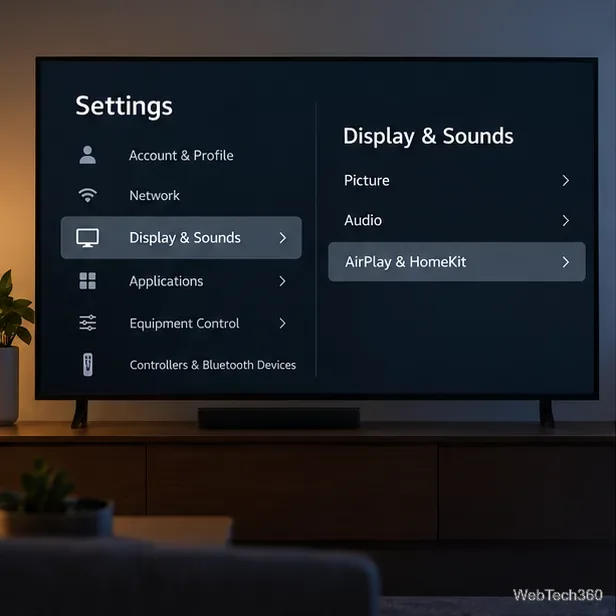
On the Fire TV Smart TV, open Settings > Display & Sounds. If you see AirPlay & HomeKit, select it and follow the TV’s setup prompts. Amazon says this option is not available on every Fire TV Smart TV. If you have a Fire TV Stick, or the menu is missing, use the receiver-app steps below instead.
On supported Fire TV Smart TVs, look for AirPlay & HomeKit under Display & Sounds; the option is model-dependent.
Mirror an iPhone or iPad to a Fire TV Stick
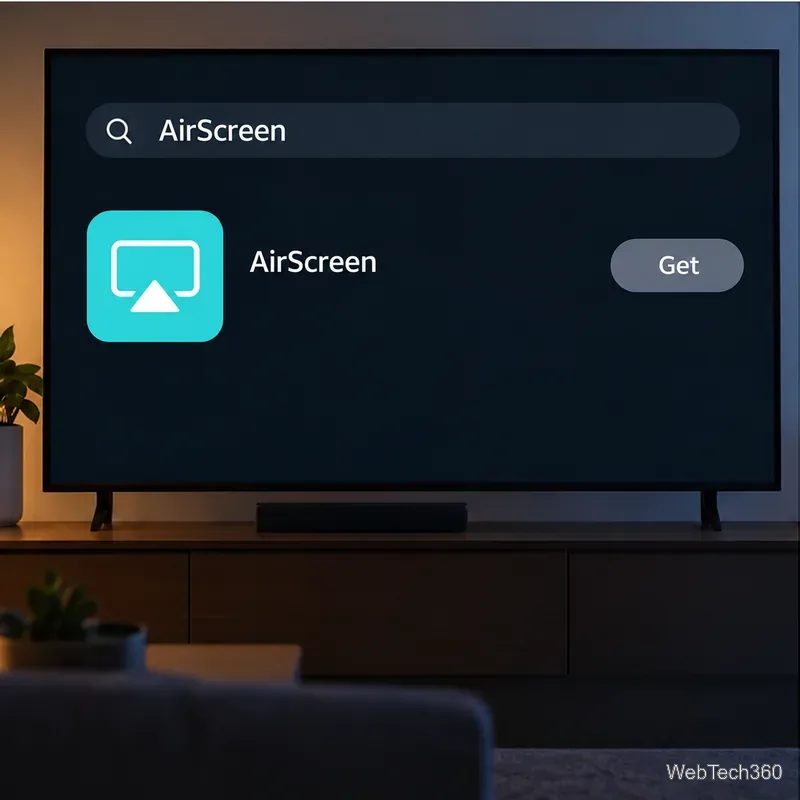
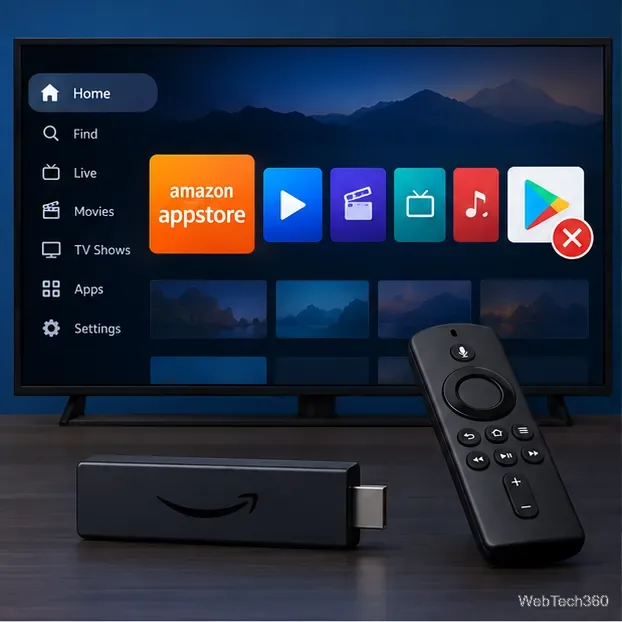
Install an AirPlay receiver on Fire TV. From the Fire TV home screen, open the Amazon Appstore, search for AirScreen, and select Get or the current install option. Open it when installation finishes. AirScreen is one example; check the current Amazon listing for availability, compatibility, and any pricing or subscription terms. You install the receiver on the TV device, not on the iPhone.
Search the Amazon Appstore for AirScreen and review the current listing before installing.
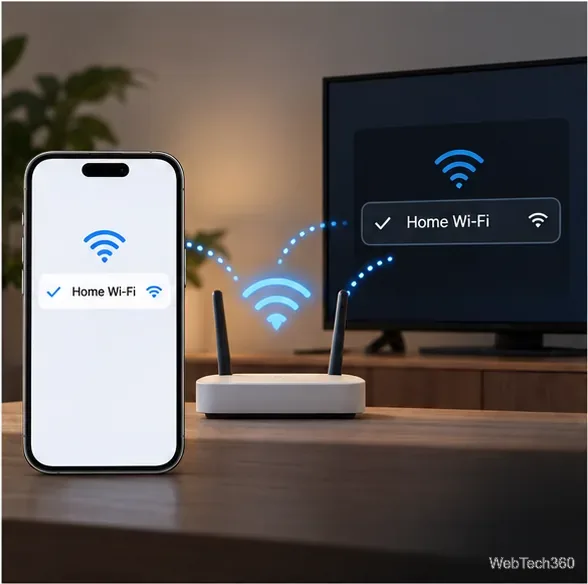
Connect both devices to the same Wi-Fi network. Check the network name in iPhone or iPad Settings and in Fire TV network settings. Avoid a guest network, which can prevent devices from discovering one another.
Connect the iPhone or iPad and Fire TV to the same Wi-Fi network.
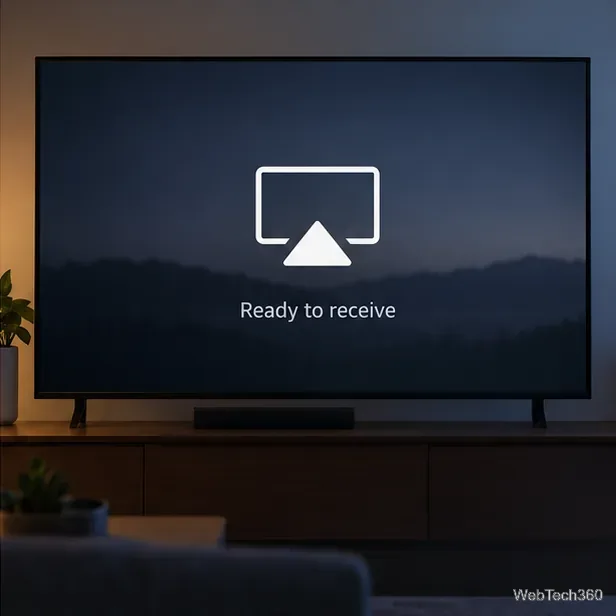
Open the receiver app on the TV. Leave AirScreen open and make sure its AirPlay receiving option is enabled if the app presents that setting. The receiver needs to be running so it can appear in Apple’s device list.
Leave the receiver app open on the TV while connecting from the Apple device.
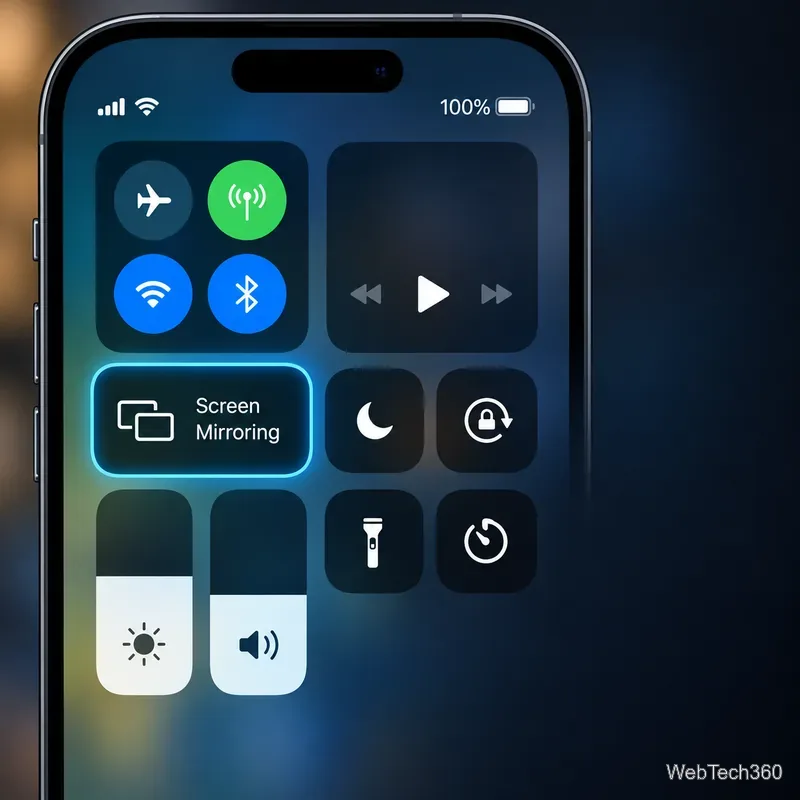
Open Control Center on your Apple device. On an iPhone with Face ID or a recent iPad, swipe down from the upper-right corner. On an iPhone with a Home button, swipe up from the bottom edge. Tap Screen Mirroring.
Open Control Center and tap Screen Mirroring.
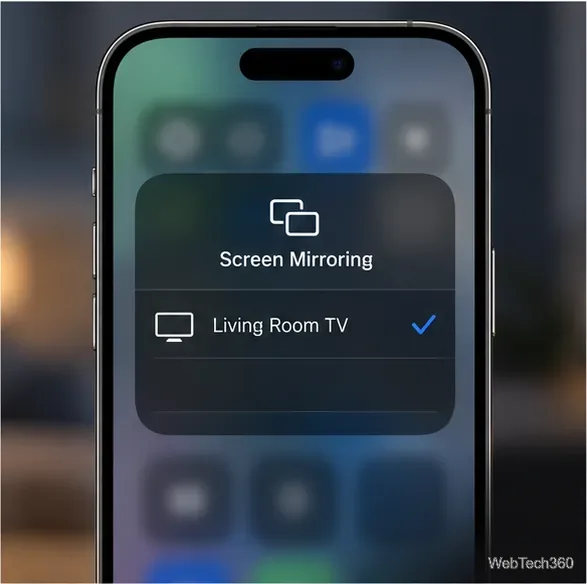
Select the receiver. Tap the Fire TV receiver shown in the list. Its name may be AirScreen, a Fire TV name, or a custom room name; use the entry that matches the receiver currently open on your TV.
Choose the receiver name shown by your setup; it may differ from this example.
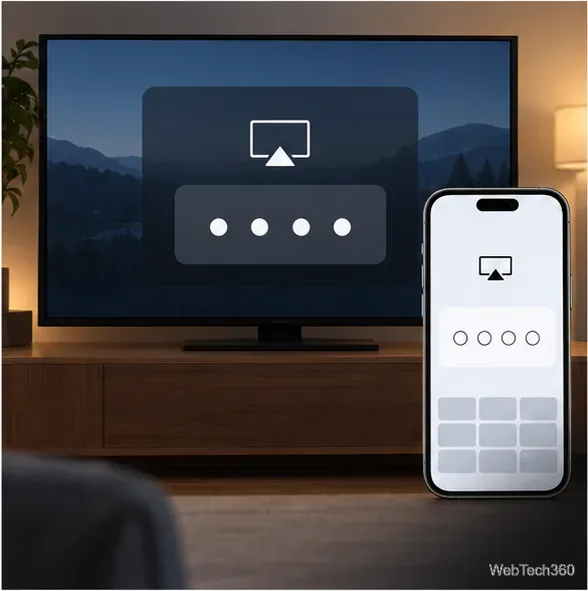
Enter a passcode if prompted. If the TV displays an AirPlay code, type that code on the iPhone or iPad. A code is not required for every connection.
Enter the on-screen AirPlay passcode if the receiver asks for one.
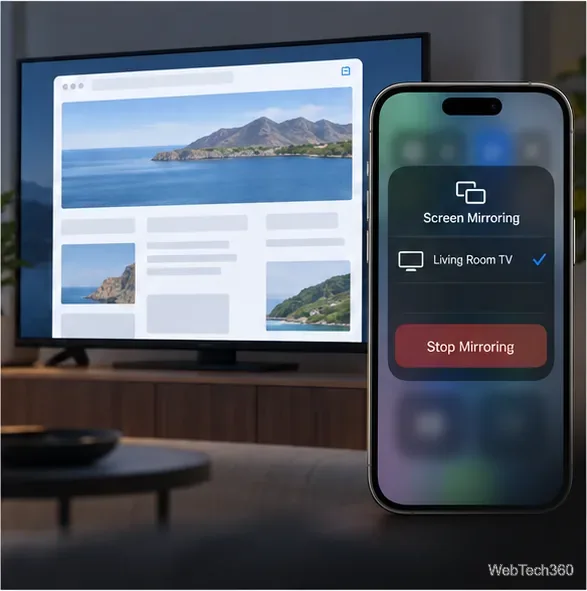
Stop mirroring when you’re done. Open Control Center, tap Screen Mirroring, then choose Stop Mirroring. This disconnects the screen without uninstalling the receiver.
Disconnect from Control Center by choosing Stop Mirroring.
Screen mirroring versus streaming a video
Screen mirroring duplicates what is on the iPhone or iPad, including menus and notifications. It works well for showing photos, a webpage, or an app that does not have a TV version. For a movie or show, use the video app’s AirPlay button when available, or open the service’s Fire TV app. Apple notes that some video apps do not support AirPlay, and protected playback may appear black or refuse to start when mirrored.
If other people can see the television, turn on Focus or silence notifications before connecting. Anything displayed on the phone—including messages and account screens—can appear on the TV.
Fix common connection problems
The Fire TV is missing from Screen Mirroring: confirm both devices use the same non-guest Wi-Fi, reopen the receiver app, and check that AirPlay receiving is enabled. Restart the app and devices if the receiver still does not appear.
The connection starts, then drops: move the phone and Fire TV closer to the router, reduce other heavy network activity, and install available system or app updates. A weak Wi-Fi signal can make mirroring choppy.
Only one video app fails: try its built-in AirPlay control or install its Fire TV app. The app may restrict screen mirroring; changing the receiver usually cannot remove that restriction.
The AirPlay menu is missing on a Fire TV Smart TV: check the model’s compatibility and software updates. If Amazon’s AirPlay & HomeKit option is absent, use a compatible receiver app if one is available for your device.