Home
» WINDOWS
»
Analyze and Identify Audio Files in Detail With Audio Identifier
Analyze and Identify Audio Files in Detail With Audio Identifier
Audio Identifier is a legacy Windows utility for inspecting the technical properties of audio files in a folder. Its Explorer-style list was designed to show details such as average bitrate, encoder information, encoding settings, and an estimated quality rating, with an option to export selected or complete results as HTML. It does not identify an unknown song by listening to it.
A personal audio collection arranged for a file review.
What Audio Identifier actually identifies
The name can be misleading. Audio Identifier reads information associated with an audio file, such as its format, tags, bitrate, and encoder details when those details are available. It is not a music-recognition service like Shazam, and it cannot reliably supply an artist or track title when those tags are missing.
The original article described support for MP3, MPC, WAV, VQF, Ogg, WMA, AAC, and SPX files. Its description also highlighted Unicode support and HTML export. Exact results depend on the particular build and the information stored in each file; a format name in a list does not guarantee that every codec variant or tag will be parsed correctly.
An archival software catalog lists Audio Identifier version 0.7.1 and operating systems through Windows Vista, with the record last checked in 2014. That is historical information, not confirmation that the program is maintained, safe to download today, or compatible with Windows 10 or 11. A current official download source and a current compatibility statement could not be verified. See the archived version record for context; do not treat an old download mirror as an official source.
What the reported details can tell you
Bitrate describes how much encoded data is used per second. With variable-bitrate audio, an average can summarize a file even though the rate changes from moment to moment. Bitrate alone is not a reliable sound-quality score: the codec, encoding settings, source material, and any earlier lossy conversion all matter. Re-encoding a low-quality MP3 to a larger file does not restore audio information that was discarded.
Encoder and settings may help explain how a file was created, but the clues can be incomplete or absent. Tags can be removed, rewritten, or copied during conversion. Treat a displayed encoder name or “guessed quality” value as an indication to investigate, not proof of the original source or an objective listening test.
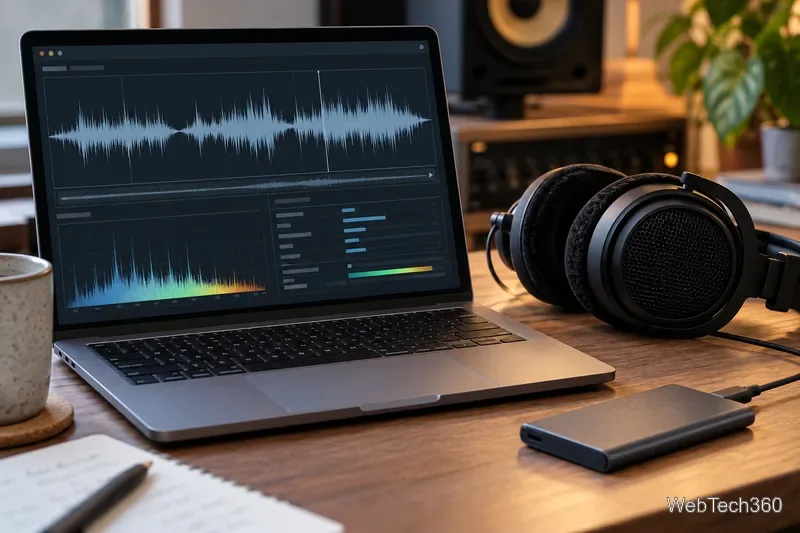
An illustrative view of audio waveforms and property panels; this is not a screenshot of Audio Identifier.
How to use a trusted existing copy
If you already have a copy from a source you trust, the archived workflow is straightforward. The exact interface may vary by build:
Extract the program files to a folder. The historical instructions identify the executable as AI.exe.
Open Audio Identifier and select the folder that contains the audio files you want to inspect.
Let the program scan the folder, then review the rows for format, bitrate, encoder, settings, and any quality estimate it provides.
Choose whether to export all displayed information or only selected data as an HTML report.
Review a report before sharing it. It may include file names, folder paths, or tags that reveal personal details. Because this is old software, avoid running an unknown executable on a computer with sensitive files. If you cannot verify where your copy came from, use a currently maintained tool instead.
A report-style summary can make audio properties easier to compare.
Current tools for the same job
For supported systems and a maintained metadata inspector, MediaInfo displays technical and tag information for audio and video, including codec, sample rate, channels, bit depth, and bitrate. MediaArea’s official page listed version 26.10 when checked on November 1, 2026. Prefer its desktop application when you want to inspect files locally.
If you are comfortable with a command line, FFmpeg’s ffprobe reports container and stream information. For example, ffprobe -v error -show_format -show_streams -of json "audio-file.mp3" prints a structured report that can be saved or processed.
To find a likely title, artist, or release for music with missing tags, try MusicBrainz Picard’s Scan feature, which uses AcoustID fingerprints. Check proposed matches before saving tags; fingerprint matches can be uncertain, and the lookup requires access to its matching services.
Frequently asked questions
Can Audio Identifier tell me what song is playing?
No. It inspects file properties and tags. Use a fingerprint-based music identification tool when you need a possible track or artist match.
Does a higher bitrate always mean better audio?
No. Bitrate is one technical clue, not a complete measure of fidelity. A file may have been converted from a lower-quality source, and lossy and lossless formats use different encoding approaches.
Will Audio Identifier work on Windows 11?
That could not be confirmed. The available historical record lists support only through Windows Vista, so use a maintained alternative on a current system unless you can verify compatibility and the provenance of your existing copy.