Home
» WINDOWS
»
Convert Photos to Paintings, Sketches, and Cartoons With FotoSketcher
Convert Photos to Paintings, Sketches, and Cartoons With FotoSketcher
FotoSketcher Studio turns a photo into a painting, pencil sketch, ink drawing, or stylized illustration by applying an effect you can preview and adjust. The current official download page lists Studio 4.60 for Windows and macOS, with a portable Windows build as well as installers. The program processes images on your computer, so you can work offline after installation. Check FotoSketcher’s official download page for the latest build before installing.
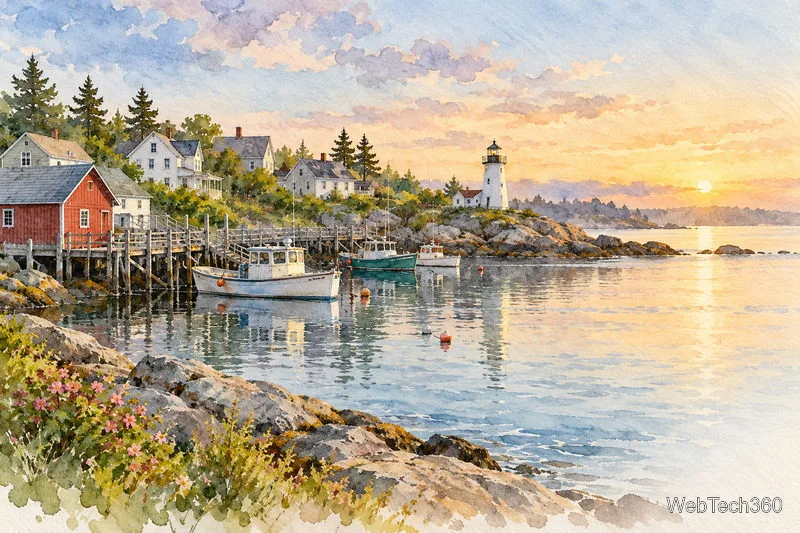
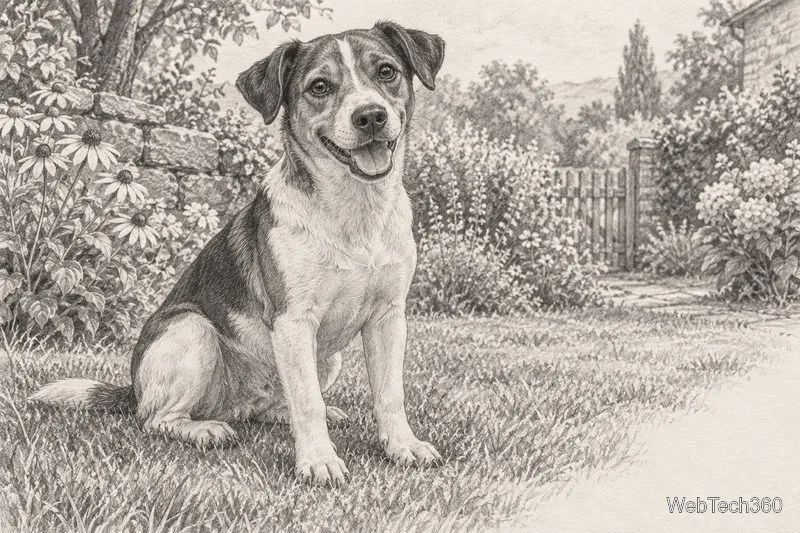
The steps below describe the newer Studio interface. FotoSketcher Classic 3.98 is also listed for Windows; its menus may look different. The artwork examples in this guide illustrate possible style directions; they are not screenshots or verified outputs from FotoSketcher.
A clear source photograph with a recognizable subject is a good starting point for an artistic effect.
Choose a photo and install FotoSketcher
Pick a photo with a distinct subject and enough light to show its edges and colors. Portraits, pets, buildings, and landscapes can all work, but a very blurry or underexposed image may remain hard to read after an effect is applied. If the file is noisy, Studio 4.60 includes a Denoise effect in Photo Lab that you can try before adding an artistic look.
Download the installer for your operating system from the developer’s site. On Windows, choose the setup version for a regular installation or the portable ZIP if you prefer a no-setup copy. The official page also provides a macOS build for Intel and Apple processors. Avoid third-party download pages so you can confirm you have the developer’s current release.
Convert a photo to a painting or sketch
Open the image. Launch FotoSketcher Studio and use the Open control to select a picture. You can also drag a supported image onto the canvas. The official guide lists JPG/JPEG, PNG, and BMP as input formats; if a file does not open, save a copy in one of those formats and try again.
Pick an effect. Browse the Artistic Filters categories and select a look. Try a watercolor or oil-painting effect for blended color, or a pencil and pen-and-ink effect when you want lines to stand out. For flatter, poster-like colors, try the Vectorize effect added in Studio 4.60; it can export genuine SVG artwork. Available controls depend on the effect you choose.
Adjust the preview. Use the effect’s preview and sliders to compare settings. Make small changes and look at the whole composition as well as faces, edges, and fine details. If the effect looks too strong, reduce its intensity or choose a subtler style. Studio keeps an editing history, so you can undo a step and compare with the original rather than starting over.
Apply and save. When the preview is close to what you want, apply the effect to the full image, then use Save or Ctrl+S. Choose JPEG for a compact shareable file, PNG if you expect to edit the image again, or WebP where supported. Keep the original photo as a separate file. If you used Vectorize, choose SVG when you need scalable vector artwork.
Watercolor-style reference: this soft treatment is an illustration of the look, not a FotoSketcher result.Pencil-sketch reference: line-focused effects can emphasize a subject’s outline and texture.Cartoon-style reference: flatter colors and stronger outlines create a more graphic appearance.
Tips for a better result
Start with the right crop. Remove empty space that distracts from the subject before applying an effect. A tighter crop often makes a portrait or pet easier to read.
Preview more than one style. A detailed landscape may suit watercolor, while a high-contrast portrait may work better as a sketch. There is no single best setting for every photo.
Check the full-size image. A small preview helps you experiment, but inspect the applied image before printing or sharing. Fine details can look different at full size.
Save a working copy. Keep the original untouched and export another version for each style you want to compare. This makes it easy to return to the photo or revise the result later.
Is FotoSketcher free, and does it upload photos?
FotoSketcher is offered as freeware, with no account or subscription required. The developer says the effects run locally on your computer and the photos are not uploaded, so the app can be used offline after download. For help with a specific control or effect, consult the official help page and Studio user guide. The developer’s Studio 4.60 release notes describe the current additions, including Denoise and Vectorize.