Home
» WINDOWS
»
NeoDownloader: Set Parameters and Batch-Download Images from Websites
NeoDownloader: Set Parameters and Batch-Download Images from Websites
NeoDownloader batches images from a webpage, gallery, or selected part of a site. In version 6, create a project from a URL, choose its crawl scope, then set file types, size and resolution limits, and destination. This walkthrough follows the developer’s help pages checked November 1, 2026.
Start with the specific gallery or page that contains images you are permitted to save.
1. Start a project from the right address
Install NeoDownloader from the official download page. As checked November 1, 2026, it lists version 6.0.1 for 64-bit Windows 10/11, plus builds for macOS 12+ and supported 64-bit Linux. Check compatibility before installing.
Select New project and paste a page or gallery URL, or drag its browser link into the app. Direct image links and lists (one per line) also work. Keep one site per project because the first address selects the plugin.
Accept the suggested site plugin when available. For an unrecognized site, choose Crawler.
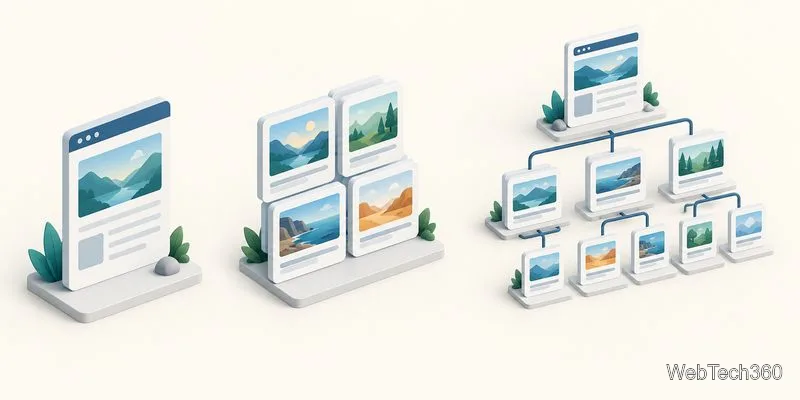
If Crawler asks where files come from, choose Just this page, Gallery or album, or The whole site, or a part of it. Choose the narrowest scope; broad scans may find unrelated files.
Choose a page or album for a focused batch; expand the crawl only when you need a wider collection.
For an unfamiliar site, Crawler has Pictures selected by default. Clear Video, Audio, Documents, and Archives unless needed. If you expand the crawl, restrict its address patterns. The official Crawler guide explains exceptions, external links, and scan depth.
2. Define the download parameters
On the final Name and folder step, name the project and choose its destination (by default, the app’s download folder plus the project name). Start downloading right away is on by default. Select Open advanced settings to configure first; project settings are also available later under Properties. App-wide preferences are under Settings.
Limit the crawl. In Site settings, narrow allowed address patterns and add exceptions. Scan depth defaults to three steps and can go up to 20. For external links, choose ignore, take files only, or follow pages; files only keeps the crawl from expanding across sites.
Keep only intended file types. Select Pictures for an image-only project. Add other categories only when you need them.
Set size and resolution limits. Filters accept minimum and maximum file size in bytes (zero means no limit) and minimum picture width and height. Dimensions are checked after download, so rejected images may still use bandwidth. A size filter may not help if the site does not report file size in advance.
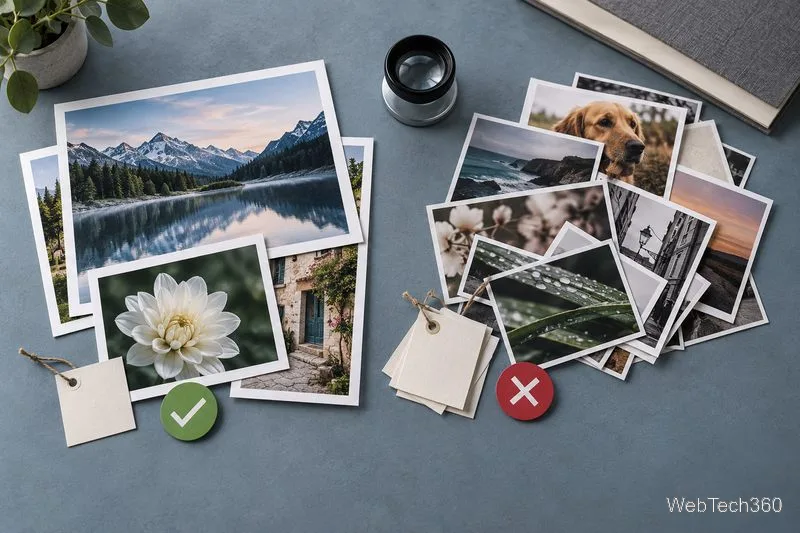
Size and minimum-dimension filters help reduce unwanted results; check the retained files after the run.
If a setting is unclear, check its in-app description or test the scope with a small project first.
3. Create the project and monitor the batch
Click Create project. If automatic start is enabled, the scan and download begin. The project card shows status and file count; its Files, Journal, and Properties tabs show results, activity, and settings. Check the Journal for errors or an empty scan. Stopping a run keeps files already saved, and an unfinished run may offer a continue option.
The free version allows 100 images per project and up to 10 projects, with no time limit. Premium removes these caps; check the developer’s plan details before a large batch.
4. Review the files and adjust if needed
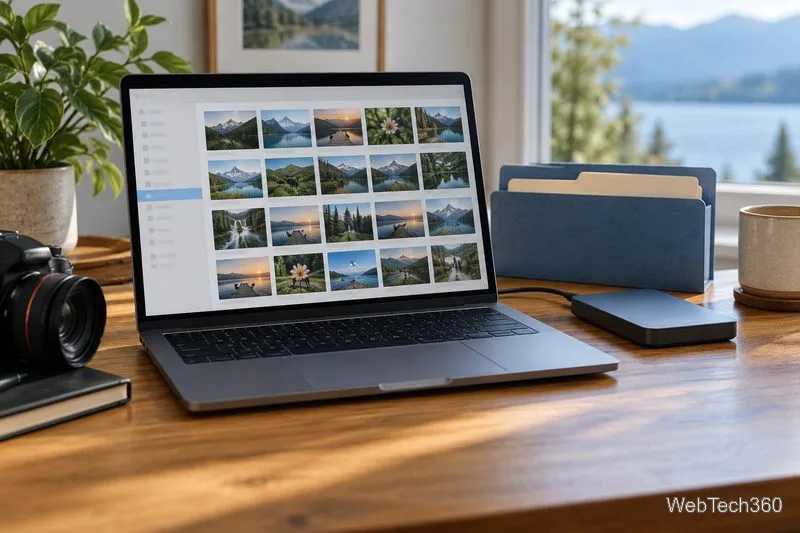
In Files, switch among List, Tiles, and Gallery views; filter by Kind, search by name, or sort by size and resolution. Set crawler filters before a run, then use these controls to review what was saved. Open a file’s source page when you need to confirm where it came from.
Review the saved collection in its project folder and confirm the files you intended to keep.
If no images appear, confirm the address opens in a browser, review the plugin and crawl scope, and check the Journal. JavaScript-heavy pages may need Crawler’s browser option, which can be slower. Sign in only through the site’s normal flow and follow its access rules. See the official New project, Files, and Downloading guides for troubleshooting.
Check permission before saving images
Using a downloader does not grant image rights. Follow the site’s terms and each image’s license; save content you created, are licensed to use, or otherwise have permission to download. NeoDownloader’s download guidance says the app does not evaluate site terms or decide whether a download is authorized.