Home
» WINDOWS
»
Track Work Hours and Computer Usage With ManicTime
Track Work Hours and Computer Usage With ManicTime
ManicTime tracks how you use your computer and helps turn that activity history into a record of work hours. Instead of requiring you to start a timer every time you switch tasks, the Windows app records active and idle periods, foreground applications, and supported websites or documents in the background. You can then review the day, assign project tags, and produce a timesheet.
It is especially useful when you need to reconstruct time spent on client work, understand which apps consume your day, or distinguish computer activity from billable work. The two are not automatically the same: an open app is evidence of usage, not proof that an entire period was productive.
What ManicTime records
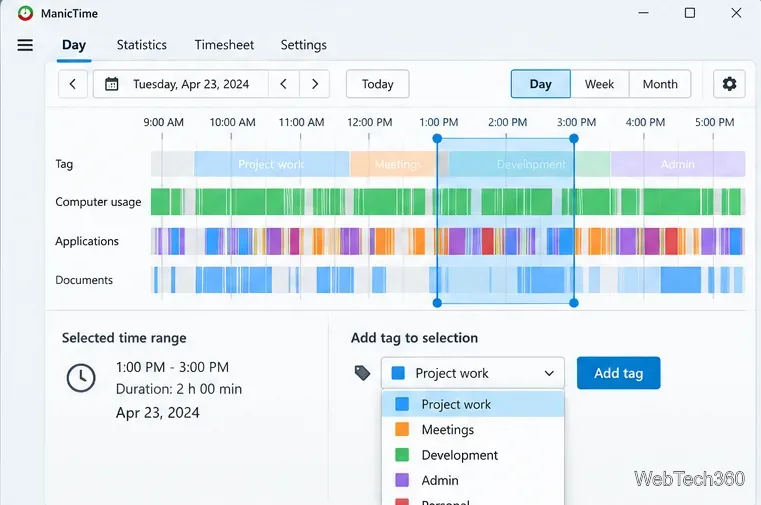
ManicTime's Day view brings together four timelines:
Tags: your own labels for projects, tasks, meetings, or personal time. Unlike the other timelines, these generally need to be added by you or through configured automation.
Computer usage: periods when the computer is active versus away or idle.
Applications: the application and foreground window used at a particular time, rather than every program running in the background.
Documents: document titles and website activity where the application or an installed integration supports that information.
Click a timeline to inspect individual entries, start and end times, and durations. The accompanying summary groups time by application or another relevant category. Document coverage varies by app, so a blank document entry does not necessarily mean nothing was being worked on. See the official Day view guide and tracking documentation.
The Day view separates active computer time, foreground applications, and documents into different timelines.
How to track work hours with ManicTime
Install the Windows client. Download ManicTime from the official Windows download page. It supports Windows 10 and later. The page listed version 2026.2.4, released October 23, 2026, when this guide was checked.
Let it collect normal activity. Work as usual for a while. ManicTime tracks usage automatically; you do not need to start a stopwatch for basic application history.
Review the Day view. Choose the date and scan the Computer usage, Applications, and Documents timelines. Select an entry to inspect its duration, then compare it with adjacent activities.
Mark actual work. Drag across the relevant time range and choose Add tag. Use consistent labels such as “Client A, Website, Design” or “Internal, Meetings.” Leave unrelated browsing and breaks out of client-work tags.
Use the timeline as a memory aid rather than automatically treating every active minute as work. If a meeting or phone call happened away from your computer, add the appropriate work record using the tagging tools instead of relying on keyboard activity alone.
Selecting a time range makes it possible to assign a project or task tag to the recorded activity.
Find your most-used applications
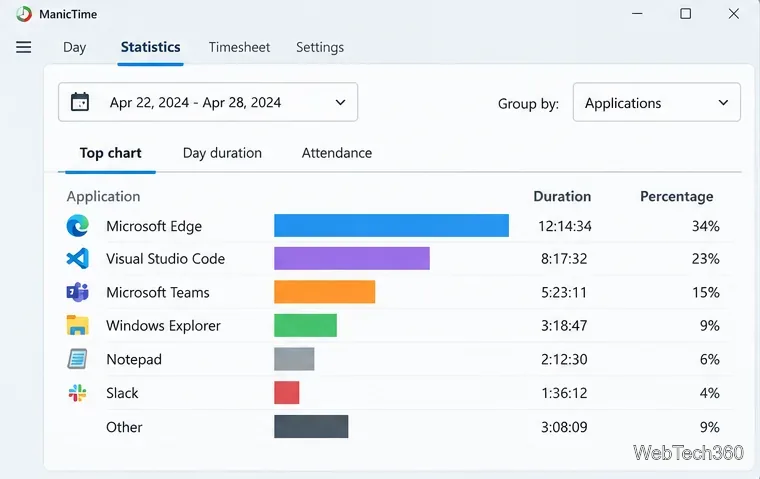
Open Statistics to analyze a date range. ManicTime offers views for top groups, daily duration, attendance, and custom statistics. For example, selecting a top-applications chart can show how much time went to a browser, code editor, meeting app, or document editor over a week.
This is helpful for spotting patterns such as frequent context switching or unusually long stretches in one application. However, the same browser can be used for research, personal shopping, and client work. Review the underlying activity before drawing conclusions about productivity. For available chart types and filters, consult the ManicTime Statistics documentation.
A top-applications chart helps identify where recorded computer time went.
Build a timesheet and export work hours
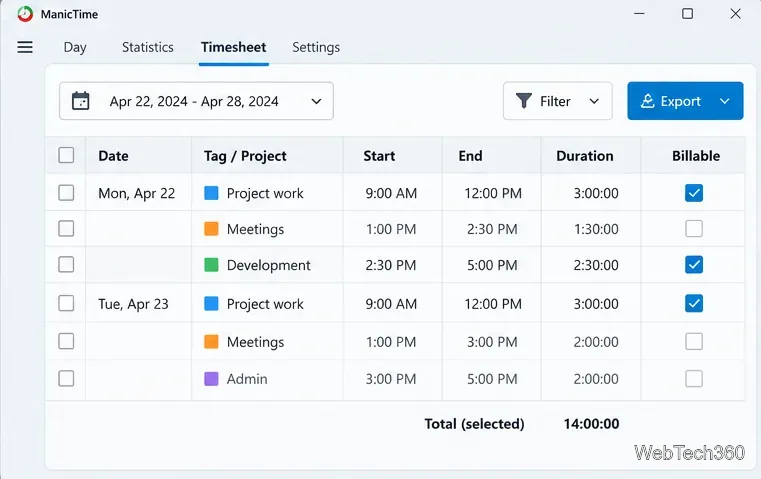
After you have tagged your work, open Timesheet, choose a date range, and generate a report. The report can group recorded hours by project, client, or another level of your tag structure, making it easier to prepare an invoice or weekly status update.
For a clean report, keep project names consistent, check that tagged periods do not include personal time, and decide whether rounding is appropriate for your billing policy. ManicTime supports exporting timesheets to CSV, copying results to the clipboard, and a QuickBooks-oriented export. If you need the raw activity history instead, the Windows client's Tools > Export option exports timeline data. The official Timesheet guide explains grouping, filtering, rounding, and export options.
A timesheet groups tagged work into reportable project hours and can be exported.
Check privacy settings before recording
Time tracking can reveal sensitive window titles, websites, or document names. In Settings > Tracking, you can limit tracking to scheduled hours, exclude particular applications or websites, and control whether window titles and document details are recorded. The default idle threshold is 10 minutes, which you can adjust to fit your work routine.
Screenshot capture is a separate setting and should not be assumed to be disabled merely because window-title tracking is disabled. Review Settings > Screenshots if you use that feature; screenshots are not necessary for basic time tracking. On a shared or employer-managed computer, also follow your organization's privacy and monitoring rules. These controls are documented under Tracking settings and Screenshots.
Is ManicTime free?
ManicTime offers a 30-day trial. The product now has cloud subscriptions and license options, so the old fixed $67 Pro price is not a reliable current buying guide. Compare the features, devices, and terms on the official pricing page before choosing a plan.
Bottom line: ManicTime is best used in two stages: let it capture a factual history of computer activity, then apply thoughtful tags to turn that history into useful work-hour reports.