Home
» WINDOWS
»
How to Set a Different Wallpaper on Each Monitor in Windows 10
How to Set a Different Wallpaper on Each Monitor in Windows 10
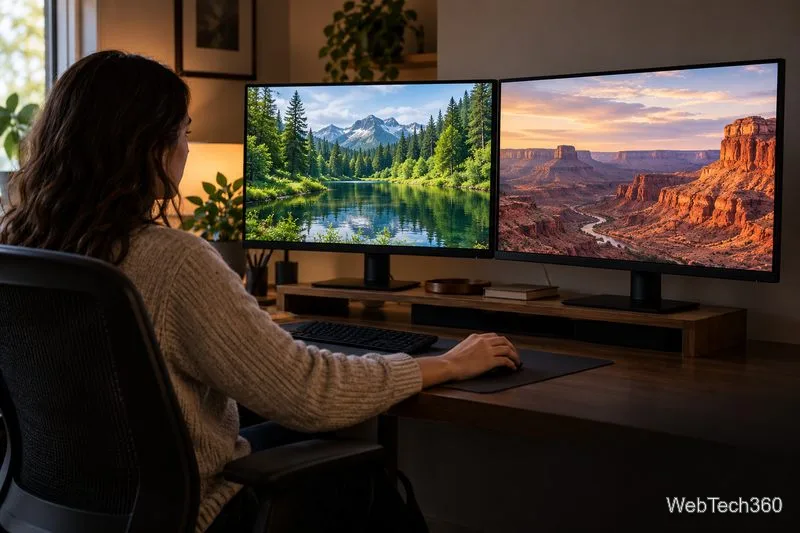
Yes. Windows 10 can use a different static wallpaper on each monitor. Go to Settings > Personalization > Background, choose Picture, then right-click a picture thumbnail and assign it to a specific monitor. Repeat for each display. If Windows shows desktop choices instead of monitor choices, check that the displays are extended and that you are not using multiple virtual desktops.
A dual-monitor setup can show a separate background on each screen.
Make sure Windows detects both monitors
Before choosing pictures, confirm that Windows sees each physical display. Press Windows + P and choose Extend. The Duplicate option mirrors one desktop across screens, so it is not the right mode for a multi-monitor workspace with separate backgrounds.
Open Start > Settings > System > Display.
Select Identify to show a number on each screen. Note which physical monitor is numbered 1, 2, and so on.
If a connected monitor is missing, expand Multiple displays and choose Detect. Check the cable or dock if Windows still does not list it.
Microsoft’s multiple-monitor guide covers Extend, Identify, Detect, and arranging displays. The wallpaper menu uses Windows’ monitor numbers, so identifying them first prevents assigning a picture to the wrong screen.
Set a different wallpaper on each monitor
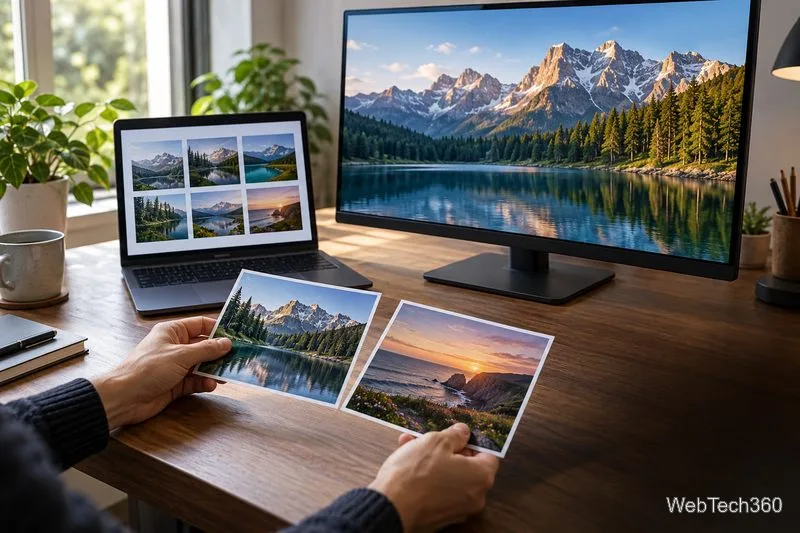
Have one image file ready for each screen. Keeping the pictures together in a folder makes them easier to find, but Windows does not require the images to share a folder when you browse for them.
Choose the pictures you want before assigning each one to a monitor.
Open Start > Settings > Personalization > Background. You can also right-click an empty area of the desktop and choose Personalize.
Under Personalize your background, select Picture.
Select Browse, choose the first image, and select Choose picture.
Under the recent picture thumbnails, right-click the image you want to assign. Choose Set for monitor 1 (or the matching monitor number).
Browse for another image if it is not already shown in the thumbnails. Right-click that image and choose Set for monitor 2. Repeat for each additional display.
The change should appear immediately. Microsoft’s desktop-background instructions also describe choosing a picture and right-clicking it to set the same or a different image for each display.
Assign each selected picture to the monitor number identified in Display settings.
If the monitor choices are missing
Check the background type. Choose Picture for fixed images. If you select Slideshow, Windows cycles through a folder instead.
Check virtual desktops. Microsoft notes that per-monitor picture assignment is unavailable while multiple desktops are in use. Press Windows + Tab, close extra virtual desktops if you can, then return to Background settings.
Check display mode and detection. Use Windows + P > Extend, then revisit System > Display and run Detect if needed.
Some older Windows 10 tutorials recommend opening the legacy Desktop Background Control Panel page with control /name Microsoft.Personalization /page pageWallpaper. Microsoft documents the command format and the pageWallpaper page name, but its canonical-name table lists that Personalization item for Windows versions only through Windows 8.1. Treat the command as a build-dependent fallback: if it redirects or fails, use Settings. See Microsoft Learn’s Control Panel command instructions and canonical-name list.
Choose how each image fits
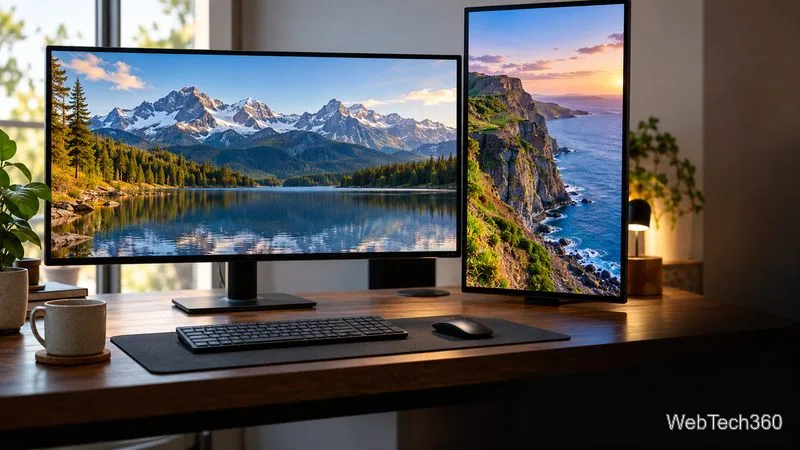
If a wallpaper looks cropped or stretched, open the Background page’s Choose a fit menu. Fill covers the screen but may crop the edges; Fit preserves the full image but can leave bars; Stretch fills the screen but may distort the picture. A portrait monitor may need a portrait-oriented image to avoid a large crop.
Different screen shapes can crop the same image differently; choose a fit that suits each wallpaper.
For one panorama spanning all displays, choose Span instead of assigning separate images. To rotate backgrounds, select Slideshow and choose a folder; Microsoft says each screen displays a different picture from that folder. Windows 10 support ended on October 14, 2025, although this personalization setting remains available on existing installations.
Common questions
Can I use the same picture on every monitor?
Yes. On the Background page, right-click the picture and choose the option to set it for all displays. To restore separate images, assign a different thumbnail to each monitor number.
Why does one image keep appearing on both screens?
Confirm that Picture is selected and that you chose Set for monitor on the thumbnail, rather than using the general desktop-background command. Also check that Windows is in Extend mode and detects every monitor.